

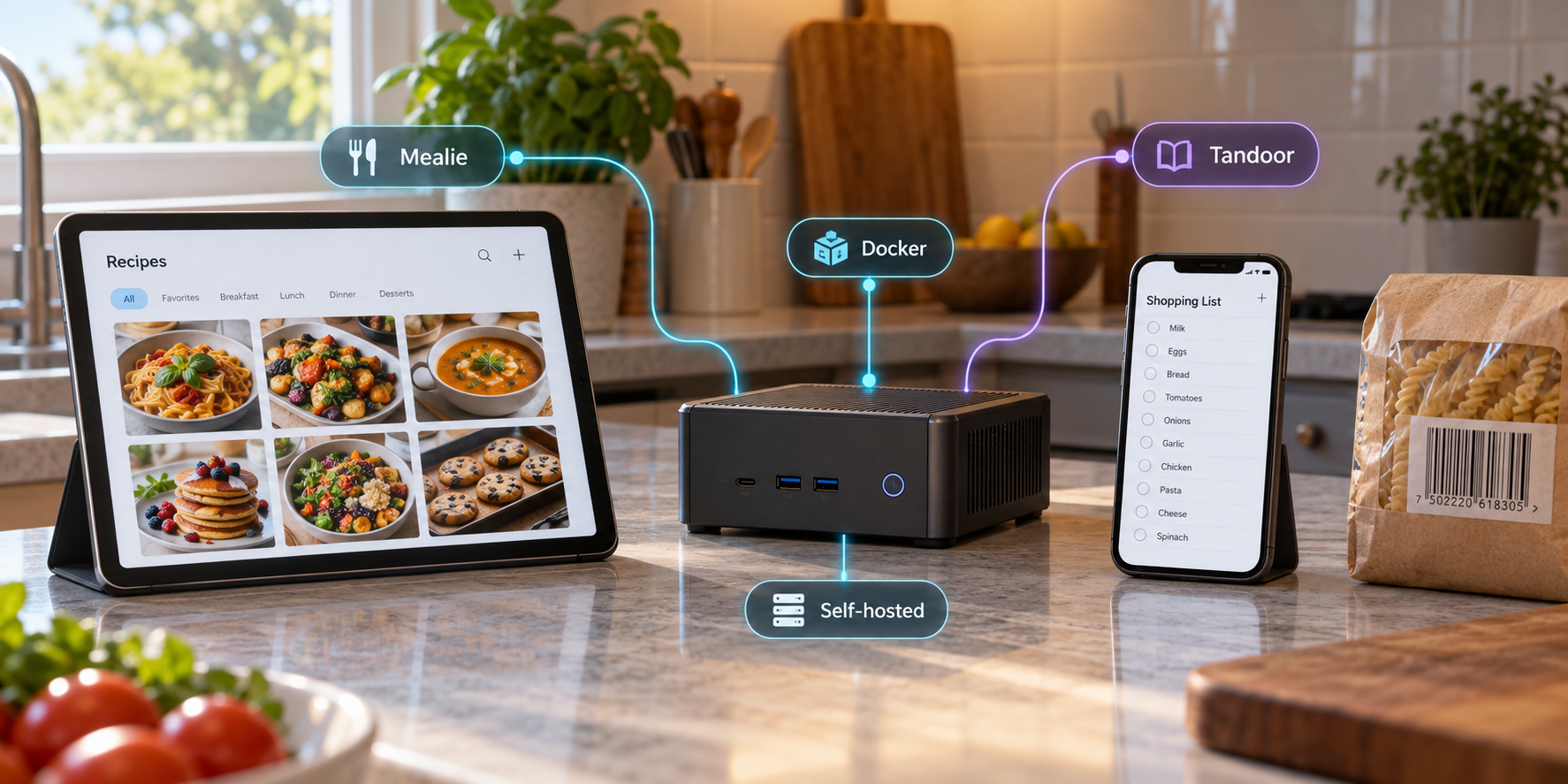
Build a private recipe library that you can operate, protect, back up, and reach away from home
Mealie and Tandoor are open-source recipe managers designed for self-hosting. Both can organize recipes, meal plans, and shopping workflows, but their deployment models and detailed capabilities vary by release. This guide explains how to choose between them, deploy from the current upstream Docker Compose files, verify the application locally, expose it through a Localtonet HTTP tunnel, and maintain reliable backups. It deliberately avoids floating image tags, unverified feature promises, and version-specific internal commands.
📋 What's in this guide
How the self-hosted architecture works
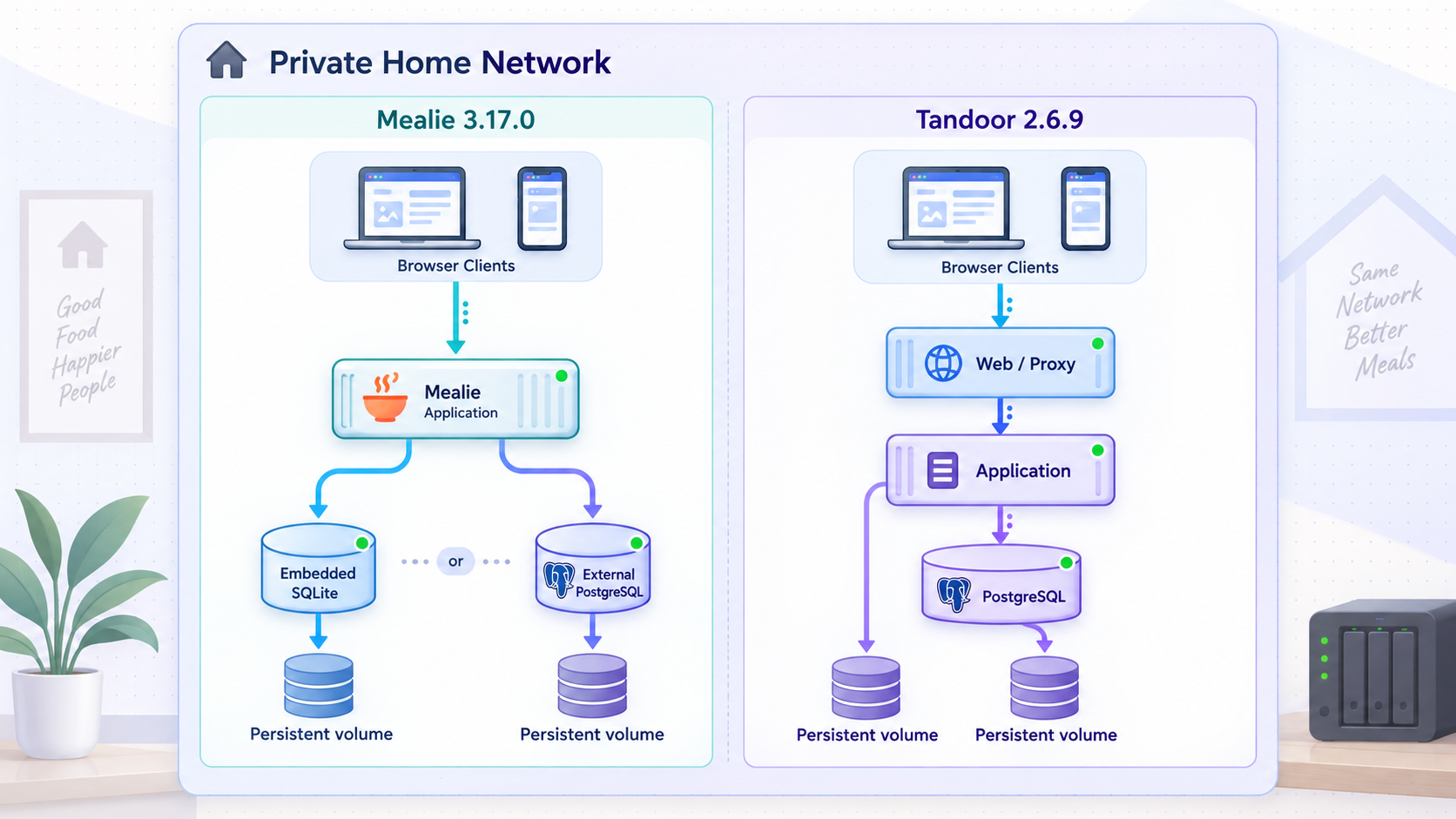
A self-hosted recipe manager is a web application running on hardware you control. That hardware might be a small home server, a network-attached storage device with supported container features, a virtual machine, or a 64-bit single-board computer that is compatible with the images published by the selected project.
Docker Compose describes the application containers, networks, persistent storage, and environment configuration. Mealie can be deployed with an application container and persistent application data, while larger deployments may use PostgreSQL. Tandoor deployments commonly include the application and PostgreSQL, with static and media handling determined by the current upstream deployment files. Do not assume that a hand-written reverse-proxy layout from an older tutorial still matches the current Tandoor release.
The local application listens on a host port. A browser on the same LAN connects directly to that local address. If you add Localtonet, the Localtonet client on the server establishes an outbound connection to one of our relay servers. A remote browser connects to the assigned public HTTPS address, the relay passes the request through that outbound connection, and the client forwards it to the local recipe manager.
Creating a tunnel does not start it. The selected Localtonet client must be connected and the tunnel must be running. Remote access ends when the client disconnects or the tunnel is stopped.
We recommend proving the application locally before creating any public route. This separates application problems from tunneling problems and avoids exposing an incomplete installation.
Mealie vs. Tandoor: choose by workflow, not a feature-count snapshot
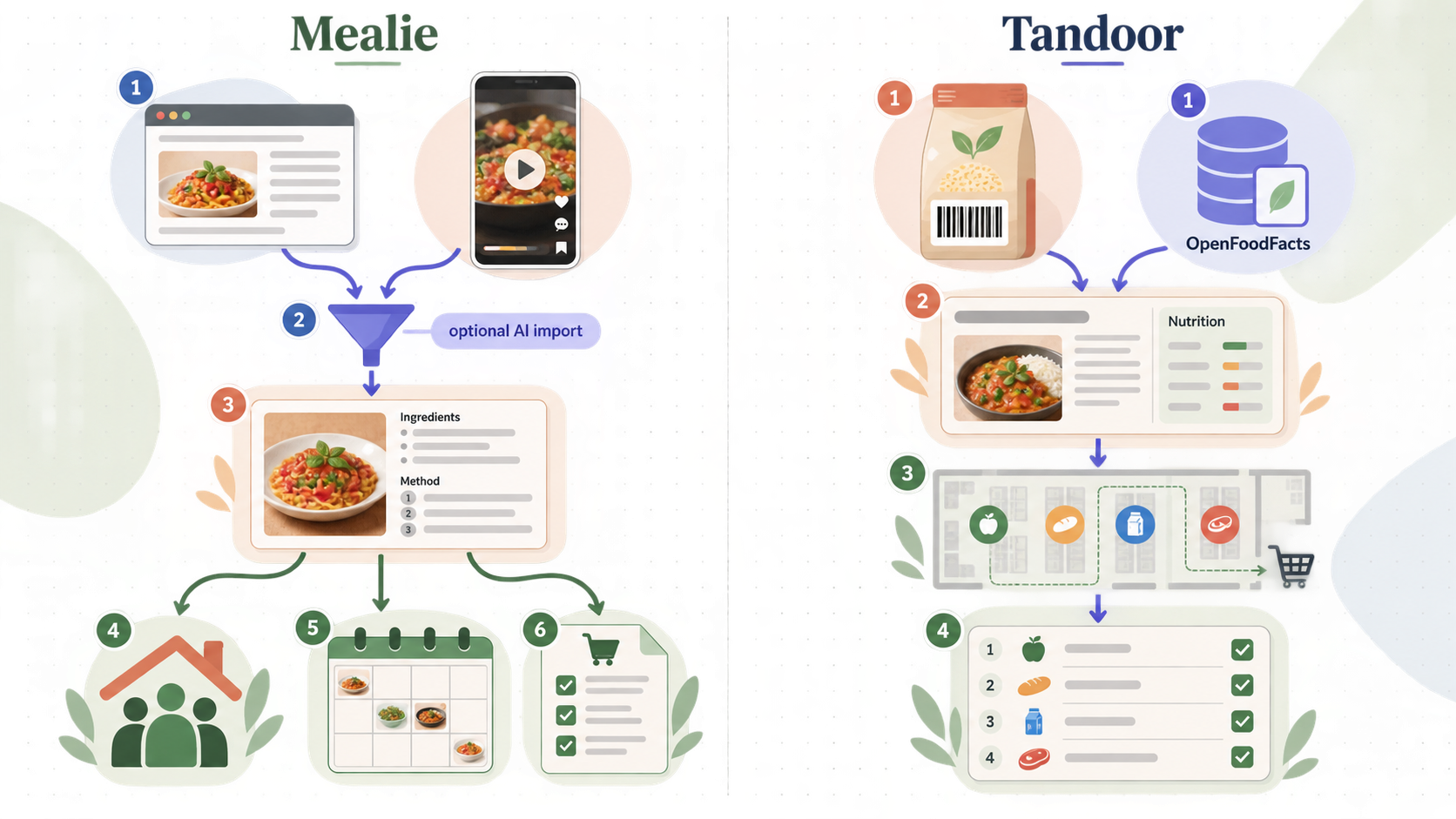
Both projects evolve over time, so version numbers, menu paths, integrations, import compatibility, mobile behavior, and deployment files can change. A comparison should therefore focus on durable architectural differences and on features you confirm in the release you intend to install.
| Decision area | Mealie | Tandoor |
|---|---|---|
| Typical starting point | A streamlined recipe-management application with a relatively simple home deployment path. | A feature-rich recipe and meal-planning application built on Django, normally deployed with PostgreSQL. |
| Database choice | Deployment options may include application-managed local data or PostgreSQL, depending on the selected release and scale. | Current upstream deployment guidance should be followed for PostgreSQL configuration and migration behavior. |
| Deployment files | Use the Compose example published for the exact Mealie release you select. | Use Tandoor's current deployment files so static files, media, migrations, proxy headers, and readiness behavior remain aligned. |
| Recipe import | URL import is available, but success depends on the source page, structured metadata, anti-bot measures, and the installed release. | URL and other import paths may be available, but supported sources and formats are version-dependent. |
| Meal and shopping workflows | Includes recipe, meal-planning, and shopping-list workflows. Exact merging and unit behavior depends on normalized data and application configuration. | Includes recipe, meal-planning, and shopping workflows, with detailed organization options that should be evaluated in the current release. |
| Mobile use | Browser installation or PWA behavior depends on the release, browser, HTTPS context, and cached resources. | Browser installation or PWA behavior is similarly dependent on the current application and browser implementation. |
| License | AGPL-family licensing is identified by the project. Confirm the license file for the exact source release you deploy. | AGPL-3.0, not MIT. Review the repository license when planning redistribution or modification. |
Choose Mealie when operational simplicity is your priority
Mealie is a practical candidate when you want a focused recipe interface and prefer the simplest deployment supported by the current release. It is still important to inspect the upstream Compose file rather than assuming that a single-container example from an older article remains complete.
Choose Tandoor when its current planning model fits your household
Tandoor is a strong candidate when you prefer its recipe organization and meal-planning model and are comfortable operating PostgreSQL. Database migrations, static assets, uploaded media, proxy settings, and trusted origins all need to follow the current project documentation.
Test uncertain features before committing
Create a temporary local deployment and test the workflows that actually matter to you. Import several representative recipe pages, edit ingredient units, build a shopping list, invite a non-administrator user, upload images, and try the interface on the phone and browser you intend to use. No importer can reliably extract every recipe website because page structures and access controls differ.
If a selected application release offers processing through OpenAI or another external AI provider, enabling it can send relevant prompts, recipe text, images, audio, video, or extracted content to that provider. It may also create separate usage charges. Review the integration's current documentation and the provider's data terms before enabling it. Core self-hosting does not make an optional external integration local.
Prerequisites and deployment planning
Prepare the host before downloading either project. This guide assumes a Linux-style shell for examples, but Docker Desktop and other supported Docker environments can also run Compose projects. Commands and filesystem ownership behavior can differ by operating system.
Host requirements
- A supported 64-bit operating system and processor architecture for the exact images you select.
- Docker Engine or Docker Desktop with the Compose plugin.
- Enough storage for the database, recipe images, application updates, and multiple backup generations.
- A fixed local address or stable local hostname if other LAN devices will connect directly.
- Administrative access for initial directory creation and any ownership corrections.
- A second storage location for backups. A backup on the same disk is not protection against disk failure.
- A Localtonet account and client only if remote access is required.
Resource requirements depend on image architecture, database size, import activity, background jobs, and release. Avoid relying on an uncited memory figure from a blog post. Observe the actual containers after importing representative data.
Verify Docker and Compose
docker version
docker compose version
docker info
All three commands should complete without an unexpected daemon connection or permission error. If your account cannot access Docker, follow your platform's Docker installation guidance. Do not weaken socket permissions as a shortcut. Membership in a Docker administration group can grant extensive control over the host and should be treated accordingly.
Create an isolated project directory
Keep each application in its own directory. This prevents similarly named environment files and Compose projects from colliding.
mkdir -p "$HOME/recipe-app"
cd "$HOME/recipe-app"
umask 077
touch .env
chmod 600 .env
Add secret-bearing files and local data directories to your source-control ignore rules. Do not commit the environment file, database dumps, uploaded media, or generated backups.
.env
backups/
data/
media/
postgres-data/
Generate secrets without embedding them in Compose
Generate independent credentials for the application administrator, database account, and framework secret where the selected deployment requires them. Do not reuse a personal email password or another service's database password.
openssl rand -hex 32
openssl rand -base64 48
Store the generated values in the protected .env file or in a secrets manager supported by your environment. Do not paste real secrets into shell commands that will remain in history, issue trackers, screenshots, or chat messages.
Select and record an exact release
Do not use a floating latest tag for a reproducible installation. Choose a published application release, download the deployment files associated with that release, and record both the release tag and image digest. A tag identifies the intended release, while a digest prevents the referenced image content from changing unexpectedly.
The exact current tags and digests are intentionally not hardcoded here because they are time-sensitive. Obtain them from the release you have reviewed. Your maintenance record should include the application release, database image release, deployment-file revision, installation date, and the location of the pre-update backup.
Deploy Mealie or Tandoor from version-pinned upstream files
The safe deployment pattern is the same for both applications: obtain the Compose files belonging to a specific upstream release, inspect them locally, replace floating image references with reviewed release references, configure secrets through a protected environment file, validate the rendered configuration, and then start the project.
Compose variables, proxy behavior, migration entry points, static-file paths, media paths, and readiness checks can change between releases. Presenting an unverified hand-written file as an official architecture would be unsafe. Use the deployment files shipped by the exact Mealie or Tandoor release you select, then apply the verification and operational workflow below.
Mealie deployment workflow
Choose a Mealie release and its matching installation files
Review the release notes and supported architecture. Download the Compose example and environment template distributed for that release. Keep an unchanged copy so you can compare local modifications during future upgrades.
Pin every image reference
Replace floating tags with the exact reviewed release tag. For stronger reproducibility, record and use the corresponding image digest. Apply the same rule to PostgreSQL if your chosen Mealie deployment uses it.
Configure persistent storage and secrets
Confirm that Mealie's complete application data path is mounted persistently. If PostgreSQL is used, persist its data separately and configure a unique database password through the protected environment file. Keep public registration disabled unless you intentionally need it.
Bind the local service conservatively
If only the server and Localtonet client require access, bind the published port to loopback where the upstream configuration and your Docker platform permit it. If LAN users need direct access, bind to the appropriate local interface and restrict access with the host firewall.
Validate and start the project
Render the Compose configuration, review it for unexpected ports or missing variables, pull the pinned images, and start the deployment.
docker compose config
docker compose pull
docker compose up -d
docker compose ps
docker compose logs --tail=200
Tandoor deployment workflow
Choose a Tandoor release and matching deployment files
Use the files attached to or documented for that release. Do not combine a current application image with an old custom Nginx file because proxy headers, static paths, media paths, and application expectations may no longer match.
Pin the application, database, and proxy images
Replace every floating tag in the selected deployment. Record the image digests before first use. PostgreSQL major-version upgrades require their own migration plan and must not be treated like an ordinary container restart.
Configure the protected environment file
Set the documented framework secret, database values, host or origin settings, and signup policy for that release. Use strong generated values. Add the eventual public HTTPS origin only through the variables documented by Tandoor.
Verify static, media, and database persistence
Confirm that uploaded media and PostgreSQL data are persistent and included in your backup design. Static assets may be reproducible from the application image, but follow the selected upstream deployment rather than guessing which directories should be shared.
Start and wait for documented readiness
Start the project, inspect every service, and watch logs for migration or connection errors. Do not assume that a running container means the web application is ready.
docker compose config
docker compose pull
docker compose up -d
docker compose ps
docker compose logs --tail=200
If the upstream deployment defines health checks, wait until required services report healthy. If it does not, use application logs and an HTTP request to the local port. Avoid inventing a health endpoint that the release may not provide.
Initialize the application and verify local operation
Initialization should happen before public exposure. The exact first-run screen and administrator workflow are release-dependent, so follow the prompts displayed by the installed application rather than relying on an old menu path.
Confirm the containers and local port
docker compose ps
docker compose logs --tail=200
Check that expected services remain running, the database is not repeatedly restarting, and there are no permission, migration, connection, or missing-secret errors.
Open the local address shown by the reviewed Compose configuration. From the host, an HTTP header check is also useful:
curl -I http://127.0.0.1:YOUR_LOCAL_PORT/
Replace YOUR_LOCAL_PORT with the host port in your own configuration. A redirect to a login or setup page can be normal. A connection refusal means nothing is listening at that address. A gateway error generally means a frontend component cannot reach the application.
Create the administrator safely
- Use a unique, randomly generated password.
- Do not reuse the database password for the administrator.
- Disable or leave disabled open registration unless intentionally required.
- Create ordinary household accounts for routine use instead of sharing the administrator account.
- Review role and group behavior in the installed release before inviting users.
Run a functional acceptance test
Before adding real data, create a temporary recipe manually. Upload an image, edit ingredients, add the recipe to a meal plan or shopping workflow, sign out, and sign back in. Restart the Compose project and confirm the test data remains present.
docker compose restart
docker compose ps
docker compose logs --tail=100
Next, test recipe import with a page you are permitted to access. Review the imported title, ingredient quantities, units, instructions, and image. Importers depend on source-page markup and can make mistakes. Imported recipes should be treated as drafts until reviewed.
Expose Mealie or Tandoor with a Localtonet HTTP tunnel
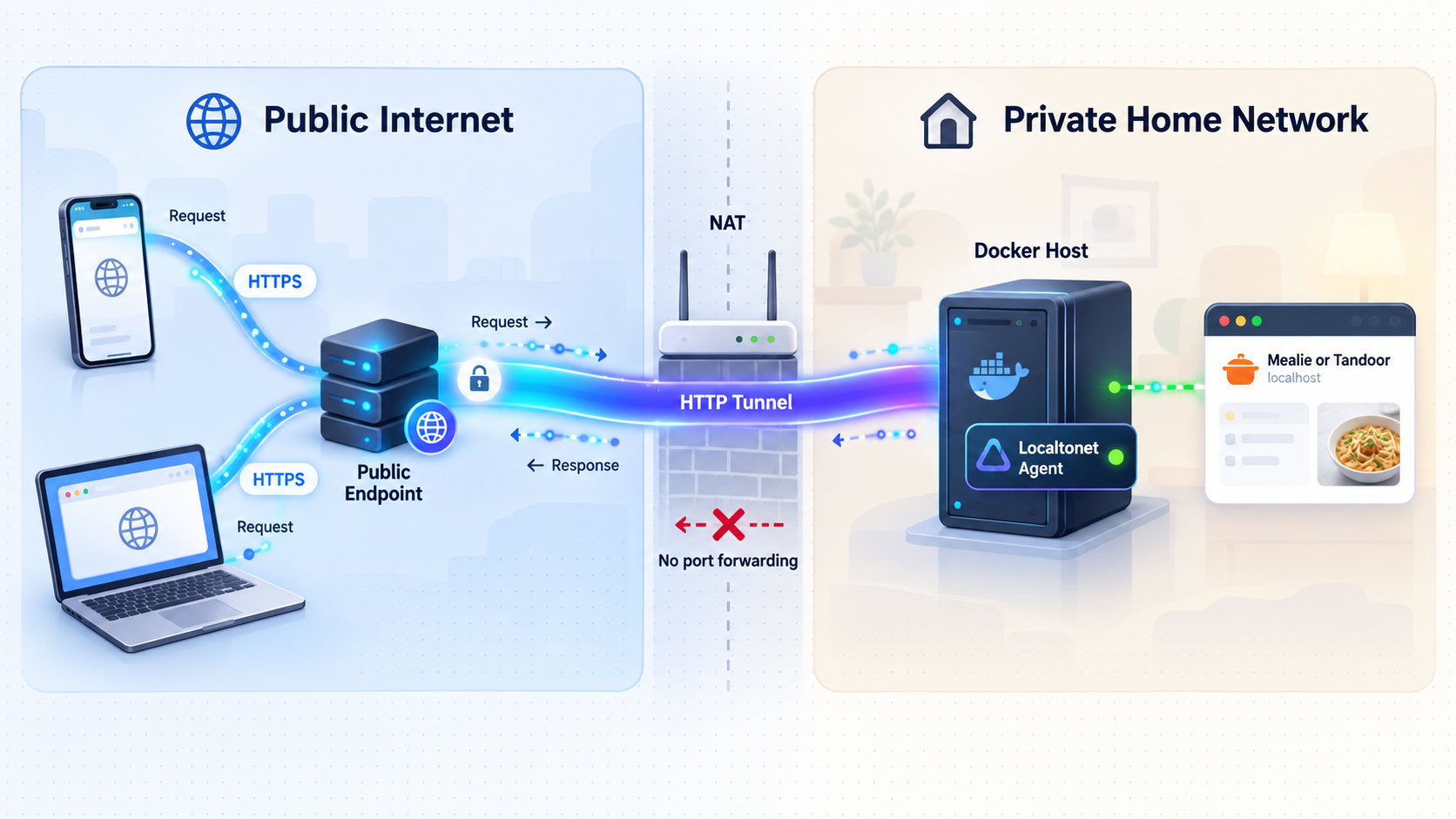
Once the recipe manager works locally, an HTTP tunnel can make it available through a public HTTPS address. With Localtonet, the client opens an outbound connection to our relay infrastructure. This works without inbound router port forwarding, firewall changes, VPN setup, or a public IP address.
Do not place an authentication token in a published command, Compose file, screenshot, or shell-history example. A Localtonet device AuthToken identifies the client device and must be kept private.
Install and run the Localtonet client
Install the Localtonet application for the operating system on the device that can reach the recipe manager's local IP address and port. Run the client and make sure the device connects successfully.
Select the device AuthToken
In the Localtonet dashboard, select the device-specific AuthToken associated with the connected client. Never copy another device's token into public documentation or guess a token value.
Select an available relay server
Choose a server or region offered by the current dashboard. Available locations can vary, so this guide does not hardcode a server code or promise that every location is available on every plan.
Create an HTTP tunnel and choose Process Type
Select the HTTP tunnel family. Choose the appropriate Process Type: Random Sub Domain, Custom Sub Domain, or Custom Domain. All three serve the local content at a public HTTPS address, but availability and custom-domain requirements must be checked in the current dashboard and documentation.
Enter the local IP address and port
Enter the address and published port that the Localtonet client can reach. If the client runs on the same host and the service is bound to loopback, use the corresponding loopback address. If the client runs on another LAN device, use a reachable private address and restrict LAN access appropriately.
Start the tunnel
Press Start. Creating the configuration alone does not make it active. Record the HTTPS address assigned by the dashboard without assuming a particular hostname format.
Verify from an external network
Disconnect a phone from home Wi-Fi and open the assigned HTTPS address over mobile data. Confirm that the expected login page loads, authentication works, images display, and no administrative setup page is exposed.
For the maintained product workflow, see the Localtonet HTTP tunnel documentation. The dashboard is the authority for current Process Type, relay, subdomain, custom-domain, and plan availability.
Require application authentication before sharing the address. Keep open signup disabled unless intentionally needed, use strong unique credentials, apply least privilege, install security updates promptly, and stop the tunnel when remote access is unnecessary. HTTPS protects traffic in transit to the tunnel edge, but it does not make an unauthenticated application safe.
Configure public-origin and proxy settings carefully
Some application releases require a public base URL, allowed host, trusted origin, or proxy-aware setting. Use only the variable names documented for the exact installed release. For Tandoor, Django host and CSRF protections must not be disabled as a shortcut. Add only the assigned public HTTPS origin through the documented configuration.
After changing an environment value, render the Compose configuration again and recreate affected containers:
docker compose config
docker compose up -d
docker compose ps
docker compose logs --tail=100
Retest login, logout, forms, image uploads, and recipe edits through the public address. A page loading successfully does not prove that POST requests or CSRF validation work.
Security checklist for an internet-reachable recipe manager
Also minimize host exposure. Publish only the application port required for local access. Do not publish PostgreSQL to the internet. Do not expose Docker's control socket to the application containers unless the official architecture explicitly requires it and you understand the privilege implications.
Protect the host itself with supported operating-system updates, restricted administrative access, and a firewall appropriate to the environment. Review container logs for repeated login failures and unexpected requests, but do not place passwords, tokens, or imported private data into publicly shared log excerpts.
Routine operation, updates, and rollback
Inspect status and logs
docker compose ps
docker compose logs --tail=200
docker compose logs --since=30m
For a specific component, append its Compose service name. Discover exact service names from the current project rather than assuming names from another tutorial:
docker compose config --servicesMonitor storage and container behavior
docker system df
docker stats --no-stream
These commands help identify disk growth and current resource consumption. Do not delete volumes or run broad Docker cleanup commands while diagnosing storage pressure. A volume may contain the only database or uploaded-media copy.
Use a controlled update procedure
Read the target release notes
Check for required environment changes, database migrations, removed options, changed ports, and minimum database versions.
Create and verify a pre-update backup
Back up every persistent component and confirm that the resulting files are readable and non-empty. A database dump without uploaded media is not a complete Tandoor backup.
Record the current deployment
Save the current Compose file, protected environment-file backup, image references, image digests, and database version in an encrypted administrative archive.
Update to reviewed pinned references
Modify the Compose file to the target release and digest, validate it, pull the images, and recreate the project.
Run acceptance tests
Verify login, recipe display, search, image loading, editing, imports, meal planning, shopping workflows, and remote access before removing old images or backup generations.
docker compose config
docker compose pull
docker compose up -d
docker compose ps
docker compose logs --tail=200
Plan rollback before updating
Rolling back an image is not always sufficient after a database migration. If the new release changes the schema incompatibly, restore the complete pre-update database and media or application-data backup together, then start the previously recorded image references.
Stop the Localtonet tunnel during a failed upgrade or restore. This prevents users from writing new data while you are returning the application to a consistent point in time.
Complete backup and restore workflows
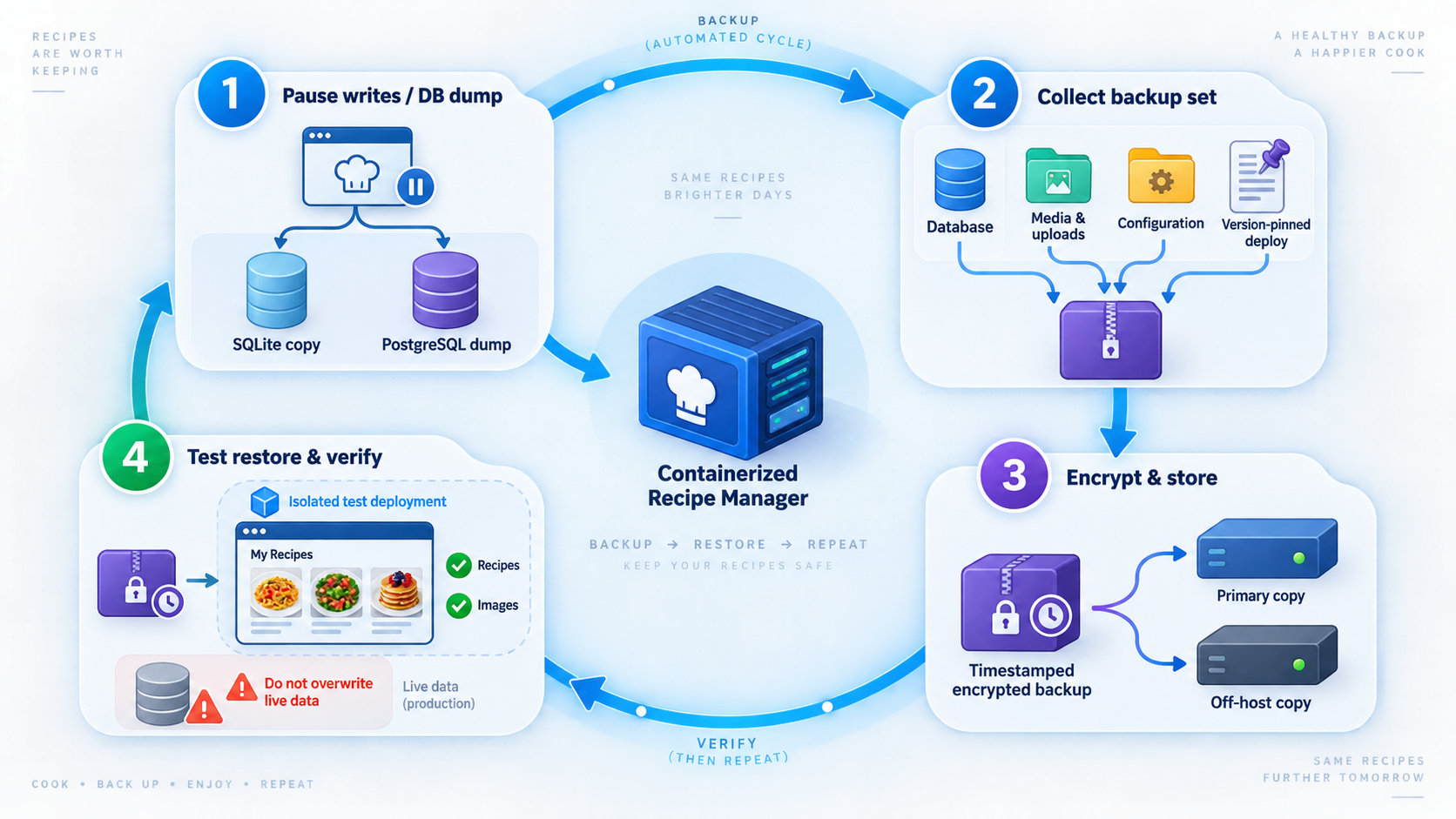
Backups need three properties: completeness, separation from the live host, and a tested restore procedure. Schedule them often enough that the amount of acceptable data loss matches your household's use. Keep multiple generations so corruption or accidental deletion is not copied over the only good backup.
Mealie with application-managed local data
If the selected Mealie deployment stores its complete state in one documented persistent application-data mount, a cold filesystem backup is straightforward. Stop the application to avoid copying a database while it is being written.
mkdir -p backups
docker compose stop
tar -czf "backups/mealie-data-$(date +%Y%m%d-%H%M%S).tar.gz" ./YOUR_MEALIE_DATA_DIRECTORY
docker compose start
docker compose ps
Replace the placeholder with the bind-mounted directory from your reviewed Compose file. If the deployment uses a named Docker volume, use a documented volume backup method or change to a clearly managed bind mount before relying on this command.
Restore Mealie local data
- Stop the Localtonet tunnel.
- Stop the Compose project.
- Move the current data directory aside rather than deleting it.
- Extract the selected archive into the original parent directory.
- Restore the original ownership and permissions recorded during installation.
- Start the same pinned Mealie release used when the backup was created.
- Verify local login, recipes, images, and settings before restarting remote access.
docker compose down
mv ./YOUR_MEALIE_DATA_DIRECTORY ./YOUR_MEALIE_DATA_DIRECTORY.before-restore
tar -xzf backups/YOUR_SELECTED_MEALIE_BACKUP.tar.gz
docker compose up -d
docker compose ps
docker compose logs --tail=200
Mealie with PostgreSQL
A PostgreSQL deployment requires a database dump plus any separate application-data or media mount defined by the selected release. Discover the database service name with docker compose config --services.
DB_SERVICE="YOUR_DATABASE_SERVICE"
mkdir -p backups
docker compose exec -T "$DB_SERVICE" sh -c \
  'pg_dump -U "$POSTGRES_USER" "$POSTGRES_DB"' \
  > "backups/mealie-db-$(date +%Y%m%d-%H%M%S).sql"
Back up the persistent application files separately. Keep the SQL dump and matching file archive under the same timestamp or backup identifier.
Tandoor backup
A complete Tandoor backup must include PostgreSQL and uploaded media. Also retain the Compose file, image references, and required configuration so the environment can be reconstructed.
DB_SERVICE="YOUR_DATABASE_SERVICE"
mkdir -p backups

docker compose exec -T "$DB_SERVICE" sh -c \
  'pg_dump -U "$POSTGRES_USER" "$POSTGRES_DB"' \
  > "backups/tandoor-db-$(date +%Y%m%d-%H%M%S).sql"

tar -czf "backups/tandoor-media-$(date +%Y%m%d-%H%M%S).tar.gz" \
  ./YOUR_TANDOOR_MEDIA_DIRECTORY
Use the service and media-directory names from the exact upstream deployment. If uploaded content is stored in a named volume, back up that volume rather than assuming a host directory.
Restore a PostgreSQL-based deployment
Restore into an empty database that matches the database major version expected by the backed-up release. The following sequence is intentionally expressed with placeholders because service and database names belong to your reviewed deployment.
DB_SERVICE="YOUR_DATABASE_SERVICE"

docker compose down
mv ./YOUR_MEDIA_DIRECTORY ./YOUR_MEDIA_DIRECTORY.before-restore
tar -xzf backups/YOUR_SELECTED_MEDIA_BACKUP.tar.gz

docker compose up -d "$DB_SERVICE"
docker compose exec -T "$DB_SERVICE" sh -c \
  'dropdb -U "$POSTGRES_USER" --if-exists "$POSTGRES_DB" &&
   createdb -U "$POSTGRES_USER" "$POSTGRES_DB"'

docker compose exec -T "$DB_SERVICE" sh -c \
  'psql -U "$POSTGRES_USER" "$POSTGRES_DB"' \
  < backups/YOUR_SELECTED_DATABASE_BACKUP.sql

docker compose up -d
docker compose ps
docker compose logs --tail=200Stop public access, confirm the selected backup, preserve the current data, and test the procedure on a separate deployment first. Never run database deletion or volume-removal commands as casual troubleshooting.
Test restores regularly
A successful archive command does not prove recoverability. Periodically restore a backup to an isolated Compose project with different local ports. Confirm that users, recipes, images, meal plans, and settings are present. Record the test date and any corrections needed.
Troubleshooting without destroying data
| Symptom | What to inspect | Safe response |
|---|---|---|
| Compose rejects the configuration | Missing environment variables, invalid YAML, or obsolete fields | Run docker compose config. Compare the local files with the unchanged files from the selected release. |
| A container repeatedly restarts | Recent logs, filesystem permissions, missing secrets, and database connectivity | Inspect docker compose logs --tail=200. Correct the specific error without deleting volumes. |
| The application starts but the browser cannot connect | Published port, bind address, host firewall, and listening service | Check docker compose ps and test the exact local URL from the host before investigating the tunnel. |
| Tandoor returns a gateway error | Application readiness, database migrations, upstream service name, and frontend logs | Inspect all Compose service logs. Use the upstream proxy configuration belonging to the installed release. |
| Forms fail through the public address | Allowed hosts, trusted HTTPS origin, public base URL, and forwarded-protocol handling | Configure only the documented host and CSRF variables for that release. Do not disable CSRF validation. |
| Recipe import produces incomplete data | Source-page structure, authentication, anti-bot controls, and application logs | Review and correct the imported draft manually. Do not assume every website or URL is supported. |
| Local access works but the public address does not | Localtonet client connection, selected AuthToken, target IP and port, and tunnel status | Confirm the selected client is connected and press Start for the tunnel. Verify again from an external network. |
| Images disappear after a restart | Persistent volume mappings and filesystem permissions | Stop writes, preserve the current directory, and correct the documented media or data mount. Restore from backup if required. |
| An update causes errors | Release notes, migration logs, changed variables, and database compatibility | Stop the tunnel. If the issue cannot be corrected safely, restore the full pre-update backup and previous pinned deployment. |
Check directory ownership without guessing
Permission errors often occur when the container runs as a different user from the host directory owner. First inspect the upstream image documentation and current container configuration. Do not recursively assign world-writable permissions. Record working ownership and modes so they can be restored after moving data.
ls -la
docker compose config
docker compose ps
docker compose logs --tail=200
Do not delete data to reset a password or fix startup
Removing a database volume or application-data directory destroys recipes and accounts. Use the password-reset or administrator-recovery procedure documented for the exact application release. Create a complete backup before running any management command that changes users, migrations, or database state.
Frequently asked questions
Which is easier to self-host, Mealie or Tandoor?
Mealie often provides a simpler starting point for a household deployment. Tandoor commonly involves PostgreSQL and additional deployment considerations. The real complexity depends on the selected release, database choice, proxy layout, and your backup requirements, so inspect the current upstream Compose files before deciding.
Can either application import every recipe URL?
No. Import success depends on the source website's markup, structured recipe metadata, scripts, authentication, anti-bot controls, and the importer version. Always review quantities, units, images, and instructions before treating imported data as accurate.
Does a Localtonet tunnel remove the need for an application login?
No. An HTTP tunnel provides connectivity to the local service. Mealie or Tandoor must still require authentication and enforce user permissions. Keep open registration disabled unless intentionally needed and use strong unique credentials.
Is the Localtonet public address permanently available?
The tunnel is available only while the selected Localtonet client is connected and the tunnel is running. Address selection and custom-domain availability depend on the current Process Type, dashboard options, and plan. Do not assume permanence or a fixed hostname format.
Can I run Mealie and Tandoor on the same server?
Yes, provided each project uses distinct host ports, Compose project names, networks, data directories, and backup paths. Verify that the host has sufficient storage and memory. If both need remote access, create a separate HTTP tunnel for each local target and protect both applications independently.
Do Mealie and Tandoor always work offline as installed web apps?
Do not assume universal offline behavior. PWA installation, caching, background synchronization, and offline editing depend on the application release and browser. Test the exact phone and workflow before relying on offline access at a store.
Can I migrate directly between Mealie and Tandoor?
Migration support is version-dependent and should be confirmed in both projects' current import and export documentation. Before attempting a migration, create complete backups, export a small sample, import it into a temporary target deployment, and verify ingredients, units, instructions, images, notes, and organization metadata.
What is the most important backup rule?
Back up every persistent component and test a restore. For a PostgreSQL-based deployment, that means the database plus uploaded media or application files. Keep copies away from the live server and retain a known-good pre-update backup.
Connect your self-hosted recipe manager with Localtonet
After Mealie or Tandoor is secured, backed up, and verified locally, create an HTTP tunnel to its local port and test the assigned HTTPS address from an external network. Stop the tunnel whenever remote access is not needed.
Get Started Free →