

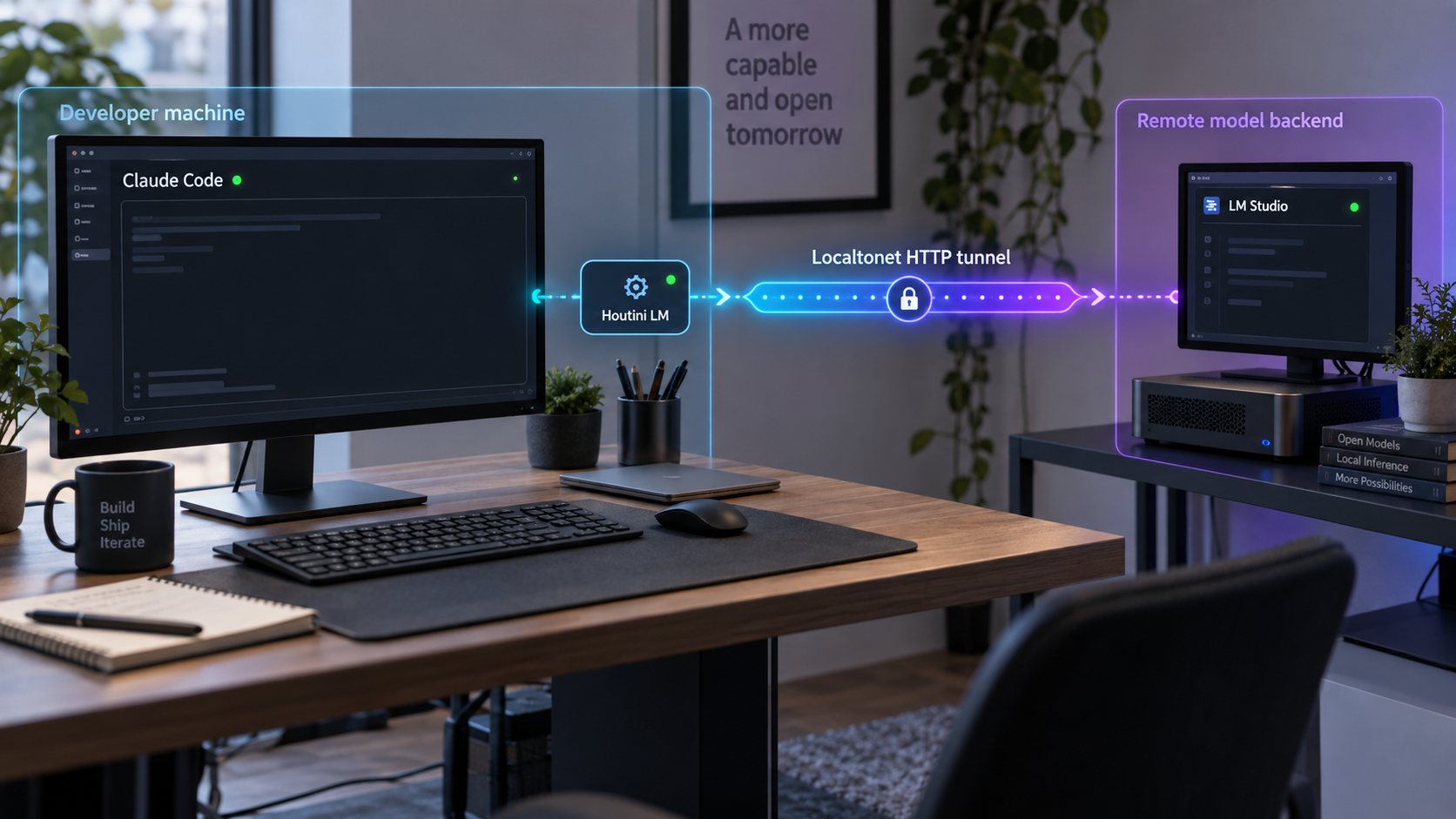
Delegate bounded Claude Code tasks to an LM Studio model on the same computer, your LAN, or a remote GPU host
Houtini LM is a local stdio MCP server that connects Claude Code to an OpenAI-compatible model endpoint. This guide walks through the prerequisites, LM Studio setup, the official Claude Code installation command, local verification, and practical troubleshooting. It then explains how to use an HTTP tunnel with Localtonet when LM Studio runs on another network. The tunnel publishes the model backend, not the Houtini LM MCP process itself.
📋 What's in this guide
How Houtini LM, Claude Code, and LM Studio fit together
It is important to understand the network boundary before installing anything. Houtini LM is an MCP server that Claude Code launches as a local stdio process. In other words, Claude Code communicates with Houtini LM through the process input and output streams. The documented installation does not start an inbound Houtini LM HTTP, TCP, or UDP listener.
Houtini LM then sends delegated work to an OpenAI-compatible HTTP endpoint. LM Studio can provide that endpoint on the same computer at http://localhost:1234. It can also run on another computer, such as a GPU workstation reachable at a LAN address like http://192.168.1.50:1234.
This produces a three-part workflow. Claude Code remains the orchestrator and decides when to call an MCP tool. Houtini LM packages the bounded task and communicates with the configured model endpoint. LM Studio performs inference with the model currently loaded in its server.
Do not create a tunnel for the Houtini LM MCP process. It is launched locally over stdio and has no documented listening port. If remote connectivity is needed, the relevant network service is LM Studio's OpenAI-compatible HTTP backend on port 1234.
What work should be delegated?
Houtini LM is designed around bounded tasks that can be described with enough context in a single request. Examples include drafting tests, reviewing a contained piece of code, generating boilerplate, explaining a function, preparing a commit message, producing documentation, converting formats, or asking another model for a second opinion.
Delegation is less suitable when the task depends on broad architectural judgment, substantial project history, unrestricted filesystem access, or an extended chain of tool calls. A practical test is to ask whether a competent developer could complete the assignment from a precise brief and whether Claude can review the result before it is accepted.
Local inference may also be slower than a hosted frontier model. The project documentation reports that local inference can be several times slower, depending on the model and hardware. The useful trade-off is therefore not simply speed. It is the ability to direct bounded work to hardware or an endpoint that you control while reserving Claude Code for orchestration and review.
Prerequisites for the installation
Complete the following checks before adding the MCP server. Most startup failures in this workflow come from an unsupported Node.js version, an inactive LM Studio server, no model being loaded, or an endpoint that the Houtini LM process cannot reach.
| Requirement | Required state | Why it matters |
|---|---|---|
| Claude Code | Installed and usable from the terminal | The official installation command registers Houtini LM as a Claude Code MCP server. |
| Node.js | Version 22.5 or newer | Houtini LM requires Node.js 22.5 or later. Version 22.13 or newer is recommended for its built-in SQLite model cache support. |
| npx | Available with the Node.js installation | The documented setup launches the @houtini/lm package through npx. |
| LM Studio | A model is loaded and its local server is running | Houtini LM needs an active OpenAI-compatible model endpoint. |
| Network path | The Claude Code computer can reach the configured endpoint | A valid URL is not enough if a firewall, bind address, tunnel state, or routing rule blocks the connection. |
| Localtonet client | Needed only for the remote-network workflow | The client runs on the LM Studio host, or another device that can reach it, and establishes the outbound tunnel connection. |
Check the Node.js version
Open the same terminal environment from which you use Claude Code and run:
node --version
The result must be version 22.5 or newer. Version 22.13 or later is recommended because Houtini LM's model cache uses Node's built-in node:sqlite support. According to the project documentation, the MCP server can still run on an older supported Node.js release without that cache. Node.js versions below 22.5 do not meet the documented prerequisite.
Also confirm that npx is available:
npx --versionIf either command is unavailable, repair or update the Node.js installation before continuing. Be aware that graphical applications and terminal sessions can inherit different environment variables. If Claude Code is started from a different shell or application launcher, it may not see the same Node.js executable that your current terminal sees.
Decide where LM Studio will run
Choose the simplest topology that meets your needs. Running everything on one computer removes network routing from the setup and is the best starting point. A LAN GPU host is useful when the model requires hardware installed in another workstation. A Localtonet tunnel is relevant only when the backend must be reached across separate networks.
| Topology | Houtini LM endpoint | Additional networking |
|---|---|---|
| Claude Code and LM Studio on one computer | http://localhost:1234 |
None, provided LM Studio is listening on the documented default port. |
| LM Studio on another LAN computer | For example, http://192.168.1.50:1234 |
LM Studio must be reachable over the LAN, and host firewall policy must permit the connection. |
| LM Studio on another network | The public HTTPS URL assigned to the Localtonet HTTP tunnel | The Localtonet client and tunnel must remain running on a device that can reach LM Studio. |
Prepare the LM Studio model backend
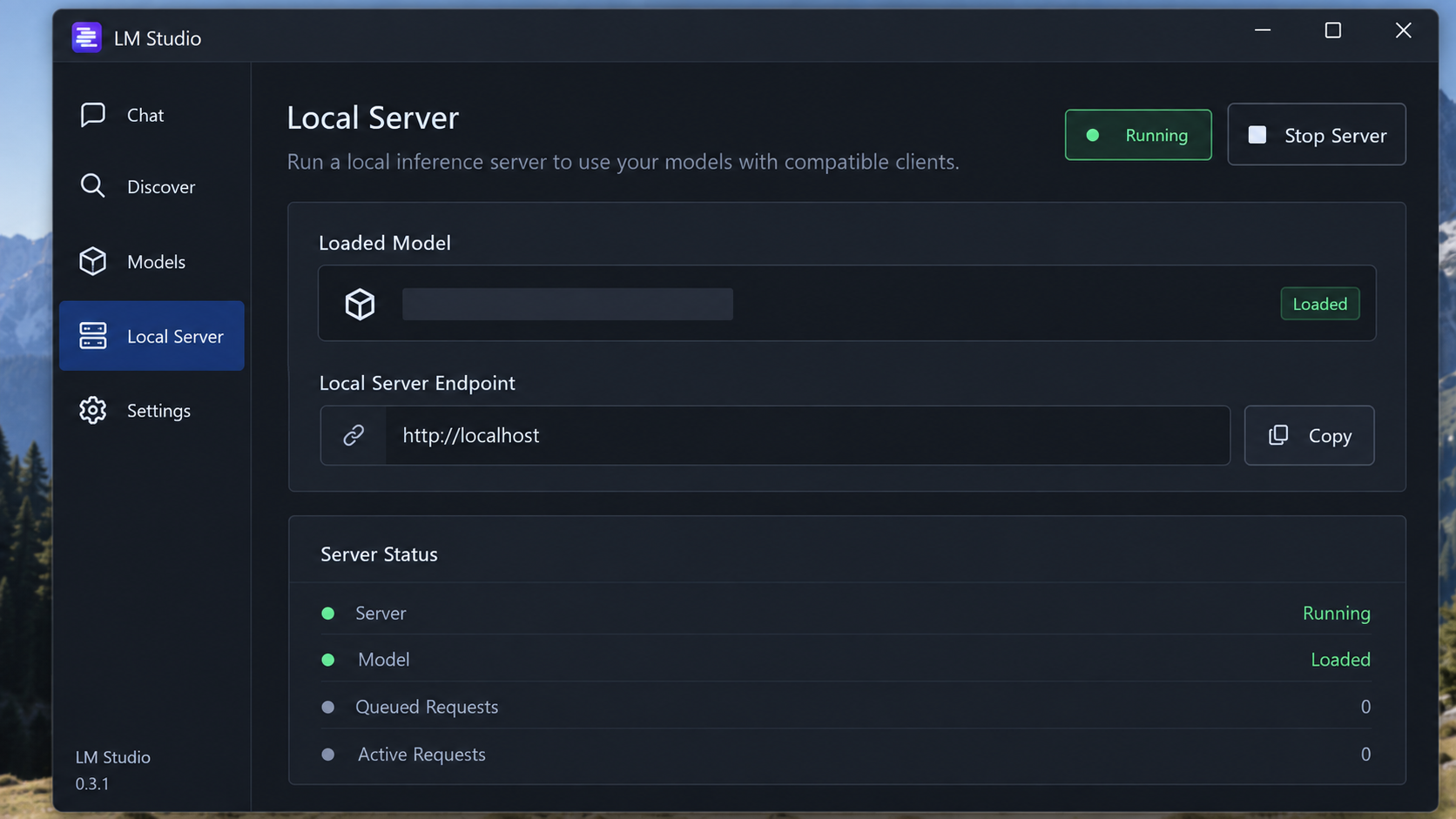
Houtini LM does not include the language model itself. Before installing the MCP integration, LM Studio must have a suitable model available, the model must be loaded, and LM Studio's OpenAI-compatible server must be running.
Exact model selection depends on your hardware, available memory, context requirements, and the kind of work you intend to delegate. There is no single model that is correct for every installation. Smaller models may be easier to run, while larger models generally place greater demands on memory and inference time. Do not assume that a model will fit solely from its name. Check its actual memory requirements against the target computer.
Install and open LM Studio
Install the appropriate LM Studio release for the model-host computer. This guide does not prescribe an operating-system-specific package command because the supplied project evidence does not establish those commands, package names, or supported operating-system versions.
Make a compatible model available
Select a model that fits the available hardware and can handle the bounded coding tasks you plan to delegate. Complete any model download required by LM Studio before starting the server.
Load the model
Load the selected model in LM Studio. A downloaded but unloaded model cannot answer requests from Houtini LM.
Start the OpenAI-compatible server
Start LM Studio's local model server. The Houtini LM documentation uses http://localhost:1234 as the default local LM Studio endpoint. Keep LM Studio and the server running while using delegated tools.
First verify the complete workflow on the same computer or trusted LAN. Publishing an unverified model service adds network variables and can expose an inference API before you understand its authentication and access behavior.
Localhost versus a LAN address
The hostname localhost always refers to the computer on which the Houtini LM process is running. If Claude Code and Houtini LM run on your laptop while LM Studio runs on a GPU workstation, http://localhost:1234 points to the laptop, not the GPU workstation.
For a LAN deployment, use the model host's reachable LAN address instead. The project documentation provides http://192.168.1.50:1234 as an example. Replace that example with the real address assigned to your model host. LM Studio must also be configured to accept the intended network connection. The available binding controls can vary by LM Studio release, so confirm the setting in the installed version rather than assuming that the server listens beyond localhost.
Install Houtini LM in Claude Code
Once the LM Studio server is active, register Houtini LM with Claude Code. The official installation method uses the Claude CLI and runs the published package through npx.
Open a terminal with Claude Code and Node.js available
Use the environment in which both the claude command and Node.js 22.5 or newer are available. This avoids registering an MCP command that later runs under a different executable path.
Register the Houtini LM MCP server
Run the official Claude Code installation command shown below. The name houtini-lm identifies the MCP server, while everything after -- is the process Claude Code will launch.
Start or restart Claude Code
Open a fresh Claude Code session so the newly registered MCP server can be launched. Keep LM Studio running with a model loaded before testing delegation.
claude mcp add houtini-lm -- npx -y @houtini/lm
With the default setup, Houtini LM expects LM Studio at http://localhost:1234. No endpoint environment variable is required when that is the correct address.
The -y argument allows npx to run the package without stopping for an interactive installation confirmation. On first launch, npx may need to obtain the package, so the environment must be able to access the relevant package registry.
Install with a LAN endpoint
If LM Studio runs on another computer on the same network, provide the endpoint when registering the MCP server:
claude mcp add houtini-lm -e HOUTINI_LM_ENDPOINT_URL=http://192.168.1.50:1234 -- npx -y @houtini/lm
Replace 192.168.1.50 with the actual LAN address of the model host. Do not copy the example unchanged unless that address genuinely belongs to your LM Studio computer.
HOUTINI_LM_ENDPOINT_URL must be available to the Houtini LM process launched by Claude Code. Setting it only in an unrelated shell or on the LM Studio computer will not configure the MCP server running on the Claude Code computer.
Configuration for another MCP client
Houtini LM can also be launched by MCP clients that support a command-and-arguments server configuration. The essential process is npx with the arguments -y and @houtini/lm. A representative MCP configuration has this structure:
{
  "mcpServers": {
    "houtini-lm": {
      "command": "npx",
      "args": [
        "-y",
        "@houtini/lm"
      ]
    }
  }
}
Configuration file names, locations, environment-variable syntax, and reload behavior differ between MCP clients. Use the client's documented configuration mechanism rather than assuming that Claude Code's CLI command applies to every application.
Verify the local installation and delegation path
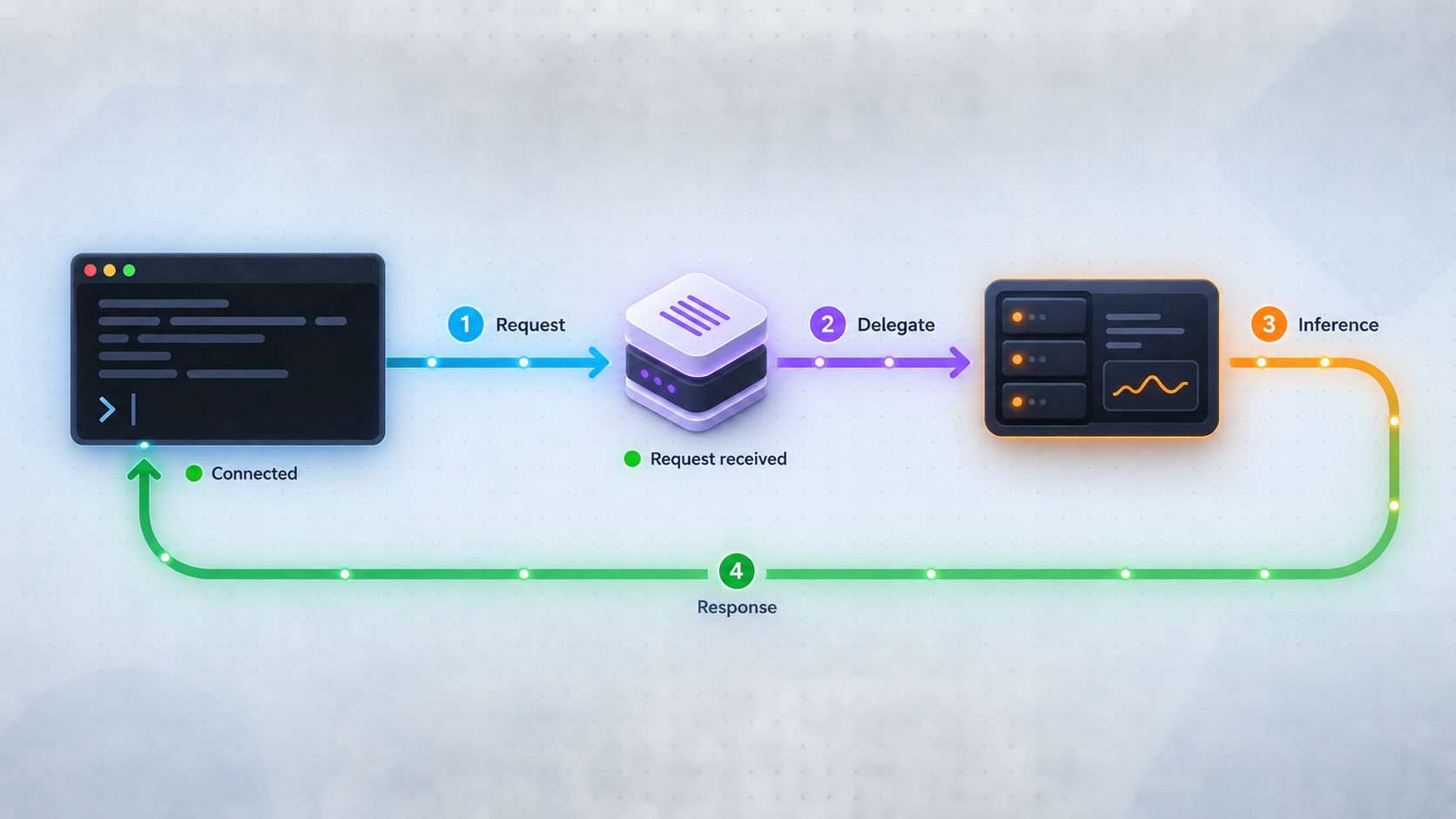
Verification should proceed one boundary at a time. Confirm the model first, then the Houtini LM process, and finally a real delegated task. This makes it easier to distinguish an MCP startup problem from an LM Studio connectivity or inference problem.
Confirm that LM Studio remains ready
Verify that LM Studio is open, the intended model is loaded, and its OpenAI-compatible server is still running on port 1234. If LM Studio reports a different port in your installation, use that actual value instead of assuming the default.
Open a fresh Claude Code session
Start Claude Code after registration. Watch for any MCP startup error involving npx, the package, Node.js, or the Houtini LM process.
Request a small bounded task
Ask Claude to delegate a concise, easily reviewed task through Houtini LM. A short code explanation, a contained review, or a draft commit message is a better first test than a large repository-wide request.
Review the returned output
Confirm that the response addresses the supplied context and that Claude can evaluate it. Successful transport does not guarantee correct model output, so retain a review step before applying generated code or recommendations.
Houtini LM includes tools for general chat, structured prompts, and code-oriented work. Its documented design also provides response quality information so the orchestrating client can reason about conditions such as truncation, finish reason, detected thinking content, and estimated token use. These signals are useful, but they do not replace testing, code review, or validation against project requirements.
Use a deliberately simple first prompt
Your first request should make success or failure obvious. Give the model a short function and ask for a plain-language explanation, or provide a compact diff and ask for a draft commit message. State that the work should be delegated through Houtini LM. If the task is too broad, it becomes difficult to tell whether poor output comes from connectivity, model capability, insufficient context, or the task design itself.
Once the small test works, increase the workload gradually. Keep each delegated request self-contained. Houtini LM sends the supplied task to the model endpoint, so the backend does not automatically inherit Claude Code's entire conversation, unrestricted filesystem context, or all of Claude's tools.
Expose the remote LM Studio backend with Localtonet
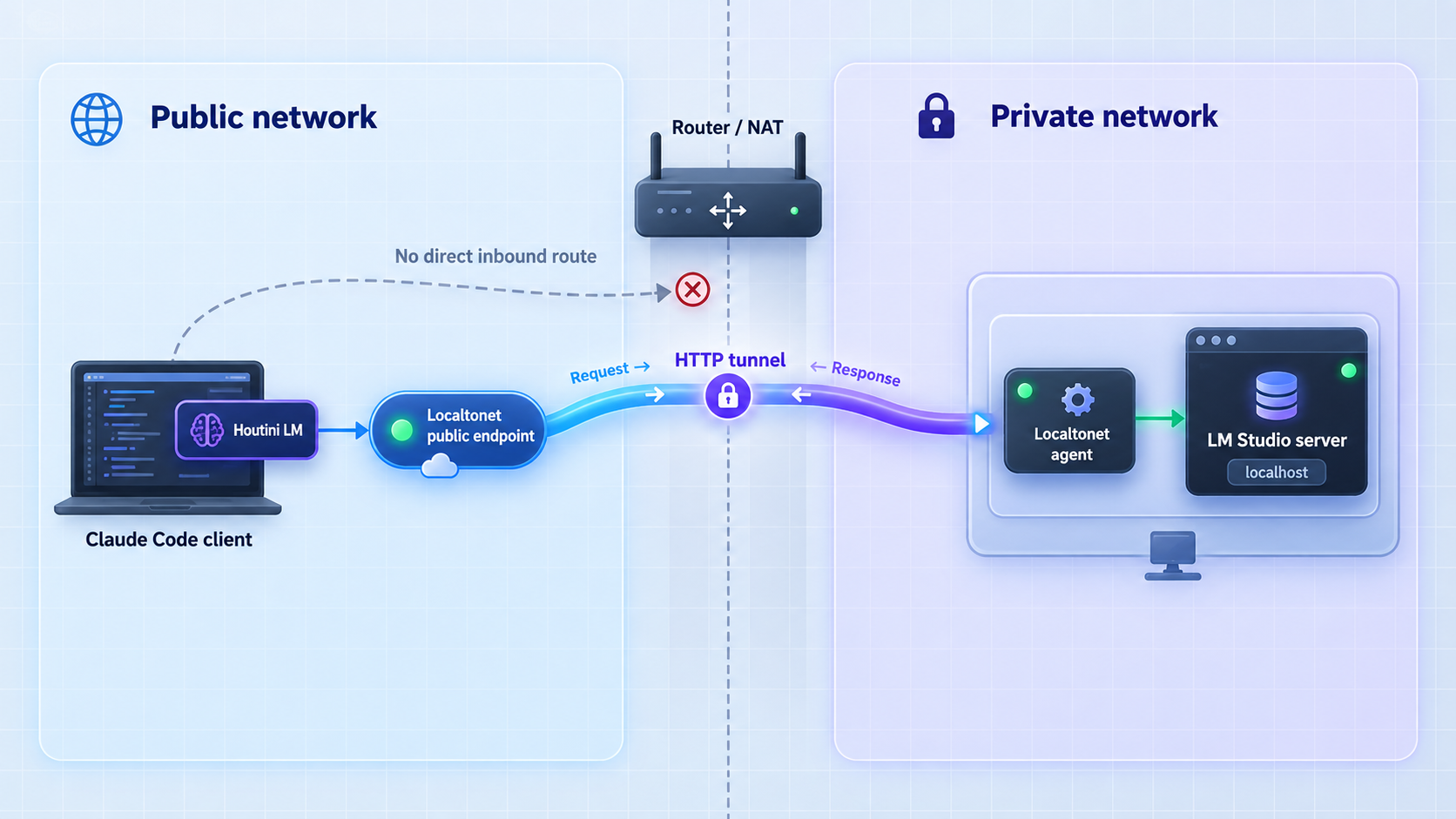
Use this stage only after local or LAN delegation works. With Localtonet, the client on the model-host side establishes an outbound connection to one of our relay servers. This removes the need for inbound router port forwarding, a public IP address, VPN setup, or firewall changes solely to create the public tunnel.
The target is the LM Studio HTTP service, normally an IP address reachable from the Localtonet client and port 1234. The result is a public HTTPS URL. Houtini LM on the Claude Code computer then uses that URL through HOUTINI_LM_ENDPOINT_URL.
Creating an HTTP tunnel makes the configured service reachable through its public address while the tunnel is running. Do not assume that this adds application-level authentication to LM Studio. Before exposing the endpoint, determine what authentication and access controls your installed backend supports. If the backend cannot be protected appropriately for your environment, keep it on localhost or a trusted private network instead.
Available relay servers, regions, process types, and account capabilities can vary. Select them from the current Localtonet dashboard rather than copying a hardcoded server code or assuming that every option is included with every plan.
Install and run the Localtonet client
Install our client on the LM Studio computer or on another device that can reach the LM Studio service. The client must remain connected for the tunnel to stay available.
Authenticate the client device
Use the device-specific authentication token assigned through Localtonet. Keep this token private and never place it in documentation, source control, screenshots, or shared terminal output.
Select an available relay server
Choose a currently available relay server or region from the dashboard. Do not hardcode a server code from an example because availability can change.
Create an HTTP tunnel to LM Studio
Configure the local target as the IP address and port where the Localtonet client can reach LM Studio. If both run on the same computer, this will normally be 127.0.0.1 and port 1234. If the client runs on another LAN device, use the model host's reachable LAN address instead.
Start the tunnel
Creating the configuration does not start it. Press Start and wait for the tunnel to run. Record the assigned public HTTPS URL, but do not publish it or embed it in a public repository.
Use the public URL from Houtini LM
On the Claude Code computer, configure HOUTINI_LM_ENDPOINT_URL with the public HTTPS URL assigned to the tunnel. The Houtini LM process will then send model requests through Localtonet to the LM Studio backend.
For the current dashboard workflow and available options, consult our Localtonet HTTP tunnel documentation. Exact custom-domain DNS instructions are not included here because they must be checked against the current dashboard and documentation.
Register Houtini LM with the tunnel URL
Use the same official installation pattern, replacing the endpoint value with the actual URL assigned to your running tunnel:
claude mcp add houtini-lm -e HOUTINI_LM_ENDPOINT_URL=https://your-assigned-hostname -- npx -y @houtini/lmThe hostname above is a placeholder, not a usable Localtonet address. Copy the real HTTPS URL from your tunnel configuration. Do not add an assumed path suffix unless Houtini LM or the backend documentation explicitly requires it.
A tunnel is available only while the selected Localtonet client is connected and that tunnel is running. LM Studio must also remain open, its model must remain loaded, and the model server must remain active. If any one of these components stops, remote inference will fail.
Security and operating practices for a remote model backend
An inference endpoint can consume substantial compute resources and may receive source code, prompts, diffs, documentation, or other project data. Treat it as a sensitive application interface rather than as a harmless development web page.
Minimize the exposed service
Point the tunnel only at the required LM Studio HTTP listener. Do not expose unrelated administration interfaces, file shares, remote desktops, or broad network services merely because they run on the same machine. The local target should be the narrowest address and port combination that supports the workflow.
Understand what data crosses the endpoint
A delegated request can include source code or other context necessary to complete the task. With a local LM Studio installation, inference remains on the model host, but the prompt still travels from the Houtini LM computer to that host. When a public tunnel connects separate networks, the request traverses that remote path. Decide whether the material is appropriate to transmit before delegating it.
Avoid placing secrets in prompts. Source files can contain API keys, connection strings, private certificates, customer information, or production credentials. Review the context supplied to a delegated task and remove sensitive values that the model does not need.
Operate the tunnel deliberately
Start the tunnel for the remote session and stop it when finished. Remember that a saved tunnel configuration is not necessarily running. Conversely, closing Claude Code does not necessarily stop a tunnel that remains active through the connected Localtonet client. Manage the two lifecycles separately.
Troubleshooting Houtini LM, LM Studio, and the tunnel
Claude Code cannot start Houtini LM
Recheck node --version in the same execution environment used by Claude Code. Houtini LM requires Node.js 22.5 or newer. Then confirm that npx --version succeeds and that the environment can obtain @houtini/lm. A shell where Node works does not guarantee that an application launched from a desktop icon inherits the same executable path.
The MCP server starts, but model requests fail
Confirm that LM Studio is still running, that a model is loaded, and that its server is active. Check the endpoint carefully. Use http://localhost:1234 only when LM Studio runs on the same computer as the Houtini LM process.
If the model is on another LAN computer, confirm that the address has not changed and that LM Studio accepts non-local connections. A service bound only to loopback cannot be reached through the host's LAN address.
The LAN endpoint works on the model host but not from Claude Code
Testing an address on the model host does not prove that another computer can reach it. Check that both devices have a valid route, that the selected address belongs to the correct interface, and that local security policy permits the connection. Do not disable broad firewall protections as a first response. Add only narrowly scoped access that is required and permitted by your environment.
The Localtonet URL does not respond
Work from the local service outward:
- Confirm that LM Studio has a model loaded and its server is running.
- Confirm that the Localtonet client device can reach the configured local target and port.
- Confirm that the correct device token is connected.
- Confirm that the tunnel was started, not merely created.
- Confirm that the assigned public URL was copied exactly.
- Confirm that the Localtonet client remains connected.
If the tunnel client runs on a different computer from LM Studio, 127.0.0.1 points to the tunnel client itself. In that topology, configure the local target with the LM Studio host's reachable LAN address.
Delegation works but the output is weak
Connectivity and answer quality are separate concerns. Make the task smaller, include the exact context required, state the desired output format, and ask for one well-defined result. A local model may be capable of drafting tests for one function but unreliable at planning a multi-module refactor.
Review the output for truncation and incomplete reasoning. Houtini LM provides quality metadata intended to help the orchestrator evaluate responses, but the final decision should still depend on tests and review. If a task repeatedly requires broad judgment, keep it with Claude instead of forcing delegation.
Requests time out or queue behind each other
A single-model server may not handle concurrent inference requests effectively. Houtini LM includes request serialization intended to prevent parallel calls from stacking timeouts against a single-model server. Long generations can still take time, especially on constrained hardware. Reduce the task size, output requirements, or model workload before assuming the network is at fault.
The workflow stopped after previously working
Check all independent lifecycle components. Claude Code must be able to launch npx, Houtini LM must have the intended endpoint configuration, LM Studio must be running with a loaded model, and the Localtonet client and tunnel must both be active for remote access. A restart, address change, model unload, or stopped tunnel can break an otherwise unchanged configuration.
Frequently asked questions
Does Houtini LM itself listen on port 1234?
No. Houtini LM is launched as a local stdio MCP process. Port 1234 belongs to the documented default LM Studio HTTP endpoint. For remote access, expose the LM Studio backend rather than the Houtini LM process.
What version of Node.js does Houtini LM require?
Houtini LM requires Node.js 22.5 or newer. Node.js 22.13 or later is recommended because its model cache uses the built-in node:sqlite capability. On an older supported Node.js version, the server can run without that cache.
Do I need Localtonet when LM Studio runs on the same computer?
No. Use http://localhost:1234 when Claude Code, Houtini LM, and LM Studio run on the same computer and LM Studio uses its documented default port. Localtonet is relevant when the model backend must be reached from another network.
Can Houtini LM use an LM Studio server on my local network?
Yes. Set HOUTINI_LM_ENDPOINT_URL to the model host's reachable address, such as http://192.168.1.50:1234. Replace the example with the real address, and make sure LM Studio is configured to accept the LAN connection.
Does a Localtonet HTTP tunnel automatically authenticate LM Studio users?
Do not assume so. The HTTP tunnel provides public connectivity to the configured local service. Application-level authentication and authorization must be evaluated separately based on the backend's current capabilities and your security requirements.
Does the tunnel remain available after I close Claude Code?
The tunnel lifecycle is separate from Claude Code. It remains available only while the selected Localtonet client is connected and the tunnel is running. Stop or delete it when remote model access is no longer required.
Should every Claude Code task be delegated to the local model?
No. Delegation is best for bounded tasks with clear context and a reviewable result. Keep architecture, broad project reasoning, complex multi-file decisions, and final quality control with Claude or a human reviewer when those tasks exceed the local model's reliable scope.
Can I hardcode the Localtonet relay server or public hostname from an example?
No. Select an available server or region from the current dashboard and use the public URL assigned to your tunnel. Available options can vary by plan, region, client version, and deployment.
Connect your remote LM Studio host with Localtonet
After Houtini LM works locally, create an HTTP tunnel to the model backend and use its assigned HTTPS URL as HOUTINI_LM_ENDPOINT_URL. Keep the endpoint protected, review delegated output, and stop the tunnel when remote inference is no longer needed.