

Run a browser automation API locally, verify a real browser session, and publish only the protected HTTP endpoint you need
Steel Browser packages browser automation infrastructure, a REST API, and a web interface into a self-hostable project for AI agents and applications. This guide covers the documented single-container and Docker Compose deployments, safer host port bindings, local health and browser-session verification, persistence, updates, and common failure modes. After Steel works locally, we show how to connect port 3000 to Localtonet without publishing the Chrome debugging port. We also separate HTTPS transport from authorization so that a public tunnel is not mistaken for a complete access-control system.
📋 What's in this guide
What Steel Browser provides and how its Docker layouts differ
Steel Browser is an open-source browser API for applications and AI agents that need to interact with websites programmatically. It manages browser processes, pages, sessions, cookies, local storage, and browser lifecycle cleanup. Its project documentation describes support for Puppeteer, Playwright, and Selenium through Chrome DevTools Protocol connections, together with browser tools for screenshots, PDFs, readability output, and Markdown conversion.
Self-hosting places the Steel service and its browser workload on infrastructure you control. That can suit local development, private automation, testing, or an integration in which an authorized application needs a browser endpoint. It also makes you responsible for host capacity, updates, access control, network exposure, logs, browser state, and recovery.
Steel is identified by its maintainers as public beta software. Pin and test releases before production use, review changes when upgrading, and do not assume that all interfaces or deployment behavior will remain unchanged between beta versions. The mutable latest images used in quick-start examples are convenient for evaluation, but they are not a substitute for a reviewed version or immutable digest.
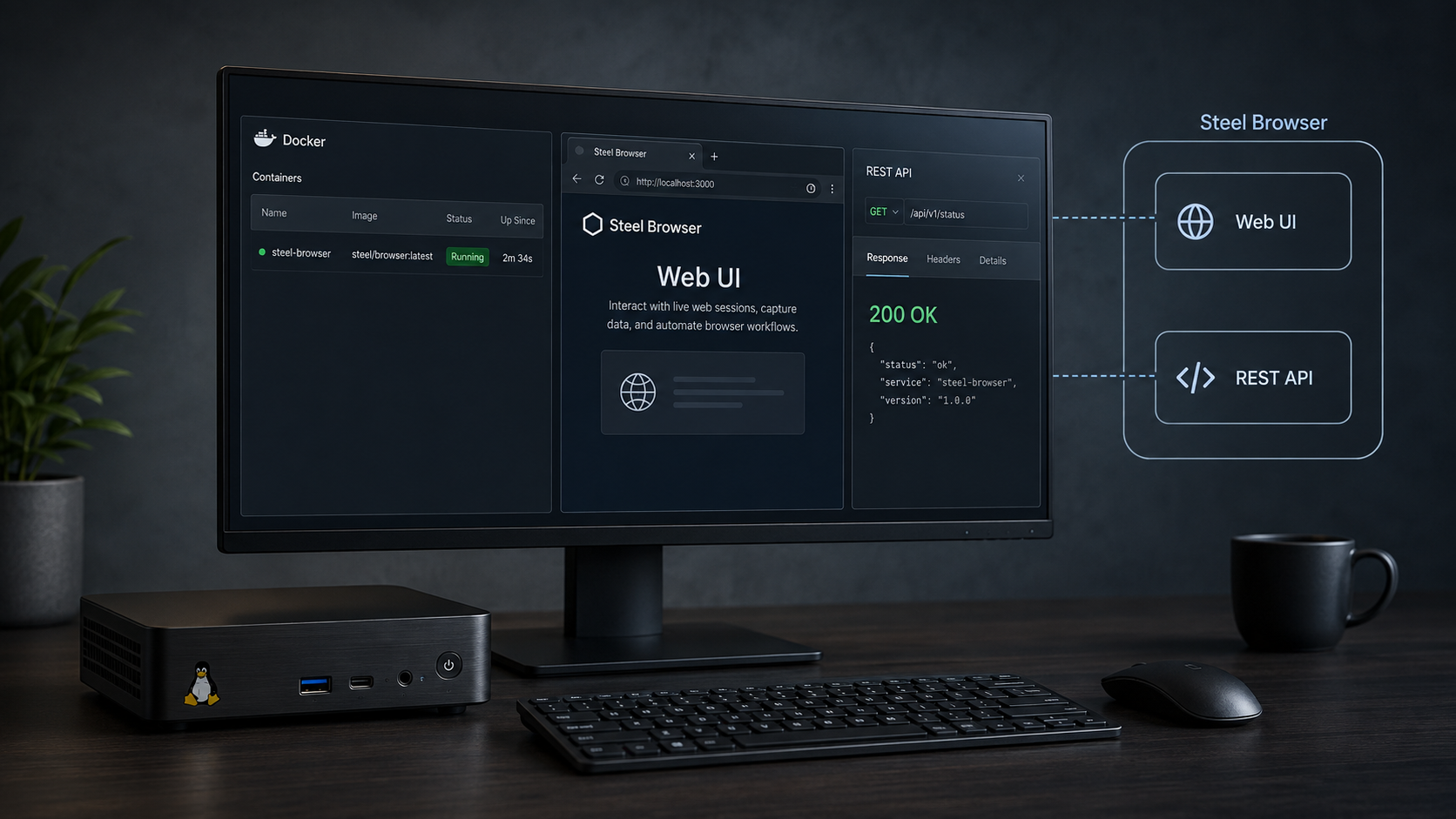
http://localhost:3000/ui. The split Compose deployment publishes its separate UI on host port 5173.
http://localhost:3000/documentation for the exact Steel version being run.
Combined image versus separate containers
The shortest documented installation path uses ghcr.io/steel-dev/steel-browser:latest. This combined image runs the API and UI in one container, serves both through port 3000, and uses port 9223 for the console debugger. It is the simplest layout for the Localtonet section because one HTTP tunnel to port 3000 can reach the base service and its /ui route.
The documented Docker Compose layout uses ghcr.io/steel-dev/steel-browser-api:latest for the API and ghcr.io/steel-dev/steel-browser-ui:latest for the UI. The API container uses ports 3000 and 9223, while the UI container serves through internal port 80 and is published on host port 5173. Both containers join the steel-network bridge network.
| Deployment | Local addresses | Best fit | Important behavior |
|---|---|---|---|
| Combined pre-built image | localhost:3000 and localhost:3000/ui |
Fast evaluation and a simple HTTP tunnel target | The API and UI run in one container |
| Split Docker Compose | API on localhost:3000; UI on localhost:5173 |
Separate API and UI container management | The services communicate through a named Docker network |
| Locally built combined image | localhost:3000 and localhost:3000/ui |
Testing source changes in the combined build | The repository is cloned and its root Dockerfile is built locally |
| Development Compose file | Server on port 3000 and development UI on port 5173 | Contributor development from the Steel repository | The development images are rebuilt from the local API and UI source directories |
The authoritative installation sequence and current image names are available in the official Steel Docker guide. Developers building from source can inspect the Steel Browser repository.
The split Compose deployment remains covered below, but its UI and API use different host ports. Exposing a split frontend may require host or frontend configuration specific to the installed Steel version. The Localtonet example therefore targets the combined deployment's verified HTTP service on port 3000.
Prerequisites and network decisions
Steel's Docker documentation specifies Docker 20.10.0 or later, at least 4 GB of RAM, and 10 GB of free disk space. Docker Compose is also required for either Compose workflow. Current Docker installations commonly provide Compose as the docker compose plugin.
Confirm that another process is not already using the required host ports. The combined deployment uses ports 3000 and 9223. The split Compose deployment additionally uses host port 5173. If a requested host port is occupied, Docker normally reports a binding or allocation error instead of starting the affected container.
Browser workloads can consume significant CPU and memory depending on session count, page complexity, extensions, screenshots, and other operations. The documented 4 GB figure is a minimum host prerequisite, not a guarantee that every concurrent workload will fit within that amount.
For the optional remote-access section, install the Localtonet client on the Steel host or another trusted device that can reach Steel over the local network. You also need the device-specific Localtonet authentication token associated with that client. Never place tokens in Compose files, screenshots, shared logs, shell examples, or source repositories.
Understand Docker's default publishing behavior
A mapping such as -p 3000:3000 does not mean “localhost only.” When no host IP is specified, Docker normally publishes the port on all host interfaces. Depending on the Docker host and network configuration, that can make the port reachable from the LAN or another attached network. The same concern applies to -p 9223:9223 and to quoted Compose mappings such as "3000:3000".
If Localtonet runs on the same host as Steel, bind the published ports to the loopback interface. This lets the Localtonet client reach Steel locally while avoiding an unnecessary LAN-wide listener:
-p 127.0.0.1:3000:3000 -p 127.0.0.1:9223:9223If the Localtonet client runs on another LAN device, loopback-only port 3000 will not be reachable from that device. In that topology, bind port 3000 to a suitable private interface or use the normal all-interface mapping only with deliberate host firewall controls. Restrict access to the Localtonet client's source address where practical. Port 9223 should remain loopback-bound or otherwise confined to a trusted management path.
Steel's HTTP service can create and control browser sessions. A public HTTPS URL encrypts transport to the tunnel edge, but it does not by itself authenticate a caller or authorize an operation. The supplied Steel installation evidence does not establish a specific self-hosted Steel authentication configuration. Before starting a public tunnel, place a verified authenticated access layer or authenticated reverse proxy in front of Steel, restrict access to trusted clients, and test that unauthenticated requests are rejected.
Verify Docker and Compose
docker --version
docker compose version
Docker's output should report version 20.10.0 or later. If the Compose command is unavailable and you plan to use a Compose workflow, install or enable the Docker Compose plugin before continuing. Resource and disk checks differ by operating system, so use the host's administration tools to confirm at least 4 GB of RAM and 10 GB of free storage.
Install Steel Browser with the combined Docker image
The combined image is the fastest documented route to a local Steel instance. Steel's official example publishes both ports without specifying a host IP. For a same-host Localtonet installation, the loopback-bound variation below provides a safer starting point while preserving the documented container ports.
Confirm ports 3000 and 9223 are available
Port 3000 serves the combined HTTP API and UI. Port 9223 is used for Chrome debugging and must not be exposed to untrusted networks.
Run the combined image with loopback bindings
Start the documented image while binding both published ports to 127.0.0.1. The --rm option removes the container when it stops, and -it attaches it to the current terminal.
Wait for Steel to finish starting
Keep the terminal open and review the startup output. Verify the health route, UI, and an actual browser session before adding remote access.
docker run --rm -it \
  -p 127.0.0.1:3000:3000 \
  -p 127.0.0.1:9223:9223 \
  ghcr.io/steel-dev/steel-browser:latest
After startup, open http://localhost:3000 on the Docker host. The combined interface is available at http://localhost:3000/ui, and the generated REST API documentation is available at http://localhost:3000/documentation.
The container is attached to the terminal and includes --rm. Interrupting the process stops and removes that container. The downloaded image remains available, but the stopped container does not. Use this workflow for evaluation, then define persistence, restart, logging, and update policies before depending on it operationally.
When a separate LAN device must reach port 3000
If the Localtonet client is installed on another trusted device, replace the port 3000 loopback binding with a binding appropriate for the Steel host's private interface. The official all-interface form is:
docker run --rm -it \
  -p 3000:3000 \
  -p 127.0.0.1:9223:9223 \
  ghcr.io/steel-dev/steel-browser:latest
This publishes port 3000 on all host interfaces, so use a host firewall to allow only the intended private source or subnet. Keep port 9223 bound to loopback. If your Docker environment handles IPv6 publishing separately, inspect the actual listeners and apply equivalent restrictions there.
Build the combined image locally
To inspect or modify Steel's source before building the combined image, clone the repository, enter it, build the root Dockerfile, and run the resulting image:
git clone https://github.com/steel-dev/steel-browser.git
cd steel-browser
docker build -t steel-browser:local .
docker run --rm -it \
  -p 127.0.0.1:3000:3000 \
  -p 127.0.0.1:9223:9223 \
  steel-browser:local
Building locally gives you control over the source revision and build output. It also makes you responsible for reviewing that revision, its dependencies, and future updates. Verify the locally built image through the same health, UI, and session tests used for the pre-built image.
Install Steel Browser with Docker Compose
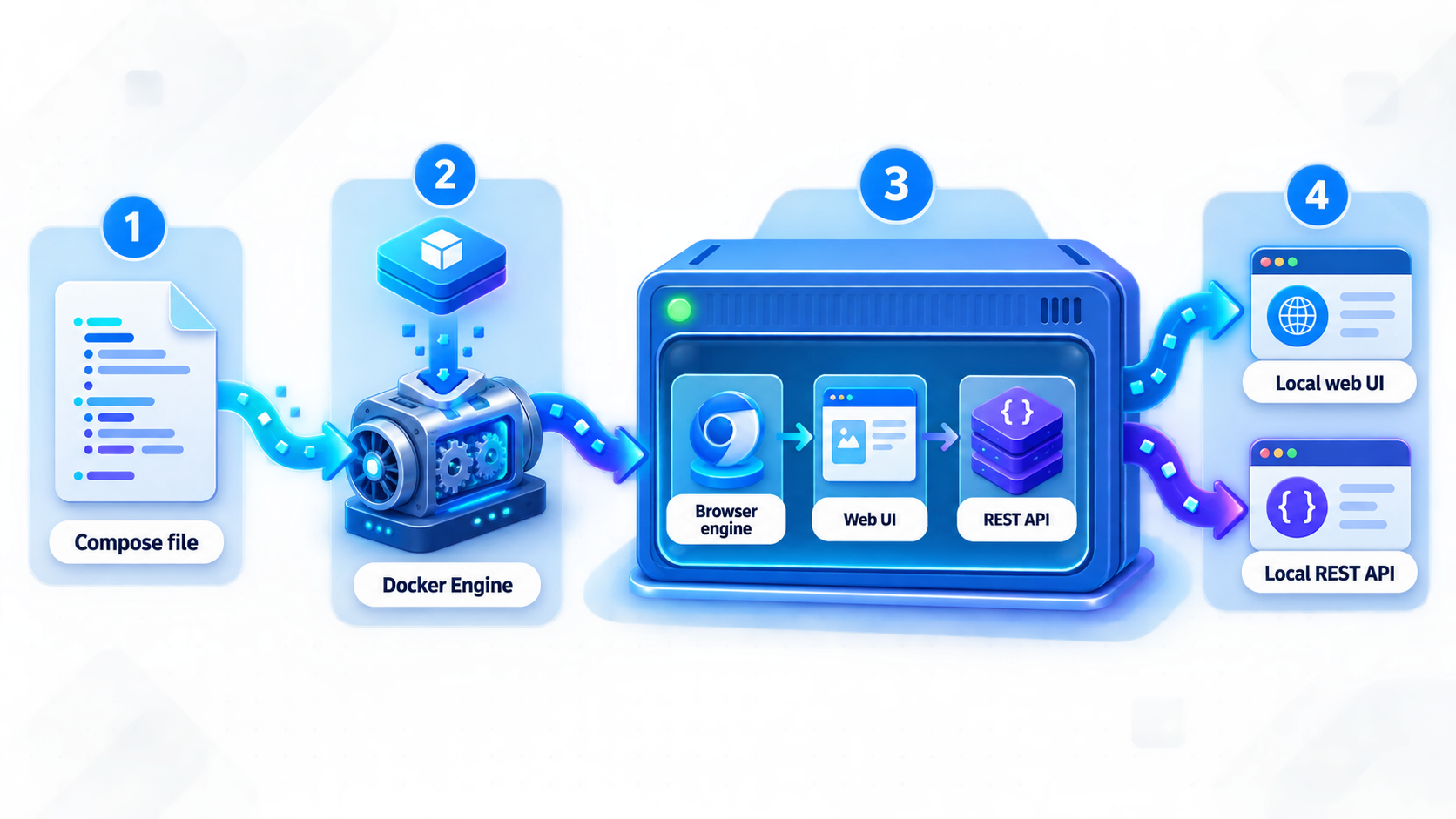
The Compose quick start separates Steel into an API container and a UI container. The API container stores Chrome data and extensions in a host-mounted .cache directory. The UI container maps its internal port 80 to host port 5173. Both services join the steel-network bridge network.
The official Docker guide uses mappings without host IP addresses. For a same-host installation, the following equivalent configuration binds all three published ports to loopback. This prevents the API, UI, and debugger from becoming general LAN listeners while retaining access from the Docker host.
Create and enter a deployment directory
Keep the Compose file and its bind-mounted .cache directory together in a dedicated directory.
Create the Compose configuration
Save the configuration below as docker-compose.yaml. It preserves Steel's documented services, container ports, volume, and network while restricting the host bindings to loopback.
Launch the containers
Run docker compose up -d. Detached mode leaves the API and UI containers running after the command returns.
Verify both services
Open the split UI at http://localhost:5173 and test the API independently at http://localhost:3000/api/health.
mkdir steel-browser
cd steel-browser
services:
api:
image: ghcr.io/steel-dev/steel-browser-api:latest
ports:
- "127.0.0.1:3000:3000"
- "127.0.0.1:9223:9223"
volumes:
- ./.cache:/app/.cache
networks:
- steel-network
ui:
image: ghcr.io/steel-dev/steel-browser-ui:latest
ports:
- "127.0.0.1:5173:80"
depends_on:
- api
networks:
- steel-network
networks:
steel-network:
name: steel-network
driver: bridgedocker compose up -d
Use http://localhost:5173 for the standalone Compose UI. The API remains available at http://localhost:3000, and its documented health endpoint is http://localhost:3000/api/health.
Compose bindings when Localtonet runs elsewhere
A Localtonet client on another LAN device cannot connect to a port bound to 127.0.0.1 on the Steel host. In that topology, change only the service ports the remote client actually needs. For an HTTP tunnel to the Steel API, publish port 3000 on a reachable private interface or use "3000:3000" with a firewall rule limiting access to the Localtonet client. There is normally no reason to make port 9223 available to that device.
The standalone UI on port 5173 does not have to be published to the LAN merely because the API is reachable. Keep it loopback-bound unless your design specifically requires remote UI access and you have confirmed the installed frontend's remote-host configuration.
Persistence and its limits
The Compose configuration maps ./.cache on the host to /app/.cache in the API container. Steel documents this directory as storage for Chrome data and extensions. Because it is a bind mount, its content can remain after the API container is recreated.
Check ownership and permissions if Chrome cannot start or Steel reports file-access errors. Do not delete the directory casually if its Chrome data or extensions matter to your workflow. At the same time, do not assume this mount contains every possible type of application state. The supplied evidence identifies it as persistence for Chrome data and extensions, not as a complete backup of the entire deployment.
Apple Silicon
Steel's repository documents the following platform override for Mac computers using Apple Silicon:
DOCKER_DEFAULT_PLATFORM=linux/arm64 docker compose upBuild the development Compose services from source
The development Compose file is stored in the Steel repository. It is not present in the manually created deployment directory used for the pre-built Compose example. Clone and enter the repository before invoking it:
git clone https://github.com/steel-dev/steel-browser.git
cd steel-browser
docker compose -f docker-compose.dev.yml up --build
For detached startup, use the documented form:
docker compose -f docker-compose.dev.yml up -d --build
This development layout builds from the repository's API and UI directories and runs the server on port 3000 and the UI on port 5173. The --build option ensures that local source changes are incorporated. If you use a custom host, Steel's repository instructs you to create a suitable .env file or update the environment variables used by docker-compose.dev.yml.
Verify health, the UI, and a real browser session
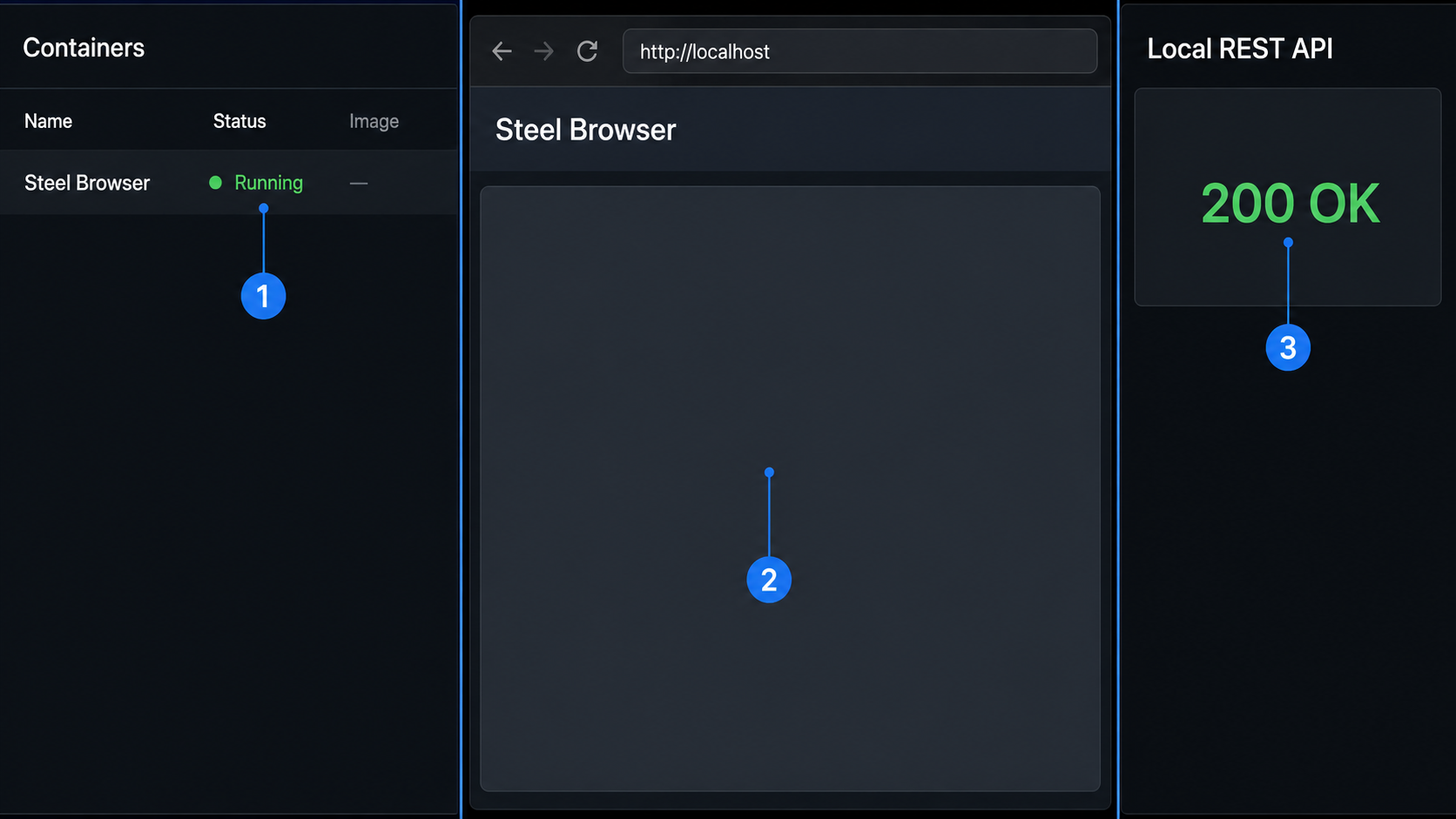
Verification should progress from Docker state to HTTP health and then to a browser session. This order isolates failures. A tunnel cannot repair a stopped container, an unfinished startup, a bad host binding, or a Chrome process that cannot launch.
1. Confirm the expected containers are running
docker psThe combined layout should show one Steel container. The split layout should show separate API and UI containers. If an expected container is absent, include stopped containers and then inspect the relevant logs:
docker ps -a
docker compose logs
2. Check the documented health endpoint
curl -i http://localhost:3000/api/healthA successful response should have a 2xx HTTP status. This confirms that Steel is listening through the host's port 3000 mapping and that the health route responds. If it fails, continue troubleshooting Docker and Steel locally instead of creating a tunnel.
3. Load the correct web interface
Use the address that matches the chosen layout:
Combined image: http://localhost:3000/ui
Split Compose:  http://localhost:5173
Loading the interface confirms that the frontend is being served. In the split layout, it does not automatically prove that the UI container can communicate with the API container, so retain the separate health check.
4. Create and clean up a browser session
Steel documents the /sessions API as the session lifecycle interface. Create a minimal local session without targeting a sensitive account or production site:
curl -i \
  -X POST http://localhost:3000/sessions \
  -H "Content-Type: application/json" \
  -d '{}'
The expected success signal is a 2xx response containing session information, including a session identifier. A successful session response demonstrates more than basic HTTP health because Steel must initialize a browser-backed session. You can also inspect the local UI and container logs to confirm that the session appears without Chrome startup, permission, or resource errors.
Copy the returned session identifier and explicitly release the test session:
curl -i \
  -X DELETE http://localhost:3000/sessions/SESSION_ID
Replace SESSION_ID with the identifier returned by the create request. A successful cleanup should return a successful HTTP status and the session should no longer remain active in the UI. If the installed beta version presents a different generated route in its local OpenAPI page, follow the session create and delete routes shown by that exact image rather than adapting an unrelated release.
5. Confirm the installed API surface
Open http://localhost:3000/documentation on the combined deployment. This is useful for confirming request schemas and optional fields for the exact image you are running. It supplements the reproducible session test above rather than replacing local verification.
Port 9223 is the Chrome debugging service, not the Steel web interface. Chrome DevTools Protocol access provides powerful browser control, and Steel's production guidance says to avoid exposing this port to the public internet. The Localtonet configuration below targets HTTP port 3000 only.
Routine operation, persistence, logs, and updates
Operating commands depend on whether Steel was launched as an attached one-off container or as a detached Compose project. Record the selected model so that another operator does not expect Compose lifecycle commands to control an unrelated docker run process.
Stop the combined quick-start container
The combined command runs interactively. Interrupting or closing its terminal stops the container. Because the command includes --rm, Docker then removes that container. Start a new instance by running the command again.
This is convenient for evaluation, but it is not a complete long-running service policy. Before operational use, decide how Steel will restart after host maintenance or failure, which data needs persistence, how logs will be retained, and how releases will be promoted or rolled back. The documented quick start does not prescribe every production orchestration decision.
Stop, start, or remove the Compose project
Run these commands from the directory containing docker-compose.yaml:
docker compose stop
docker compose start
To stop and remove the project's containers and network while leaving the host bind-mounted .cache directory in place:
docker compose downRecreate the services with:
docker compose up -d
Before destructive maintenance, inspect the deployment directory and back up any data required by your workflow. Persistence of .cache is not a substitute for a tested backup and recovery plan.
Inspect logs
docker compose logs
docker compose logs -f
docker compose logs api
docker compose logs ui
Steel's troubleshooting example references generated names such as steel-browser_api_1, but actual names can vary with the project directory and Compose version. Obtain the current name from docker ps -a rather than assuming an example name.
Update images deliberately
Both quick-start configurations use the mutable latest tag. Steel recommends using specific image versions rather than latest for production. A reviewed version or immutable digest makes recreation repeatable and prevents a new image from being introduced merely because a service was pulled or rebuilt later.
Before upgrading, record the current image version or digest, review release notes, back up relevant data, test session creation and cleanup, and verify your API clients. Retain a rollback path. This is particularly important while Steel remains in public beta.
Expose the protected Steel HTTP service with Localtonet
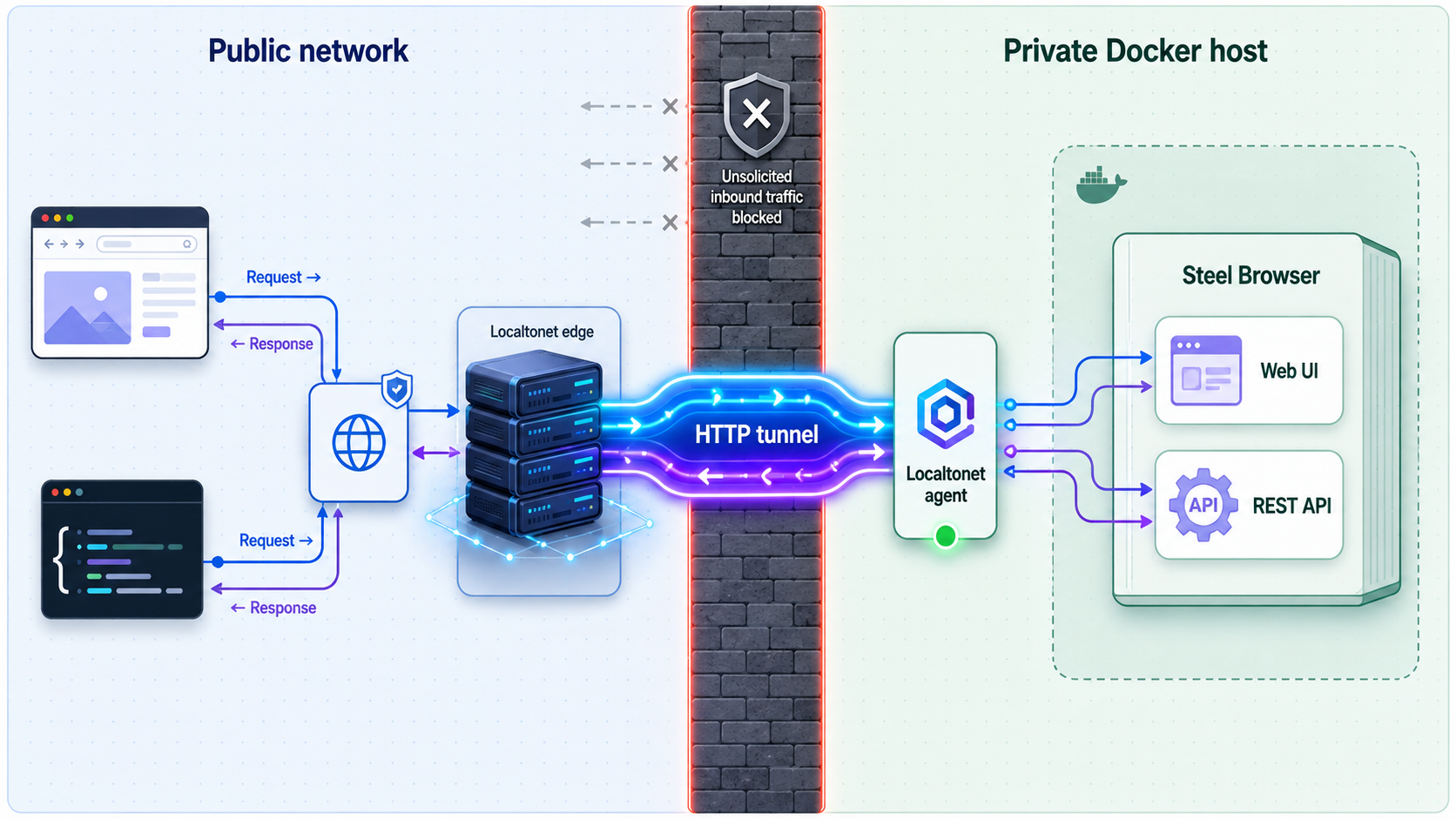
After the combined deployment responds on http://localhost:3000 and an authenticated access layer is ready, Localtonet can expose the HTTP service without inbound router port forwarding, firewall changes, VPN setup, or a public IP address. Our client establishes an outbound connection from the selected device to a Localtonet relay server. The resulting tunnel provides a public HTTPS address while that client is connected and the tunnel is running.
Localtonet does not move Steel into our infrastructure or start its browser processes. Docker continues to run Steel on your host, while our tunnel forwards HTTP requests to the configured local address and port.
The assigned HTTPS address protects traffic in transit to the tunnel edge. It does not establish that every caller is allowed to control Steel. Because the supplied Steel evidence does not verify a particular built-in self-hosted authentication setup, require a suitable authenticated reverse proxy or another verified access-control layer before public exposure. Confirm that unauthenticated requests fail before distributing the URL.
Install and run the Localtonet client
Install our client on the Steel host when possible. A separate LAN device can also be used if it can reach the protected HTTP endpoint on the Steel host.
Open the HTTP tunnel configuration and select a process type
Choose Random Sub Domain, Custom Sub Domain, or Custom Domain as available for the account and current interface. These process types publish the configured HTTP content at a public HTTPS address.
Select the device AuthToken
Select the device-specific token for the Localtonet client that will carry the tunnel. Keep the token secret and never copy a value from another deployment.
Select an available relay server
Choose a server or region offered by the current dashboard. Available values can vary, so do not substitute a hardcoded server code from an article.
Enter Steel's local IP address and port
When Localtonet runs on the Steel host, use 127.0.0.1 and port 3000. When the client runs on another LAN device, use the Steel host's reachable private address and confirm that Docker and the host firewall permit that client to reach port 3000.
Start and verify the tunnel
Creating a tunnel does not start it. Press Start, wait for it to run, and test the assigned HTTPS address through the authenticated access layer. Stop the tunnel when remote access is no longer needed.
For the current interface and configuration fields, see our HTTP tunnel documentation. Custom-domain DNS requirements should be checked against the current documentation and dashboard rather than inferred from a generated subdomain setup.
On the combined Steel image, routes such as /ui, /documentation, and /api/health are served through local port 3000. Publishing the base service can therefore make those paths reachable through the same public origin unless an access layer blocks or limits them. Protect the entire origin, not only the application route your first client happens to call.
If the public address fails, rerun curl http://localhost:3000/api/health on the Steel host. If it fails locally, troubleshoot Steel or Docker. If it succeeds, confirm that the selected Localtonet client is connected, the tunnel was started, and the configured local address is reachable from that client device.
Security considerations for remote browser control
A browser automation service is a sensitive capability. An authorized caller may be able to create sessions, visit websites, retain cookies or local storage, capture output, and consume host resources. Treat the Steel API as an administrative application surface rather than a passive website.
Minimize host listeners
Use loopback-bound Docker mappings when Steel and Localtonet run on the same host. This avoids exposing ports 3000, 5173, and 9223 to every attached host interface. If another LAN device must reach port 3000, restrict that listener with host firewall rules and verify the actual addresses on which Docker is listening.
Keep Chrome debugging private
Do not create a Localtonet tunnel to port 9223. Do not expose that port through a router, cloud firewall, or unrestricted LAN binding. Keep it loopback-bound unless a specific trusted management workflow requires otherwise.
Place authorization in front of Steel
A difficult-to-guess URL is not authentication. An HTTPS URL provides protected transport, but it does not decide who may invoke a session endpoint. The Steel installation evidence supplied for this guide does not establish an exact self-hosted authentication configuration, so this article does not invent credentials or environment variables.
Use an authenticated reverse proxy or another access layer whose behavior you can verify. Require authenticated requests, apply least privilege where the selected control supports it, restrict clients where practical, and test denial behavior before enabling the public tunnel. Avoid sharing one powerful credential among unrelated agents or users.
Protect browser state and secrets
Browser sessions can contain cookies, local storage, downloaded files, screenshots, page content, and credentials entered into websites. Limit access to persistent directories, redact logs before sharing them, and avoid logging secret-bearing request bodies. Never place Localtonet device tokens, website credentials, or application API keys in public repositories.
Control resource consumption
Browser sessions use CPU, memory, storage, and network bandwidth. Monitor for sessions that are not cleaned up, repeated failures, and unexpected concurrency. Steel recommends appropriate resource limits for production, but the correct values depend on the host and workload. Load-test your own automation rather than copying a generic limit.
| Surface | Primary concern | Recommended treatment |
|---|---|---|
| Steel API on port 3000 | Creation and control of browser workloads | Bind narrowly, require authenticated access, and expose only when necessary |
| Steel UI and API documentation | Operational access and route discovery | Protect the entire public origin rather than relying on URL secrecy |
| Chrome debugger on port 9223 | Low-level control over browser processes | Keep it private and never use it as the public tunnel target |
.cache directory |
Persisted Chrome data and extensions | Use restrictive host permissions and a deliberate backup policy |
| Localtonet device token | Identification of the client device used for tunnels | Keep it secret and select it only through the trusted account workflow |
| Mutable image tags | Unreviewed changes during recreation | Use tested versions or immutable digests for repeatable production deployments |
Troubleshooting Steel, Docker, and Localtonet
Docker reports that a port is already allocated
Another process or container is using port 3000, 5173, or 9223. Inspect containers with docker ps and use your operating system's networking tools to identify other listeners. Stop or reconfigure the conflicting service before retrying.
If you change Steel's host port, update the Localtonet target to that host port. The container-side port must still match the service inside the image. For example, a mapping of 127.0.0.1:13000:3000 makes Steel available on host port 13000 while retaining container port 3000.
Chrome will not start
Steel's documentation identifies insufficient memory, missing shared libraries, ARM architecture issues, and permission problems with .cache as common causes. Confirm the host meets the minimum requirements, inspect API logs, check image architecture compatibility, and verify that the API container can write to the mounted directory.
docker compose logs apiOn Apple Silicon, try the documented platform override:
DOCKER_DEFAULT_PLATFORM=linux/arm64 docker compose upThe UI loads but cannot connect to the API
docker compose ps
curl http://localhost:3000/api/health
Steel also documents testing from the UI container to the API service:
docker exec steel-browser_ui_1 curl http://api:3000/api/health
Replace steel-browser_ui_1 with the actual UI container name from docker ps. If the host health check succeeds but the container-to-container request fails, inspect the service names, Compose network, and whether both containers joined steel-network.
The health endpoint works, but the UI route does not
Confirm that you are using the address for the selected layout. The combined image serves its UI at http://localhost:3000/ui. The split Compose deployment serves the standalone UI at http://localhost:5173.
Opening /ui on port 3000 is correct for the combined image, but it is not the documented URL for the split deployment. Conversely, opening port 5173 will fail if you launched only the combined image. If the correct address still fails, inspect the relevant container logs and confirm that the expected port mapping appears in docker ps.
Health succeeds, but session creation fails
Review the API logs while repeating the local POST /sessions test. A healthy HTTP process can still fail to launch Chrome because of memory, architecture, library, or directory-permission problems. Confirm that the request reaches the version-specific session route and that its body matches the generated local documentation.
The public Localtonet URL does not respond
Retest http://localhost:3000/api/health on the Steel host. If it fails, repair Steel before changing the tunnel. If it succeeds, verify that the selected Localtonet client is connected, the correct device token and server were selected, the tunnel was explicitly started, and its target uses port 3000.
If Localtonet runs on another machine, 127.0.0.1 refers to that Localtonet machine, not the Steel host. Use the Steel host's reachable private address. Also confirm that Docker is not loopback-bound in that topology and that the firewall permits the Localtonet device to reach port 3000.
The HTTPS address works, but unauthorized requests also succeed
Stop the tunnel and correct the access-control design before proceeding. HTTPS alone does not authenticate callers. Put a verified authenticated layer in front of Steel, test that requests without valid authorization are rejected, and only then restart public access.
The service disappears after closing the terminal
The combined quick-start command is interactive. Closing or interrupting its terminal stops the process, and --rm removes the container. Use the documented detached Compose workflow for background operation, or design a suitable long-running container policy after evaluating persistence, restarts, and logging.
Local source changes do not appear
Make sure you cloned and entered the Steel repository, then use the development Compose file with --build:
git clone https://github.com/steel-dev/steel-browser.git
cd steel-browser
docker compose -f docker-compose.dev.yml up --build
The manually created production-style Compose directory does not contain docker-compose.dev.yml. The default Compose file also pulls pre-built API and UI images rather than rebuilding local source changes.
Frequently asked questions
What is the simplest way to self-host Steel Browser?
Run the combined image. For same-host access, bind ports 3000 and 9223 to 127.0.0.1. The application is then available at http://localhost:3000 and its UI at http://localhost:3000/ui. The quick-start container is removed when it stops because the documented command includes --rm.
Why use 127.0.0.1 in the Docker port mapping?
Docker port publishing without a host IP normally binds on all host interfaces. Prefixing the mapping with 127.0.0.1 limits it to the local host. This is appropriate when Steel and Localtonet run on the same machine. A separate Localtonet device requires a reachable private binding for port 3000 instead.
What resources does Steel Browser require?
Steel documents Docker 20.10.0 or later, at least 4 GB of RAM, and 10 GB of free disk space. Real browser workloads may require more CPU, memory, and storage depending on concurrency and page complexity.
Which Steel port should Localtonet target?
For the combined image, configure an HTTP tunnel to port 3000. That port serves the API and /ui. Do not expose port 9223, which is used for Chrome debugging.
Does a Localtonet HTTPS URL secure the Steel API by itself?
No. HTTPS protects transport to the tunnel edge, but it does not authorize callers. Use a verified authenticated reverse proxy or another suitable access layer, test that unauthorized requests are rejected, and protect the entire Steel origin before starting public access.
Can the Localtonet client run on another machine?
Yes. The client device must be able to reach the Steel host's private address and port 3000. In that topology, do not use localhost as the tunnel target, and do not bind Steel's port 3000 only to loopback. Restrict the LAN listener to the intended client with firewall controls.
How do I confirm that Chrome can actually start?
Check /api/health, then create a local session with POST /sessions. A successful 2xx response containing a session identifier indicates that Steel initialized a browser-backed session. Delete the session afterward with the corresponding session delete request.
Does Docker Compose preserve all Steel data?
The documented Compose configuration mounts ./.cache to /app/.cache, which Steel identifies as storage for Chrome data and extensions. The available evidence does not establish that it contains every type of application state, so maintain a separate tested backup plan for important data.
Should I use the latest image tag in production?
Steel recommends specific image versions rather than latest for production. Pin a reviewed version or immutable digest, test it with your browser workflows and API clients, and retain a rollback path. Steel remains public beta software.
Connect your protected Steel Browser deployment with Localtonet
After Steel passes its local health and session tests and an authenticated access layer is in place, create a Localtonet HTTP tunnel to port 3000 without opening inbound router ports or publishing the Chrome debugger.
Get Started Free →