

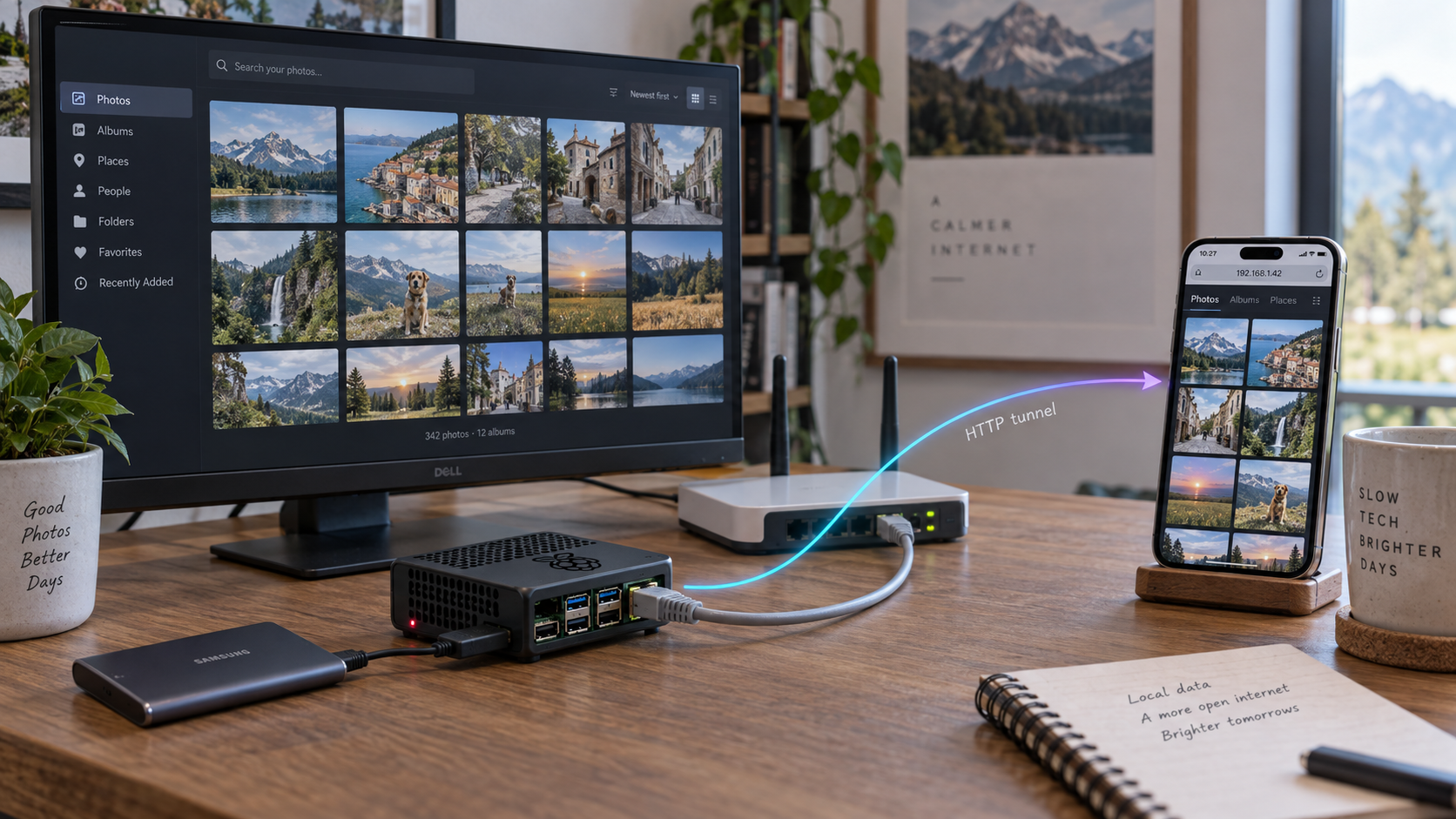
Build a private photo library at home, verify it locally, and publish only the web interface you intend to use
PhotoPrism is a privacy-focused application for browsing, organizing, searching, and sharing photos and videos. Its multi-architecture Docker images support 64-bit ARM systems, making a compatible Raspberry Pi a practical self-hosting platform. This guide explains the installation workflow, configuration checks, startup, local verification, routine maintenance, and troubleshooting before remote access is introduced. Once PhotoPrism is working on the local network, we will connect its web interface to a Localtonet HTTP tunnel without requiring inbound router port forwarding, a public IP address, or firewall changes.
📋 What's in this guide
How the PhotoPrism and Localtonet setup works
PhotoPrism is an AI-powered photo and video application designed for self-hosted and cloud environments. Its browser-based progressive web application can be used from phones, tablets, and desktop computers. PhotoPrism provides search filters, automatic labels, face recognition, metadata processing, maps, support for a broad range of media formats, and WebDAV connectivity for compatible clients.
In this workflow, PhotoPrism runs in Docker containers on a Raspberry Pi. Docker Compose describes the application services, persistent storage, networking, and other configuration required by the selected PhotoPrism deployment. A browser on the local network connects to the host address and published web port defined by that configuration.
Remote access is added only after this local application path is proven to work. The Localtonet client runs on the Raspberry Pi, or on another device that can reach the Pi. It establishes an outbound connection to a Localtonet relay server. An HTTP tunnel then maps a public HTTPS address to the local IP address and port where PhotoPrism is listening.
This separation is important. Docker is responsible for running PhotoPrism, PhotoPrism is responsible for its users and photo library, and Localtonet is responsible for forwarding traffic to the already working web service. If the PhotoPrism container is unhealthy or the web port is not reachable locally, creating a tunnel will not repair the application.
PhotoPrism publishes multi-architecture images for 64-bit AMD, Intel, and ARM processors. Raspberry Pi users running a compatible 64-bit ARM environment can follow the Docker-based installation path. Do not assume that an older 32-bit operating system can use the same current image. Confirm the operating system architecture before downloading application images.
Prerequisites for a Raspberry Pi PhotoPrism server
Prepare the host before creating containers. A reliable PhotoPrism deployment needs more than an available Docker command. The operating system architecture, storage layout, credentials, local networking, and backup plan all affect whether the server can be maintained safely.
Compatible Raspberry Pi environment
Use a Raspberry Pi environment capable of running a supported 64-bit ARM Linux installation and Docker. PhotoPrism documents its stable and preview Docker images as multi-architecture images for 64-bit ARM processors. The supplied project evidence does not establish a specific Raspberry Pi model, minimum memory value, or required operating system release, so this guide does not invent those requirements.
Photo indexing, thumbnail generation, face processing, metadata extraction, and video handling can consume processor time, memory, and storage I/O. Library size and media formats can change the resource demand significantly. Before importing an irreplaceable library, test with a small representative set that includes the image and video formats you actually use.
Docker and Docker Compose
PhotoPrism recommends Docker images for private servers and NAS devices. Its community edition requires a web browser and Docker, and its repository provides Docker Compose configurations for multiple deployment scenarios. Install Docker using the supported procedure for the Linux distribution running on the Pi, and make sure the Compose plugin is available.
Confirm that both components respond before proceeding:
docker --version
docker compose version
These checks report whether the Docker command and Compose plugin are available. They do not prove that the current account has permission to communicate with the Docker daemon. If a permission error appears, follow the Docker installation guidance for the operating system rather than weakening socket permissions or running copied commands without understanding them.
Persistent storage and a backup plan
Decide where the original media library, PhotoPrism-managed storage, and database data will reside. These have different roles. Original photos and videos are the assets you care about, while application storage and database content preserve indexes, settings, labels, albums, and other state used by the deployment.
The precise host paths and volume names must come from the current official PhotoPrism Compose configuration selected for the installation. They are not established by the supplied evidence, so we do not provide guessed directories. Review every volume mapping before starting the stack and confirm that the destination storage has sufficient capacity.
Recreating a container does not recover deleted originals, database state, or application storage. Keep an independent backup of important photos and all persistent data required by the selected PhotoPrism configuration. Test restoration before relying on the server as the only copy of a library.
Local network information
Record the Raspberry Pi's local IP address or resolvable hostname. You will use it first for local browser testing and later as the Localtonet target if the Localtonet client runs on another device. A stable local address is preferable because a DHCP address change can break bookmarks and tunnel targets.
You must also identify the host port published by the current PhotoPrism Compose configuration. The supplied PhotoPrism evidence does not state a default local URL, interface binding, or port. This article therefore deliberately avoids assigning one. Use the value in the official Compose file and verify the resulting port mapping after startup.
Administrative credentials
Review the current PhotoPrism configuration for its administrator account and authentication settings before startup. Replace sample or placeholder credentials with a unique password according to PhotoPrism's current instructions. Do not place real passwords in shell history, screenshots, public repositories, support messages, or tunnel configuration notes.
| Requirement | Why it matters | How to verify it |
|---|---|---|
| 64-bit ARM environment | Matches PhotoPrism's documented multi-architecture ARM image support | Check the operating system architecture before pulling images |
| Docker Engine | Runs the PhotoPrism application containers | Run docker --version |
| Docker Compose | Creates and manages the services defined by the deployment | Run docker compose version |
| Persistent storage | Preserves originals and application data across container recreation | Review Compose volume mappings and available disk capacity |
| Local address and published port | Provides the endpoint used for verification and tunneling | Inspect the active Compose service and test it with a browser |
| Unique administrative password | Protects the photo library when the application becomes reachable | Sign in locally before configuring remote access |
Install and start PhotoPrism with Docker Compose
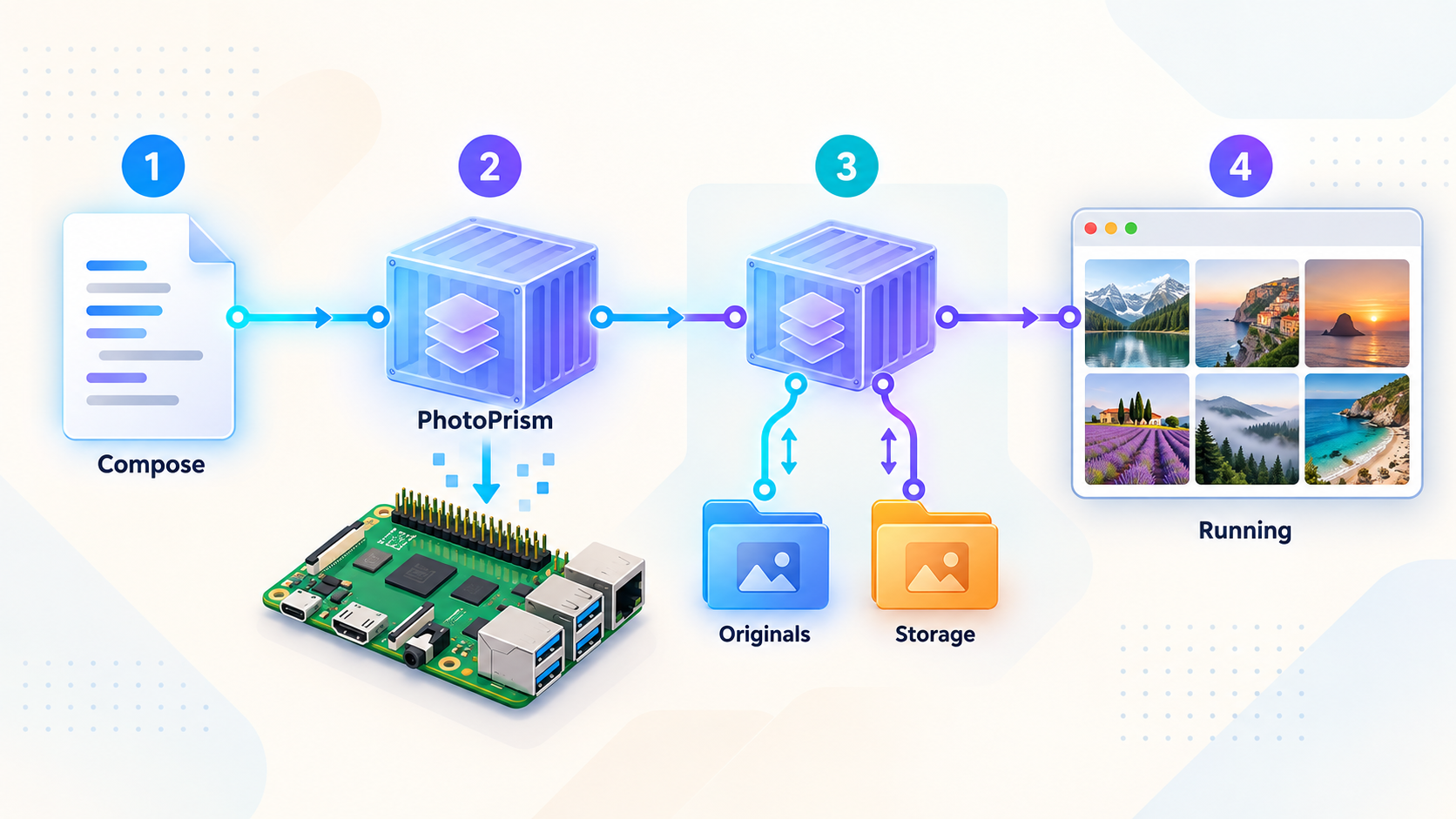
The safest installation path is to use the current Docker Compose configuration published by PhotoPrism rather than reconstructing one from an old tutorial. PhotoPrism maintains several Compose files for different environments, and their service names, image references, variables, volume mappings, and published ports can change.
The extracted project evidence confirms Docker Compose as the documented installation route but does not contain the current installation page's complete download command, exact file location, required variables, default port, or credentials. To avoid creating a configuration that looks authoritative but is wrong, the steps below explain the complete operational sequence while requiring those exact values to be taken from the current PhotoPrism documentation.
Choose the official Raspberry Pi-compatible Compose configuration
Open the current PhotoPrism Docker Compose installation instructions and select the configuration intended for the deployment and processor architecture. Use a stable release for a normal photo server unless you intentionally want to test a development preview. Do not assemble a configuration by mixing fragments from unrelated Compose variants.
Create a dedicated deployment directory
Keep the official Compose file and any deployment-specific environment file in a dedicated directory. This makes future validation, startup, updates, and backups easier. Restrict access to configuration files containing credentials, and do not commit them to a public repository.
Review every persistent volume mapping
Identify the mappings for original media, PhotoPrism storage, and database data in the selected configuration. Replace example host paths only as directed by the current documentation. Confirm that each parent directory exists where required, is backed by appropriate storage, and can be accessed by the container configuration.
Set deployment credentials and required options
Replace sample credentials and review the documented configuration values before the first start. Keep passwords unique and private. The exact variable names are intentionally not reproduced here because they are not present in the supplied evidence and must match the current official Compose file.
Validate the Compose model
From the deployment directory, ask Docker Compose to parse and render the configuration. Read the result carefully, especially image names, volume mappings, service dependencies, and published ports. Be aware that rendered output can contain resolved secrets, so do not paste it into a public issue.
Start the PhotoPrism stack
Start the services in detached mode from the same directory. Docker downloads missing images and creates the containers, networks, and volumes described by the selected configuration. Initial startup may take longer than later restarts because images must be downloaded and services may need to initialize persistent data.
Inspect status and startup logs
Confirm that expected services are running, then inspect recent logs for initialization failures, permission problems, invalid settings, database errors, or resource exhaustion. Resolve application errors before attempting to expose the service.
The standard Docker Compose commands for validation, startup, status, and recent logs are:
docker compose config
docker compose up -d
docker compose ps
docker compose logs --tail=100
Run them from the directory containing the selected Compose configuration. If the system requires an installation-specific Docker invocation, follow the operating system's Docker guidance. Do not casually prefix commands with elevated privileges without understanding how that affects file ownership and access to mounted directories.
docker compose config is useful for detecting syntax problems and seeing the effective model, but its output may include resolved values from environment files. Treat that output as sensitive whenever the deployment contains credentials.
Find the actual published web port
After startup, inspect the PORTS information shown by docker compose ps. The host-side port is the port a browser or Localtonet must reach. A mapping generally distinguishes the host port from the container port, and those values are not necessarily identical.
Also note the interface to which the host port is bound. The supplied PhotoPrism evidence does not establish its default binding. A loopback-only binding is reachable only from the Raspberry Pi itself, while a LAN binding can be reached from another machine on the local network, subject to host firewall policy. Do not change the binding merely to make remote access work. If the Localtonet client runs directly on the Pi, it may be able to use a local-only target without broadening LAN exposure, provided the configured address is reachable from that client process.
Verify PhotoPrism locally before creating a tunnel
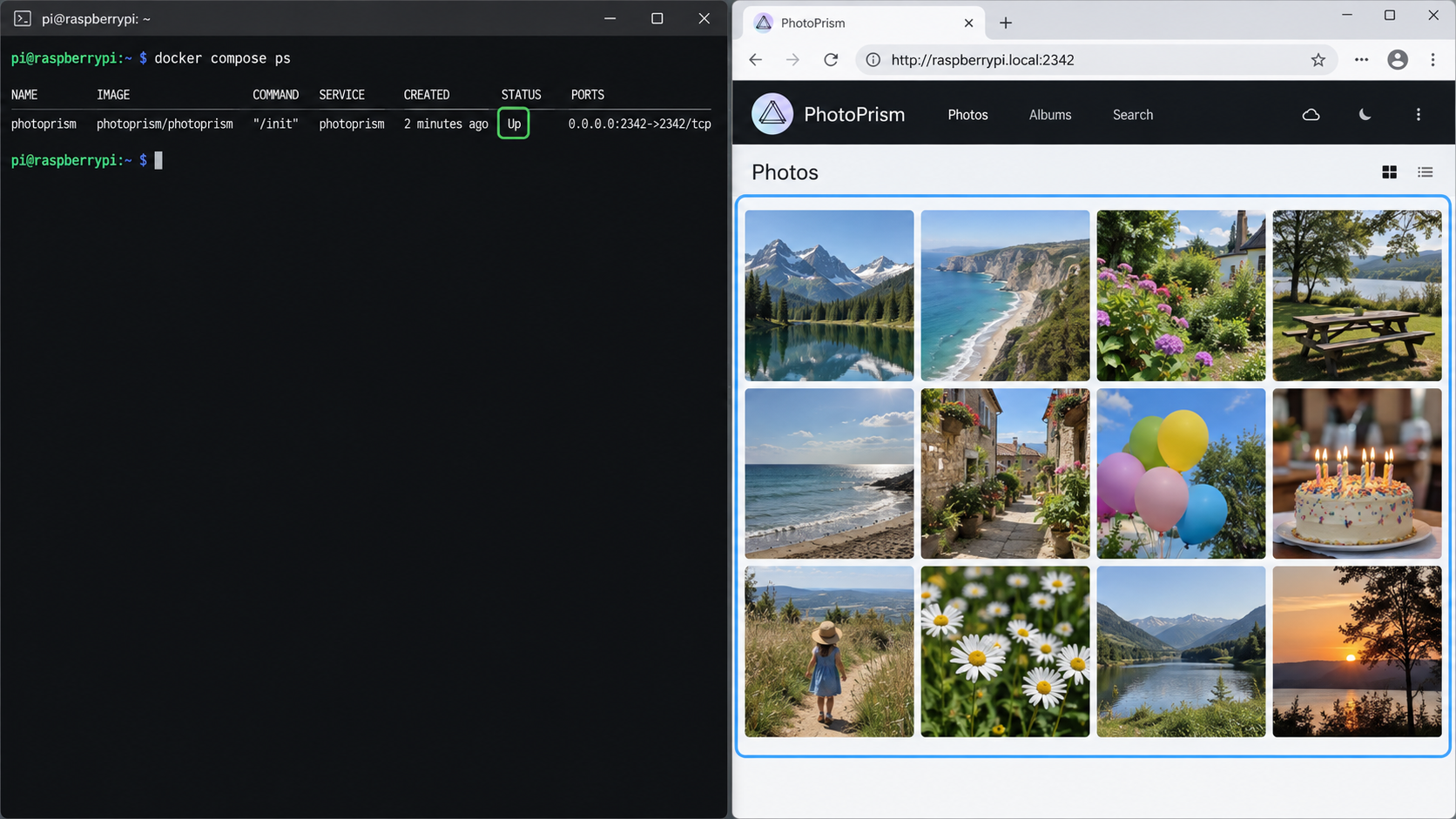
Local verification creates a clean troubleshooting boundary. It proves that Docker is running, the services initialized, the port is published, and the application answers through a browser. Complete this stage from the Pi or another trusted device on the same network.
Check container state
Run:
docker compose psExpected services should remain running rather than repeatedly restarting or exiting. A running container is encouraging, but it is not sufficient by itself. The process can be alive while the application is still initializing or while another required service is unhealthy.
Read application logs
Inspect recent output:
docker compose logs --tail=100If more context is required, follow the logs while reproducing the problem:
docker compose logs --followStop following with the terminal interrupt appropriate to the shell. Look for errors involving mounted directories, database connectivity, invalid configuration, unsupported architecture, unavailable storage, or memory pressure. Do not publish unedited logs until you have removed credentials, private file names, internal addresses, and other sensitive information.
Open the local web interface
Construct the local URL from the actual host address and host-side port identified in the active Compose configuration. Open it in a modern browser. Because the official port is not established by the supplied evidence, use this pattern rather than copying a guessed example:
http://RASPBERRY_PI_ADDRESS:PUBLISHED_HOST_PORTReplace both placeholders with observed values. If testing directly on the Pi and the service is bound to a local interface, use the address appropriate to that binding. If testing from another device, use the Pi's reachable LAN address.
Complete the authentication check
Confirm that the expected sign-in flow appears and that the administrator credentials configured for this deployment work. Verify that an unauthenticated browser session does not receive access that should require authentication. This check should happen before the service receives a public URL.
Run a small functional test
Use a small, non-sensitive sample set for the first test. Confirm that PhotoPrism can access the intended media location and that the interface remains responsive during basic indexing and browsing. Test the functions that matter to your workflow, such as search, labels, thumbnails, metadata display, or video playback.
PhotoPrism supports features including automatic classification, face recognition, combined search filters, metadata extraction, maps, Live Photos, and WebDAV access. Some operations are computationally intensive, so a successful page load alone does not demonstrate that a large import will perform acceptably on a particular Pi and storage device.
PhotoPrism also documents WebDAV compatibility, but this guide exposes the browser-based web application through a Localtonet HTTP tunnel. It does not assume that a separate WebDAV endpoint shares the same path or authentication behavior because those endpoint details are not included in the supplied evidence.
Routine operation, shutdown, updates, and backups
A self-hosted photo server needs a repeatable operating process. Keep the Compose configuration, environment-specific values, storage layout, backup procedure, and observed web endpoint documented privately. This reduces the risk of guessing during an outage or upgrade.
Check service status
docker compose psUse this after host reboots, storage changes, updates, or unexpected outages. If a service has exited, inspect its logs before repeatedly restarting it. Repeated restarts can obscure the original failure and may increase load on constrained hardware.
Stop and restart the deployment
To stop and remove the Compose-managed containers and network while retaining correctly configured persistent data, run:
docker compose downStart the deployment again with:
docker compose up -dPersistent data survives only when the deployment's volumes and host mappings are configured correctly. Do not add volume-removal options unless you deliberately intend to delete associated Docker-managed data and have verified backups.
Update conservatively
Read the release notes and current PhotoPrism upgrade guidance before changing images. Releases can introduce new models, migrations, configuration options, dependency updates, and security fixes. For example, the referenced September 2026 release introduced new face detection and embedding models. Existing libraries retained their current model until an explicit face migration command was run, demonstrating why release-specific migration notes should not be skipped.
A typical Compose image refresh uses:
docker compose pull
docker compose up -d
docker compose ps
docker compose logs --tail=100
Back up persistent data before the update, confirm that the Compose file still matches current guidance, pull the selected images, recreate services, and then verify the local interface. Avoid automating major updates until you have a tested rollback and restore procedure.
Back up the complete state
A useful backup plan covers the original media, PhotoPrism-managed storage, database state, Compose file, and environment-specific configuration needed to reconstruct the deployment. Protect configuration backups because they may contain credentials. A backup should exist independently from the Raspberry Pi and its primary storage.
Restoration testing is essential. A collection of files is not a proven backup until you can use it to restore the application and locate the expected photos, albums, metadata, and settings.
Access PhotoPrism remotely with a Localtonet HTTP tunnel
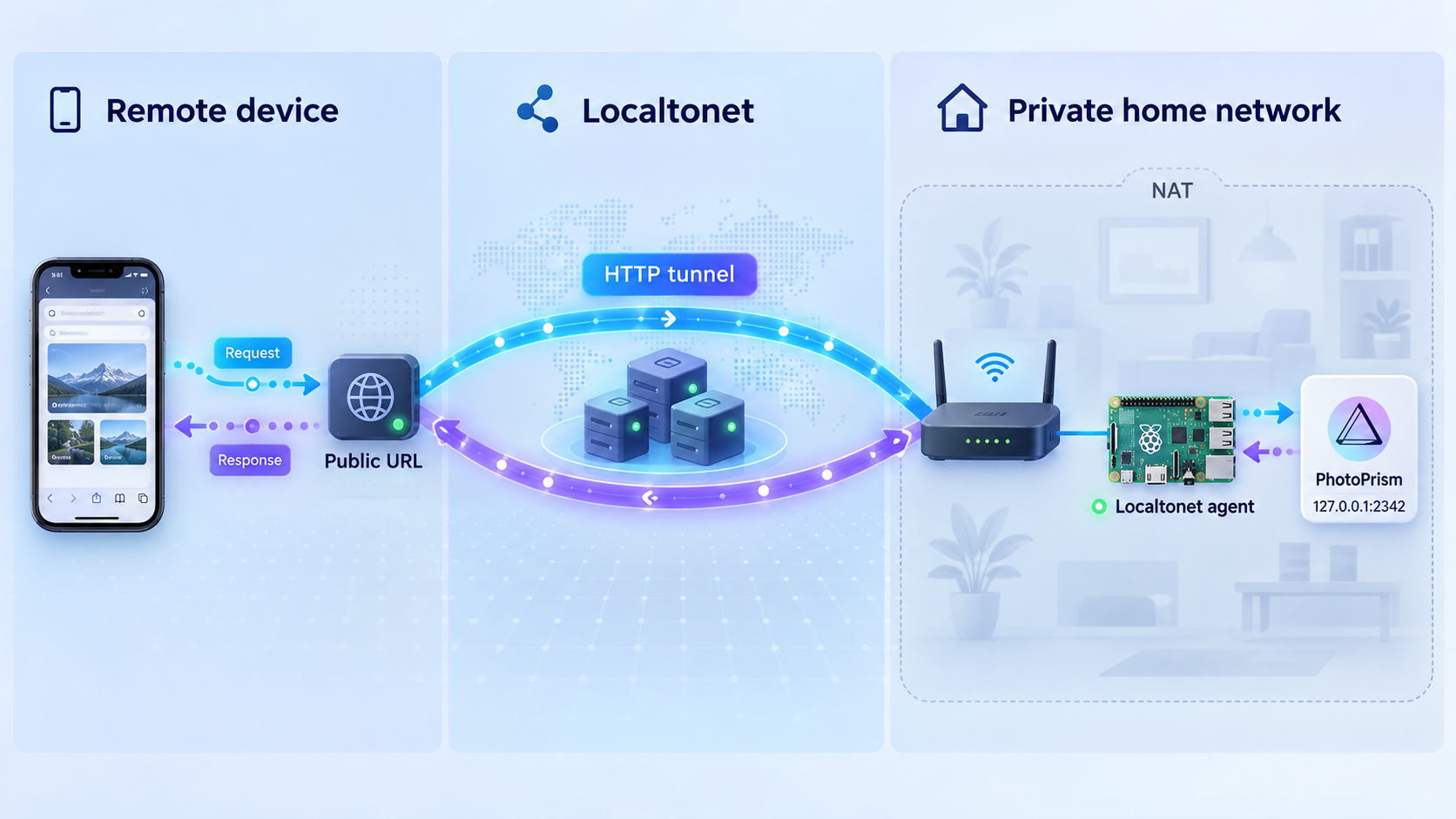
Once PhotoPrism works locally, an HTTP tunnel is the appropriate Localtonet tunnel family for its browser-accessible web interface. Our client establishes an outbound connection to a Localtonet relay server, so this workflow does not require inbound router port forwarding, a public IP address, firewall changes, or VPN setup.
The tunnel points to the local IP address and host-side port already verified in the browser. If our client runs on the Raspberry Pi, use the reachable local target appropriate to PhotoPrism's binding. If the client runs on another device, use the Pi's LAN address and confirm that the second device can open PhotoPrism locally first.
Install and run the Localtonet client
Install our client for the operating system on the device that can reach PhotoPrism. Running it directly on the Raspberry Pi keeps the application and tunnel endpoint together. A different local device can also be used if it has reliable network access to the Pi.
Authenticate or select the client device
Use the device-specific authentication token supplied through the Localtonet account workflow, or select the corresponding connected device in the dashboard. Keep the token private and never place it in the Compose file, article screenshots, shell history, or public repositories.
Select an available relay server
Choose a currently available server or region from the dashboard. Available server codes and regions can vary, so obtain the value from the current product instead of copying a hardcoded example.
Create the HTTP tunnel configuration
Select the HTTP tunnel family and set its local target to the PhotoPrism address and published host port that passed local testing. For HTTP process type, choose an available random subdomain, supported custom subdomain, or custom domain as appropriate. Custom-domain DNS details should be taken from the current Localtonet documentation rather than guessed.
Start the tunnel
Creating a tunnel does not make it active. Press Start and confirm that the selected client device is connected and the tunnel is running. The assigned public URL is usable only while the client remains connected and the tunnel remains active.
Test the public HTTPS address
Open the assigned address from a network outside the home LAN, such as a mobile connection. Confirm that the PhotoPrism sign-in page loads, authenticate, and test a small number of normal operations. Stop the tunnel immediately if the application exposes content or administrative functions without the protections you expected.
For the current dashboard workflow and field names, consult our HTTP tunnel documentation. The local target must remain the endpoint you verified from the active PhotoPrism deployment. Do not substitute a remembered default port.
Treat the tunnel address as internet-accessible. Use strong PhotoPrism credentials, keep Docker images and the host operating system updated, limit administrative access, and avoid sharing the URL unnecessarily. A tunnel provides reachability to the configured target. It does not replace PhotoPrism authentication, application authorization, backups, or host security.
Security checklist for a remotely accessible photo library
Photo libraries can reveal faces, homes, travel history, family relationships, document images, device details, and location metadata. Remote access should therefore be treated as a deliberate security decision rather than a convenience switch.
Keep PhotoPrism's application data and originals out of directories used for unrelated public services. Do not expose Docker's control socket or a database port as a shortcut for administration. The remote-access target for this workflow is the PhotoPrism web interface only.
If several people need access, use separate application identities and the least privilege available in the current PhotoPrism edition and configuration. Avoid sharing one administrator password across family members or devices. Review privacy-sensitive features, including face names, maps, location metadata, sharing functions, and WebDAV behavior, according to the accounts that can reach the library.
Troubleshooting PhotoPrism and Localtonet
The Docker command is unavailable
Confirm that Docker was installed through a procedure supported by the Raspberry Pi's Linux distribution and that the shell can find the command. If docker compose version fails while docker --version succeeds, the Compose plugin may be missing or installed incorrectly.
Docker reports a permission error
The current user may not have permission to communicate with the Docker daemon, or the daemon may not be running. Follow the operating system's Docker guidance. Do not make the Docker socket broadly writable, since control of that socket can effectively grant control over the host.
A container exits or restarts repeatedly
Run docker compose ps and inspect logs. Common categories include invalid configuration, inaccessible mounted paths, insufficient storage, database startup failures, unsupported images, and resource pressure. Correct the first meaningful error rather than repeatedly recreating the stack.
PhotoPrism cannot access the photo directory
Compare the host path in the selected Compose file with the actual storage location. Confirm that the device is mounted, the directory exists, and the container configuration can read it. Avoid changing permissions recursively across an entire photo archive until you understand which identity requires access and what the current ownership represents.
The browser cannot reach PhotoPrism locally
Confirm that the services are running and inspect the published port shown by docker compose ps. Make sure the browser URL uses the host-side port rather than an unverified container port. If testing from another device, verify that the service is bound to a reachable interface and that local firewall policy permits the connection.
The local page works, but the tunnel does not
Check that the selected Localtonet client device is connected and that the tunnel has been started. Then verify the local target address and port. If our client runs on another device, test the exact target URL from that device. A page that works only from the Pi itself may be bound to a loopback interface and therefore unreachable from a separate tunnel client.
The public URL shows a gateway or connection error
Confirm that PhotoPrism is still running and that its published port has not changed after editing the Compose configuration. Check whether the Raspberry Pi's local address changed. Restarting a Localtonet tunnel cannot fix a failed application container or an unreachable local target.
The public page loads, but sign-in or application actions fail
First reproduce the same action through the local URL. If it also fails locally, troubleshoot PhotoPrism and its container logs. If it fails only through the public URL, note the browser behavior, timestamp, and relevant application logs. Avoid changing unverified proxy-related settings until current PhotoPrism documentation establishes that the setting is required for the installed release.
Indexing makes the Raspberry Pi unresponsive
Test with a smaller library and observe system memory, CPU activity, storage capacity, and I/O behavior. Large image and video libraries can require substantial processing for thumbnails, metadata, labels, and face analysis. The supplied evidence does not establish one universal Raspberry Pi capacity, so scale expectations should be based on measurements from the actual device and library.
An update changes behavior
Read the release notes for migrations and changed defaults. Restore from backup if the deployment cannot be repaired safely and the documented upgrade path supports rollback. Do not run one-time migration commands copied from a different release merely because the command appears in a release announcement.
Frequently asked questions
Can PhotoPrism run on a Raspberry Pi?
PhotoPrism publishes multi-architecture Docker images for 64-bit ARM processors and explicitly includes Raspberry Pi users in its supported Docker installation path. Confirm that the Pi operating system is 64-bit and compatible with the current image. Actual performance depends on the device, storage, media formats, enabled processing, and library size.
What is PhotoPrism's default local port?
The supplied project evidence does not establish a default local port, interface binding, or URL, so this guide does not guess one. Inspect the current official Compose configuration and confirm the active host-side mapping with docker compose ps. Use that observed port for local testing and the Localtonet target.
Does Localtonet require router port forwarding?
No. Our client establishes an outbound connection to a Localtonet relay server. This allows the PhotoPrism web service to receive a public address without configuring inbound router port forwarding, requiring a public IP address, changing firewall rules, or setting up a VPN.
Should the Localtonet client run on the Raspberry Pi?
Running it on the Pi is often the simplest topology because the client is on the same host as PhotoPrism. It can also run on another device that can reliably reach the Pi's local address and port. Test the exact target from the selected client device before creating the tunnel.
Does an HTTP tunnel replace PhotoPrism authentication?
No. The tunnel provides network reachability to the configured local target. PhotoPrism remains responsible for application authentication and authorization. Verify strong credentials and the unauthenticated experience locally before starting public access.
Can I use PhotoPrism's WebDAV support through the same instructions?
This guide is limited to PhotoPrism's browser-based web interface through an HTTP tunnel. PhotoPrism documents WebDAV client compatibility, but the supplied evidence does not provide the endpoint, path, or separate proxy requirements needed to document that workflow safely. Do not assume those details are identical to browser access.
Is the tunnel always available after it is created?
No. Creating the tunnel does not start it. The selected Localtonet client must be connected and the tunnel must be running. PhotoPrism and its required services must also remain available at the configured local target.
What should I back up before updating PhotoPrism?
Back up the original media, PhotoPrism-managed storage, database state, Compose configuration, and environment-specific information needed for restoration. Protect configuration backups if they contain credentials. Confirm that the backup can actually be restored before performing a significant update.
Connect your verified PhotoPrism server with Localtonet
Once PhotoPrism is running, authenticated, and reachable at a confirmed local address and port, create a Localtonet HTTP tunnel to access the web interface remotely without inbound router port forwarding.
Get Started Free →