

Build and verify a Windows Web Report Server before making it available remotely
This tutorial covers installing Seal Report 10 on Windows, configuring a basic report, publishing the Web Report Server through IIS, identifying its effective local URL, and connecting that verified endpoint to a Localtonet HTTP tunnel. It is intentionally scoped to the documented Windows and IIS workflow. By validating each layer separately, you can distinguish Seal Report, database, IIS, permissions, and tunnel problems without guessing.
📋 What's in this guide
How the Windows deployment fits together
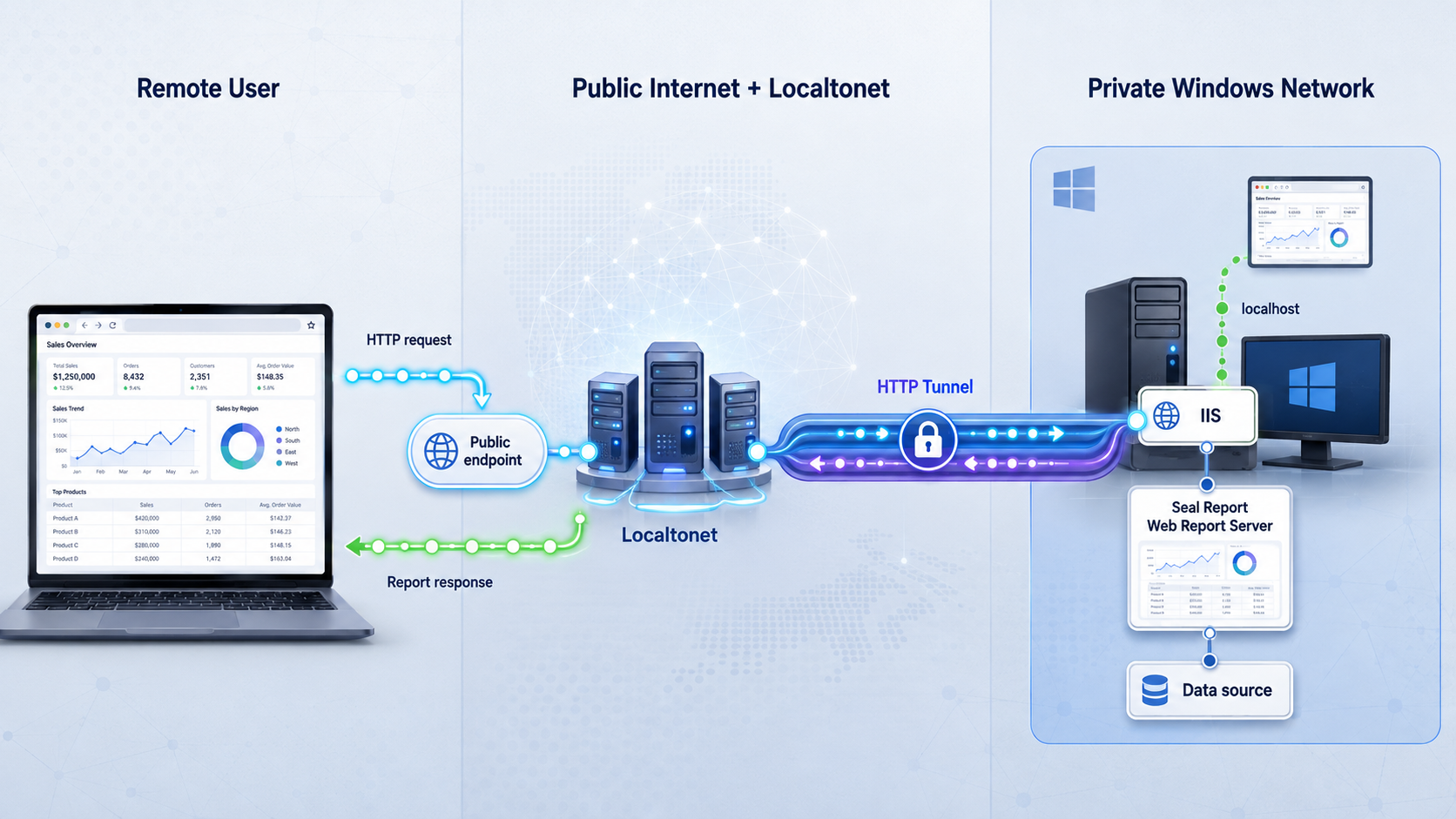
Seal Report & Task is an open-source C# and Microsoft .NET framework for producing reports from databases, files, NoSQL systems, and other supported data sources. It includes dynamic SQL sources, LINQ queries, pivot tables, HTML charts, KPI and widget views, drill-down navigation, scheduled execution, task and ETL features, and output formats such as HTML, Excel, PDF, XML, JSON, text, and CSV.
A complete installation has several distinct responsibilities. Server Manager declares data sources and controls server configuration. Report Designer builds reports, restrictions, charts, pivots, and output layouts. The Web Report Server presents reports through a browser. Scheduler components can execute reports and tasks automatically. IIS hosts the browser-facing application in the Windows workflow covered here.
The key security boundary is between the Web Report Server and its data sources. Browser users communicate with the reporting application. Seal Report then queries its configured sources from the server side using the selected provider and reporting identity. The database listener does not need to become the public endpoint.
Treat setup as a sequence of testable layers. First confirm that the Windows tools open. Next confirm that Seal Report can query a source and execute a small report. Then publish the Web Report Server and prove that its exact IIS URL works. Only after those checks should you configure a Localtonet HTTP tunnel.
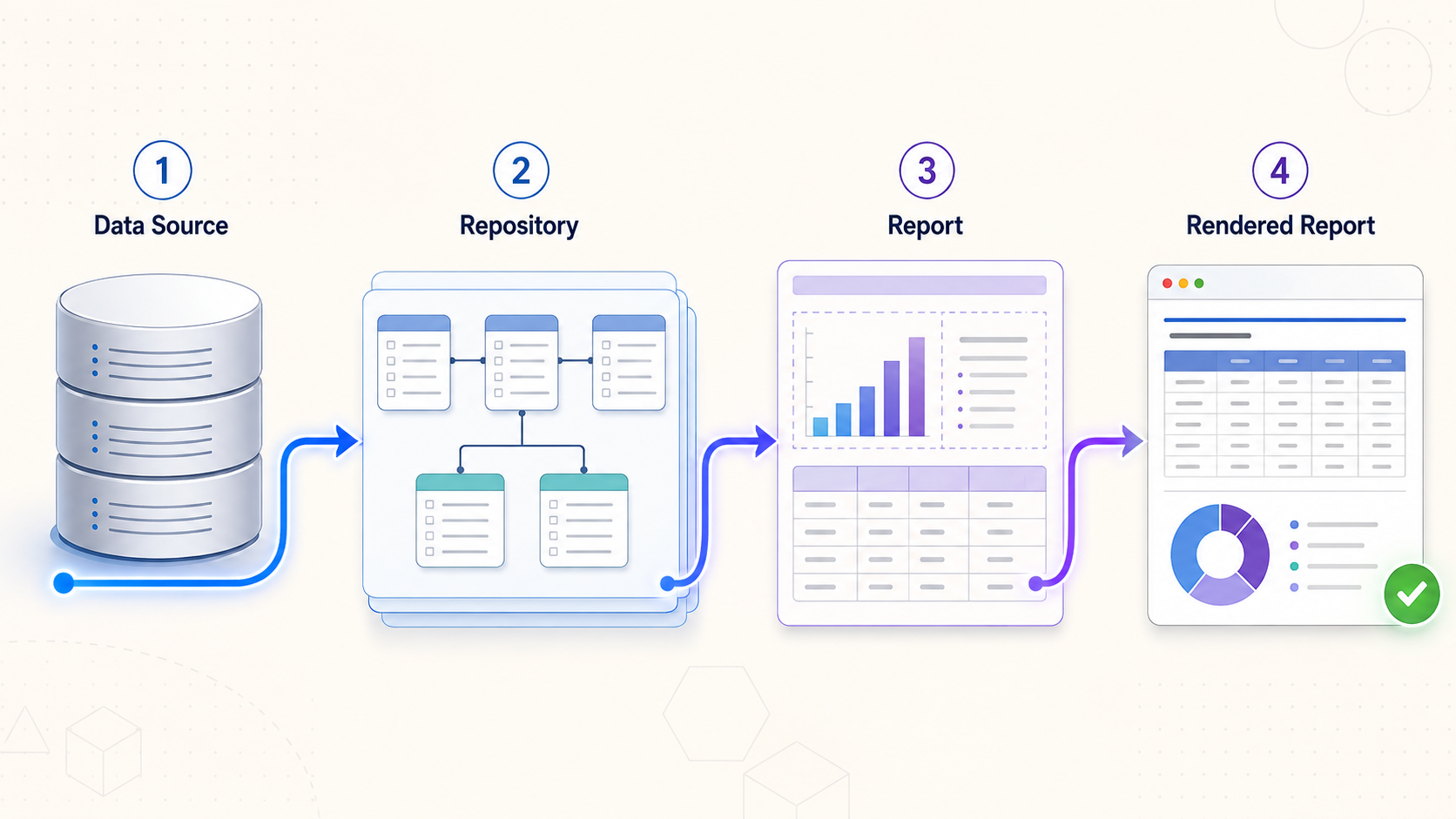
The effective local URL depends on the IIS binding and, when applicable, the application path chosen during publication. Record the actual protocol, host or IP address, port, and path used by your deployment instead of assuming a default port.
Prepare Windows, .NET, IIS, and your data source
This guide uses the Seal Report 10.0.1 release as its version baseline. Seal Report 10 targets .NET 10. The Windows desktop applications and scheduler require Microsoft Windows Desktop Runtime 10. Report Designer also requires Microsoft Edge WebView2. The IIS-hosted Web Report Server requires the ASP.NET Core Runtime 10 Hosting Bundle.
Review the current Seal Report getting-started documentation and the Seal Report 10.0.1 release notes before installing or upgrading. For the runtime itself, use Microsoft's .NET 10 download page. Microsoft also maintains separate ASP.NET Core hosting guidance for IIS and the official WebView2 download and deployment page.
| Deployment element | Requirement for Seal Report 10 | Why it is needed |
|---|---|---|
| Windows desktop components | .NET 10 and Microsoft Windows Desktop Runtime 10 | Runs Report Designer, Server Manager, and applicable scheduler components. |
| Report Designer | Microsoft Edge WebView2 | Supports the designer's embedded web interface. |
| Web Report Server on IIS | IIS and ASP.NET Core Runtime 10 Hosting Bundle | Provides the ASP.NET Core runtime and IIS integration used to host the application. |
| Seal Report repository | A protected repository location accessible to the required Seal Report and IIS process identities | Stores data sources, devices, reports, settings, views, security configuration, and related repository content. |
| Data-source connectivity | The correct driver, network path, credentials, and source permissions | Allows the application to query the selected database, file, or NoSQL source. |
| Remote access | A running Localtonet client on a device that can reach the IIS endpoint | Establishes the outbound relay connection used by the HTTP tunnel. |
Plan the Windows host
Decide whether the Localtonet client will run on the same Windows server as IIS or on another trusted device. When both run on the same host, the tunnel can target a locally reachable IIS binding. When the client runs elsewhere, that device must be able to reach the Seal Report host over the local network, and the IIS binding and Windows firewall must permit that connection.
Identify the source that the first report will use, the driver it requires, the account Seal Report will use, and the data that remote users should be permitted to see. Driver architecture, connection options, database TLS requirements, and source permissions must match the selected provider. Merely being able to reach a database server does not mean the Seal Report process can authenticate or query it.
Use a dedicated reporting identity with the least privilege needed by the reports. Read-only source access is preferable when reports only retrieve data. If a task or report intentionally writes data, grant only the specific write permissions needed for that operation.
Understand the selected release
Seal Report 10.0.1 is a security and maintenance update. Its release notes describe Web Report Server hardening for path traversal, Secure session cookies on HTTPS, RSA OAEP padding, an X-Frame-Options anti-clickjacking header, and additional HTML escaping. The release also updates AngleSharp and .NET packages.
Seal Report 10 no longer supports NVD3 charts. Reports using NVD3 must move to a supported chart engine such as ECharts or ChartJS. Custom report views and templates written for Bootstrap 3 should be compared with the newer Bootstrap 5 templates before an upgrade is applied to production.
Do not assume that an older .NET runtime already installed on the server satisfies Seal Report 10. Install the runtime family specified for the selected release, and recheck the current release notes if you use a version newer than the one covered here.
Install Seal Report 10 on Windows
Download the setup executable from the project's official GitHub Releases page. Avoid unofficial software mirrors. The available documentation describes an interactive setup executable but does not establish unattended installation switches, so this tutorial does not invent command-line options.
Download and review the selected release
Open the official Releases page, choose the intended Seal Report version, and download its Windows setup executable. Read that release's runtime, security, and upgrade notes before changing an existing installation.
Install the Microsoft prerequisites
Install Microsoft Windows Desktop Runtime 10 for the Windows applications and Microsoft Edge WebView2 for Report Designer. On the IIS host, install IIS and the ASP.NET Core Runtime 10 Hosting Bundle required by Seal Report 10.
Run the Seal Report setup executable
Start the downloaded installer and complete its prompts. The normal setup installs Report Designer, Server Manager, Seal Scheduler Service, Task Scheduler, and a default repository.
Record the installed locations
With the documented defaults, executables, libraries, and configuration files are placed under C:\Program Files\Seal Report. Repository files are placed under C:\ProgramData\Seal Report Repository. Record any custom locations you selected.
Open the administration and design tools
Launch Server Manager and Report Designer. Resolve missing runtime, WebView2, permissions, or endpoint-security errors before configuring IIS or remote access.
The Web Report Server distribution is located in:
C:\Program Files\Seal Report\Core
This Core directory contains the files required to publish the Web Report Server. It is a file-system distribution path, not a browser address. Do not try to verify the server by browsing to this folder. The application must first be published using the documented IIS workflow.
The repository is separate from the program directory. By default, the repository root is:
C:\ProgramData\Seal Report RepositoryThis separation matters for permissions, backups, upgrades, and troubleshooting. Replacing application files does not replace the need to protect and preserve repository data.
Seal Report also supports publishing the Web Report Server on Linux, but Linux deployment requires its own publication, startup, service, listening-address, permissions, and operational procedure. Follow the dedicated deployment tutorials linked from the Seal Report getting-started site rather than applying these IIS instructions to Linux.
Configure a source and build a small report
A successful installer run proves that the software was placed on disk. It does not prove that a data provider can load, that credentials are valid, or that a report can query the intended rows. Build and execute one limited report before publishing the web application.
Install the required source driver
Install the provider required by your source, such as the appropriate OLE DB, ODBC, SQL Server, Oracle, MySQL, SQLite, PostgreSQL, or MongoDB component. Match it to the source and Windows environment.
Declare the source in Server Manager
Create the data-source definition using the connection information required by the selected provider. Use the dedicated reporting identity and avoid granting broader source access than the report requires.
Test source connectivity from the host
Confirm that Windows can resolve and reach the source and that the selected identity can access the intended data. Correct driver, DNS, firewall, TLS, and permission errors at this stage.
Create a minimal report
Use Report Designer to create a small report with a limited query or element set. Add only the restrictions and presentation needed to prove the reporting path.
Execute and inspect the result
Run the report locally. Check values, filters, row scope, dates, formatting, execution time, and whether the result reveals only the intended information.
Start with a deliberately small query. A report that scans an entire production table may be slow even when the installation is correct. Apply useful restrictions and review source-side indexes or query plans where appropriate. Do not use a report that already times out locally as the first test of IIS or Localtonet.
Seal Report 10 also supports configurable AI providers including OpenAI, Azure OpenAI, Anthropic, and Ollama, including local models. AI features are optional and are not required for this installation. If you enable them, review what schema details, prompts, and report data the selected provider can receive.
Repository files, report definitions, data-source settings, security configuration, and associated credentials are operationally sensitive. Restrict file-system access to required administrators and process identities, maintain controlled backups, and never place the repository inside a publicly served directory.
Publish the Web Report Server through IIS
Seal Report provides a Web Server Publisher workflow in Server Manager. Before opening it, confirm that IIS is installed and that the ASP.NET Core Runtime 10 Hosting Bundle is present. If IIS was installed after the Hosting Bundle, consult Microsoft's current IIS hosting guidance and repair or reinstall the Hosting Bundle if required by that guidance.
In Server Manager, select Configuration, then Publish Web Site on IIS.... This opens the Web Server Publisher wizard. The exact site name, binding, destination, and application arrangement can differ between servers, so the essential task is to record the choices made by your publication rather than copying an assumed URL.
Confirm IIS and the Hosting Bundle
Verify that IIS is available on the Windows host and that the ASP.NET Core Runtime 10 Hosting Bundle required by Seal Report 10 has been installed successfully.
Open the Web Server Publisher
Run Server Manager and select Configuration, followed by Publish Web Site on IIS.... Use this documented publication workflow rather than manually copying only part of the Core distribution.
Complete the publisher with deliberate IIS choices
Complete the wizard using settings appropriate for your IIS server. Record the selected site, protocol, IP binding, port, host name if one is used, and whether Seal Report is published at the site root or beneath an application path.
Inspect the resulting IIS configuration
Open IIS Manager, find the published site or application, and inspect its binding and application placement. Confirm that the site and application pool are started. This is where you identify the effective address instead of guessing it.
Verify process access to the repository
Identify the process identity used by the published IIS application. That identity must be able to access the repository resources required by Seal Report. Grant only the necessary repository access and avoid broad permissions on unrelated directories.
Build the effective local URL
The IIS binding identifies the protocol, IP address, port, and optional host name. The application location determines whether a path must be added. Combine those values to obtain the URL you must test.
http://HOST_OR_IP:ACTUAL_PORT/OPTIONAL_APPLICATION_PATH
If the binding uses the normal port for its protocol, a browser may omit the explicit port. If Seal Report was published below the site root, retain its application path. For example, an application published beneath a path named reports requires that path after the host and port. This is only an explanation of URL structure, not a claim that reports is a Seal Report default.
A host-name binding can affect testing. If IIS requires a particular host name, a request sent only to the server's IP address may select a different site or fail to select the intended one. The same concern applies when traffic arrives through a public tunnel hostname. Confirm that the chosen IIS binding is compatible with the address users will request, following Microsoft's IIS binding and ASP.NET Core hosting guidance.
Know where to investigate publication failures
If the site does not start, check the site's state and application pool in IIS Manager. Review the IIS request logs, Windows Event Viewer, and the application or hosting diagnostics available for the published deployment. ASP.NET Core Module stdout logging can provide startup details when it is explicitly enabled according to Microsoft guidance, but log files can contain sensitive information and should not be left enabled or broadly readable without an operational reason.
A startup failure is not a tunnel problem. Resolve missing runtime components, invalid IIS configuration, process startup errors, or repository permissions before creating public access.
Verify the exact IIS endpoint locally
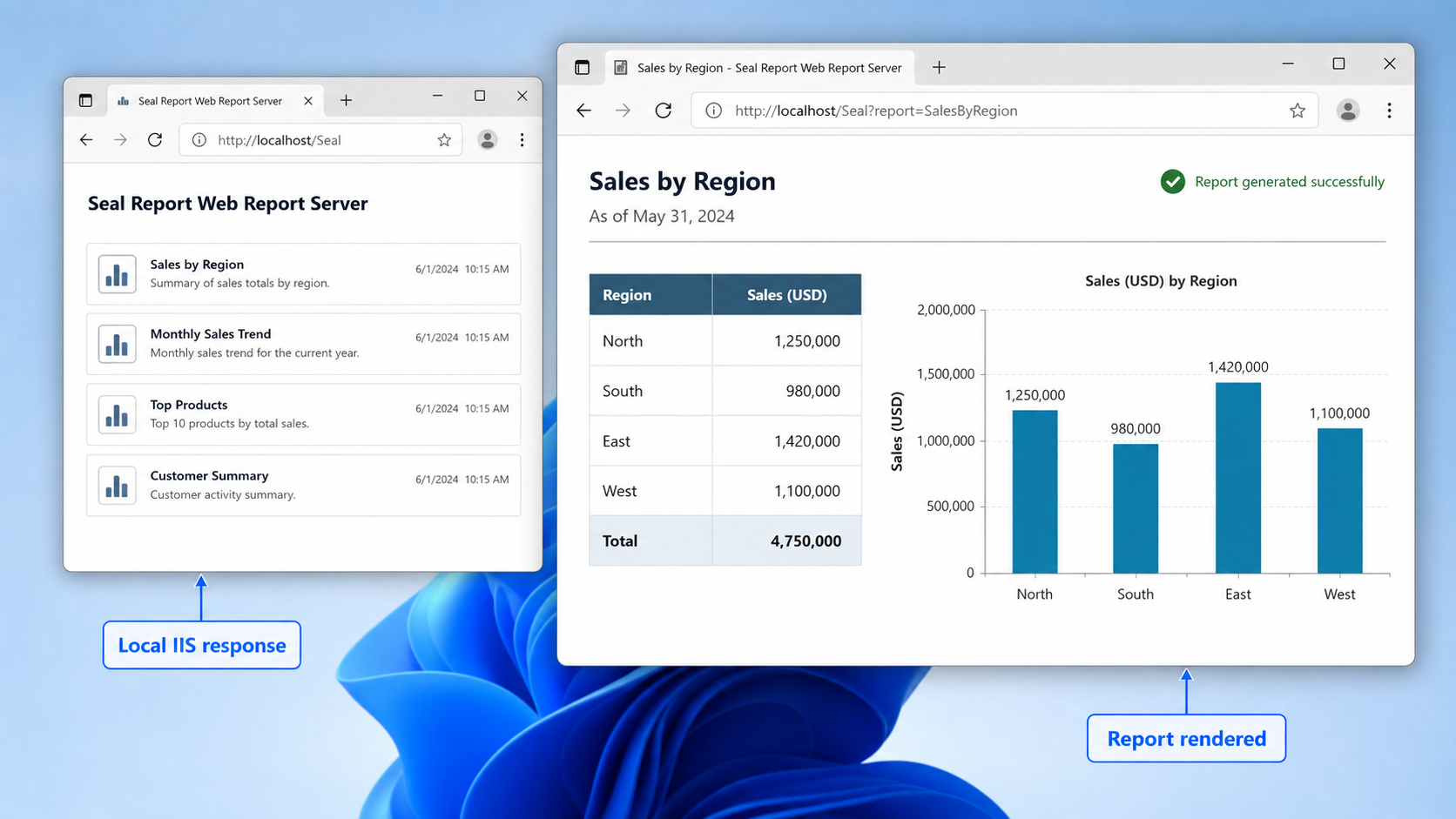
Open the exact URL derived from the IIS binding and application path. A tunnel forwards traffic to an existing service. It does not install Seal Report, start IIS, repair a missing runtime, grant repository access, load a database driver, or correct a report query.
Local verification checklist
- Open the effective URL from a browser on the IIS host.
- Confirm that IIS returns the Web Report Server rather than a default site or another application.
- Sign in if your Seal Report configuration requires authentication.
- Navigate to the intended repository folder.
- Open and execute the small report created earlier.
- Apply a restriction or filter and verify the resulting row scope.
- Confirm that styles, scripts, icons, and follow-up requests load correctly.
- Test permitted downloads only when remote users are expected to receive download rights.
- Restart the relevant site, application pool, or host as appropriate, then repeat the test.
- If the Localtonet client will run on another device, test the endpoint from that device using an address reachable from it.
Use the browser's developer tools and server logs if the initial page loads but report actions fail. A successful HTML response does not prove that static assets, authentication cookies, API requests, downloads, or longer report executions work.
| Observed result | Likely layer | Next check |
|---|---|---|
| No connection to the local URL | IIS site, application pool, binding, or Windows firewall | Confirm the site is started and recheck its actual protocol, address, and port. |
| Another site appears | IIS binding selection | Check the requested host name, IP address, port, and competing site bindings. |
| Runtime or startup error | .NET runtime or IIS integration | Verify the .NET 10 runtime family and ASP.NET Core Hosting Bundle required by the release. |
| Access or repository error | IIS process identity and file permissions | Identify the effective application identity and verify its required repository access. |
| Interface opens but the report fails | Driver, source credentials, query, or report configuration | Execute the same report locally and inspect its detailed error. |
| Host test works but another device cannot connect | Reachability, binding, DNS, or host firewall | Test the server's reachable LAN address from the Localtonet client device. |
Connect the verified IIS service to Localtonet
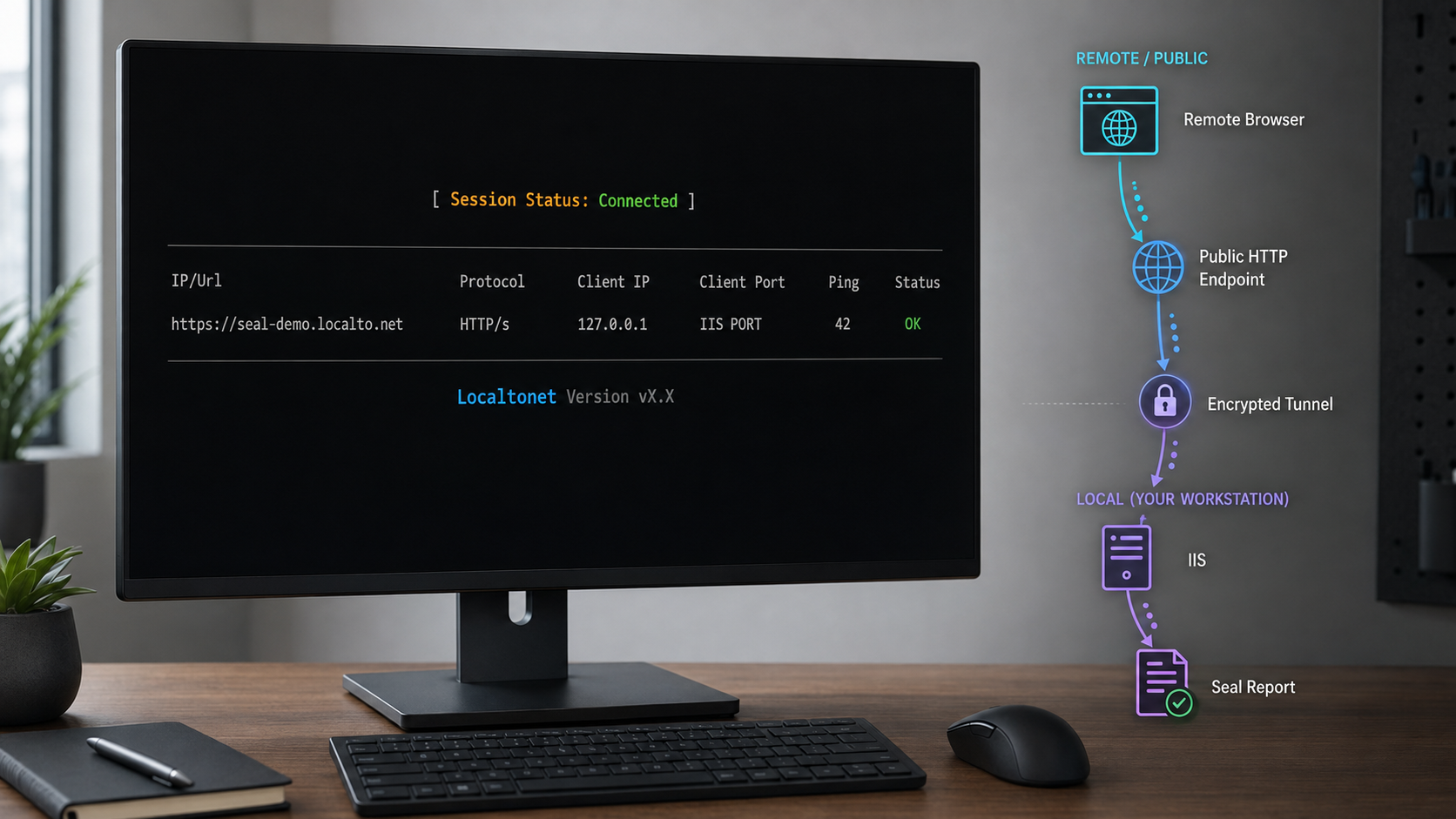
Once the Web Report Server works locally, use a Localtonet HTTP tunnel for the browser-facing service. Our client establishes an outbound connection to a Localtonet relay server. This avoids inbound router port forwarding, inbound firewall changes for internet traffic, VPN setup, and the need for a public IP address.
Before configuring the tunnel, review the current Localtonet client installation guidance and the Localtonet HTTP tunnel documentation. Current availability can vary by plan, client version, and region, so select devices and relay options shown in your dashboard rather than copying a hardcoded server code.
Install and run the Localtonet client
Install our client on the IIS host or on another trusted device that can reach the verified IIS endpoint. Authenticate the client using its device-specific token and keep it connected while remote access is needed.
Open the HTTP tunnel configuration
In the current Localtonet dashboard, create an HTTP tunnel. Use HTTP for the browser-facing Web Report Server rather than publishing the underlying database listener.
Select the Process Type
Choose Random Sub Domain, Custom Sub Domain, or Custom Domain as available for your account and current configuration. All three process types serve the tunneled content at a public HTTPS address. A generated random subdomain is a practical choice for the first end-to-end test.
Select the device AuthToken
Select the device token belonging to the connected Localtonet client that will run the tunnel. Tokens are device-specific secrets. Do not place one in screenshots, report definitions, URLs, public logs, or source control.
Select an available relay server
Choose a relay server or region currently offered in the dashboard. Do not hardcode a server code from an older tutorial because available values may change or vary by plan.
Enter the local IP address
Enter the IIS host address as seen from the Localtonet client. If both services run on the same host, use the locally reachable address that matches your IIS binding. If the client runs elsewhere, use the Seal Report host's reachable LAN address, not localhost.
Enter the actual IIS port
Enter the port from the effective IIS binding you already tested. The tunnel target consists of the local IP address and port. If Seal Report is beneath an IIS application path, retain that path when opening the public URL.
Create the tunnel
Create or save the HTTP tunnel using the selected process type, device token, relay, local IP address, and local port. Review the target before proceeding.
Start the tunnel
Creating a tunnel does not start it. Use the Start button and confirm that the selected client is connected and the tunnel is running.
Verify the assigned public endpoint
Open the assigned public HTTPS address from a separate network. Add the Seal Report application path if the IIS deployment uses one, then test sign-in, navigation, report execution, filters, assets, and permitted downloads.
A saved tunnel remains offline until it is started. The public endpoint works only while the selected Localtonet client is connected and the tunnel is running. Stop or delete the tunnel when remote access is no longer required.
The public and local addresses serve different purposes. Remote users open the assigned public HTTPS address. The Localtonet client connects to the private IIS IP address and port. A public subdomain choice does not repair an incorrect local target, stopped IIS site, missing application path, or incompatible host-name binding.
If you use Custom Domain, verify the current DNS requirements in the dashboard and HTTP tunnel documentation. Do not reuse DNS instructions from an older deployment without checking them against the current product.
Secure the reporting workflow
A public HTTPS endpoint makes the selected web service internet-reachable. It does not determine which reports each person should be allowed to view. Configure Seal Report authentication, repository security, folder rights, and report visibility for the intended audience. Possession of an obscure URL is not an authorization mechanism.
Seal Report 10 separates report download rights from file upload rights on a per-folder basis. Use those independent permissions when building user roles. A person who can execute or view a report does not automatically need permission to download report output or upload files.
Seal Report 10 also introduced report shortcut files with the .srln extension. A shortcut can publish a report or file in several Web Report Server folders without duplicating the underlying item. Treat each location as part of the authorization design and verify what each audience can reach.
Test HTTPS and session behavior through the public URL
Localtonet provides a public HTTPS address for the HTTP tunnel. Seal Report 10.0.1 marks session cookies Secure when the application recognizes an HTTPS request. Hosting and proxy behavior can affect how an application interprets the original request scheme, so test authentication through the public endpoint rather than assuming that a successful local HTTP session proves public behavior.
If authentication loops, redirects, or repeated sign-outs occur, compare the local and public host names, application paths, and schemes. Use one consistent public URL during testing. Review the supported Seal Report and Microsoft hosting configuration before weakening cookie security.
Review report output as sensitive data
Keeping the database private does not make report output non-sensitive. Reports can expose personal, financial, operational, or customer information. Test with an ordinary remote-user account, not only an administrator. Confirm that users cannot remove restrictions to reveal a broader data set and that exports do not include hidden or excessive detail.
Scheduled outputs have separate security boundaries. Seal Report can generate results in folders, FTP or SFTP servers, SharePoint document libraries, or send them through supported email providers. These destinations are not protected by the HTTP tunnel and require their own credential controls, retention rules, and access reviews.
Treat the public endpoint as reachable by untrusted internet clients. Require appropriate application authentication, enforce folder and report permissions, protect upload and download capabilities, and keep administrative access limited to authorized operators.
Operate and maintain the deployment
Keep a short deployment record containing the installed Seal Report version, required .NET runtime, program and repository locations, IIS site and application names, effective binding, application path, application pool identity, Localtonet client device, and tunnel target. Do not include passwords or device tokens in a broadly readable document.
Back up the repository, report definitions, applicable settings, security configuration, and custom views or templates. Record the IIS configuration needed to rebuild the published site. Test restoration rather than assuming that a copied directory is sufficient for recovery.
Before upgrading, read the selected release notes and test the release outside production where possible. For a move to Seal Report 10, specifically inspect NVD3 reports and Bootstrap 3 customizations. Verify critical reports, exports, schedules, folder rights, shortcuts, authentication, and public access after the upgrade.
Operate the tunnel intentionally. Start it when the service is ready for remote users. Stop it during maintenance when public access should be unavailable. Delete obsolete tunnels and protect the device token. If the selected Localtonet client disconnects, the public endpoint will no longer reach IIS even if Seal Report itself remains healthy.
Troubleshoot installation, IIS, and tunnel failures
Report Designer does not open
Verify Microsoft Windows Desktop Runtime 10 and Microsoft Edge WebView2. Confirm that their versions satisfy the selected Seal Report release. If Windows reports a missing framework or component, correct that prerequisite before repeatedly reinstalling Seal Report. Also check whether endpoint-security software quarantined an installed file.
The Web Report Server distribution cannot be found
For the documented default installation, look in C:\Program Files\Seal Report\Core. Do not look for separate Web or NETCore distribution directories. If you installed Seal Report elsewhere, inspect the equivalent Core subfolder beneath your chosen program location.
Server Manager works, but IIS reports a startup failure
Verify IIS and the ASP.NET Core Runtime 10 Hosting Bundle. Confirm that publication was performed from Server Manager through Configuration and Publish Web Site on IIS.... Review IIS logs, Windows Event Viewer, and applicable ASP.NET Core hosting diagnostics for the actual startup, module, runtime, or configuration error.
Check the application pool identity and repository access. The IIS-hosted process must be able to read or modify the repository resources required by Seal Report, but it should not receive broad permissions over unrelated directories.
The wrong page appears
Inspect IIS bindings for sites using the same IP address and port. A missing or different host name can cause IIS to select another site. Test the exact host name, protocol, port, and application path recorded during publication.
The interface loads, but no report data appears
Return to Server Manager and Report Designer. Verify the provider, source address, credentials, network access, and query. Run the same report locally. Distinguish a valid empty result from a failed query because date restrictions, joins, security filters, and other conditions can legitimately return no rows.
The IIS page works on the server but not from the Localtonet client device
If the client runs on another computer, test the Seal Report host's LAN address and actual IIS port from that computer. Confirm that IIS listens on a reachable interface and that the Windows firewall permits the intended local connection. Do not use localhost as the tunnel target in this arrangement because it refers to the client device itself.
The Localtonet public endpoint is unavailable
Confirm that the selected Localtonet client is connected and that the tunnel has been started. Recheck the selected AuthToken, relay, local IP address, and local port. Test that exact local target from the client device before changing any public options.
The public page opens, but assets or report actions fail
Compare failed browser requests with the successful document request. Missing styles, scripts, API calls, or report actions can indicate an omitted IIS application path, incorrect generated URL, host-name mismatch, redirect, or proxy-facing scheme issue. Do not treat partial page rendering as complete success.
Authentication loops or sessions do not persist
Test with a clean browser session and one consistent public HTTPS address. Check whether redirects remain on the expected host and path and whether cookies are accepted. Because Seal Report 10.0.1 includes Secure cookie behavior for recognized HTTPS requests, investigate the supported hosting and proxy configuration before disabling security controls.
Reports are slow through the public endpoint
Compare local and public execution times. If the report is already slow locally, optimize the query, restrictions, joins, source indexes, or report design first. If local generation is fast but a large result transfers slowly, reduce unnecessary rows and columns and choose an output appropriate for the use case.
An upgrade breaks charts or custom templates
Seal Report 10 does not support NVD3. Move affected reports to a supported engine such as ECharts or ChartJS. Compare Bootstrap 3 custom views and templates with the Bootstrap 5 versions. Restore from a tested backup if a production upgrade cannot be completed safely.
Frequently asked questions
Is Seal Report free to self-host?
Yes. Seal Report is distributed under the MIT License and is free for everyone, including commercial use. Third-party components retain their own licenses, so review the project's third-party notices when applicable.
Where are the Web Report Server distribution files installed?
With the documented default Windows installation, the files required to publish the Web Report Server are in C:\Program Files\Seal Report\Core. The default repository is separate at C:\ProgramData\Seal Report Repository.
What is the default Seal Report web port?
The installation guidance does not establish one universal IIS port or URL for every deployment. Inspect the published IIS site's binding and application path, then test that effective address.
Can the Web Report Server run on Linux?
Yes. Seal Report supports the Web Report Server on Linux with the required ASP.NET Core Runtime. This tutorial is limited to Windows and IIS because Linux requires a separate deployment, startup, service, listening-address, and operational procedure.
Should I expose the database port through Localtonet?
Not for this workflow. Publish the browser-facing Web Report Server with an HTTP tunnel and let Seal Report connect to its data sources from the server side. Direct database exposure creates a different and broader security boundary.
Does creating a Localtonet tunnel start it automatically?
No. After creating the tunnel, use the Start button. The selected Localtonet client must also remain connected. The public endpoint is available only while both conditions are satisfied.
Can the Localtonet client run on another computer?
Yes, provided that the client device can reach the Seal Report IIS address and port. Use the reachable address of the IIS host as the tunnel target. Do not use localhost, which would refer to the Localtonet client device.
Does the Localtonet tunnel manage Seal Report permissions?
No. The tunnel provides connectivity and a public HTTPS endpoint for the selected local service. Seal Report remains responsible for user authentication, report visibility, per-folder rights, uploads, downloads, and administrative access.
What should I back up before upgrading?
Back up the repository, report definitions, applicable settings, security configuration, and custom views or templates. Record the IIS site, binding, application path, process identity, and Localtonet target. Test compatibility changes such as NVD3 removal and the Bootstrap 5 migration before upgrading production.
Make your verified Seal Report server available remotely
After the Web Report Server works through its exact IIS address and its permissions have been reviewed, install our client, create an HTTP tunnel to that local IP address and port, start the tunnel, and test the assigned public HTTPS endpoint from a separate network.
Get Started Free →