

Add browser-based frontend editing to Vite, verify the complete local workflow, and open a controlled remote review session
Frontman is a source-available AI website editor that connects a running application to reviewable source changes. Its Vite installer supports React, Vue, Svelte, and SvelteKit projects and provides a browser interface at the /frontman route. This guide covers installation, provider setup, current authentication and approval behavior, local testing, Vite host configuration, Localtonet sharing, hot-reload diagnostics, and secure shutdown. Localtonet can expose the development server through an outbound tunnel without inbound router port forwarding, a public IP address, VPN setup, or firewall changes.
📋 What's in this guide
What Frontman adds to a Vite application
Frontman approaches AI-assisted frontend work from the rendered application instead of relying only on source files. After the framework integration is installed, the Vite development server provides a browser interface at /frontman. A user can navigate through the running application, select a rendered element, describe a requested change, and review the resulting source modification while Vite provides development feedback.
The browser context can include the live DOM, component tree, computed CSS, routes, source maps, development-server logs, and selected elements. This makes the workflow useful for focused tasks such as copy corrections, spacing adjustments, color changes, responsive layout fixes, and other frontend review work where the rendered result helps identify the relevant component.
Frontman edits the existing project. It is not a detached mockup generator or a read-only preview service. Treat each request as a source-code change: work on an appropriate branch, inspect the complete diff, run the repository's established checks, and obtain the same review required for manually written code.
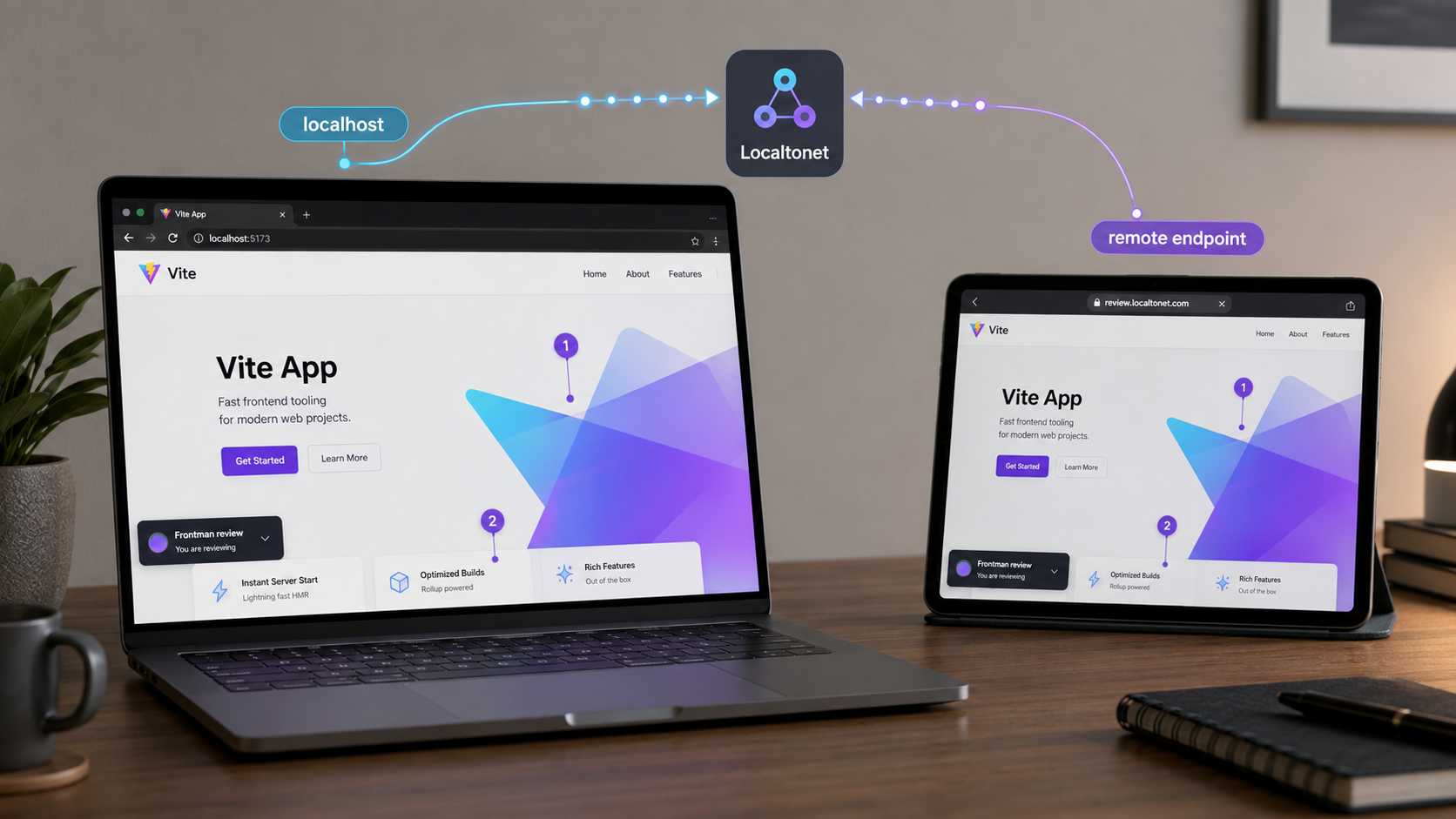
Source-available licensing, not one universal license
Frontman's current website describes the project as source-available. Some repository material also uses open-source wording, but the project has a component-specific licensing model rather than one license that applies uniformly to every part. Review the license files and supplementary terms included with the exact release you install, especially before redistribution, hosted use, modification, or commercial deployment.
| Frontman component | Current published license description | Practical consideration |
|---|---|---|
| Browser client | Apache-2.0 | Confirm that the files in your installed release retain this license before relying on the summary. |
| JavaScript framework integrations | Apache-2.0 | This category includes integrations used by framework projects, but the installed package notices remain authoritative. |
| WordPress plugin | GPL-2.0-or-later | This license applies to the WordPress component, not automatically to every Frontman component. |
| Frontman server | AGPL-3.0-only with AI Supplementary Terms | Read both the server license and the supplementary terms before operating, modifying, or offering the server. |
The repository also includes commercial-license material. Terms can change between releases, so inspect LICENSE, component notices, the AI Supplementary Terms, and any commercial-license file distributed with the version you plan to use. This tutorial explains installation and connectivity, not legal compatibility for a particular organization.
Supported Vite frameworks in this workflow
| Project type | Documented installer | Default Frontman route |
|---|---|---|
| Vite with React | npx @frontman-ai/vite install |
http://localhost:5173/frontman |
| Vite with Vue | npx @frontman-ai/vite install |
http://localhost:5173/frontman |
| Vite with Svelte | npx @frontman-ai/vite install |
http://localhost:5173/frontman |
| SvelteKit using Vite | npx @frontman-ai/vite install |
http://localhost:5173/frontman |
Frontman also publishes separate integrations for Next.js, Astro, and WordPress. Those products use different installation paths and may have different runtime requirements. Do not substitute their commands in a Vite project.
Prerequisites and pre-installation checks
Begin with an existing Vite project that already starts successfully. Run the Frontman installer from the project root containing the relevant Vite configuration and package metadata. In a monorepo, this is usually the specific application package rather than an unrelated repository root.
You need a working Node.js and npm environment because the documented workflow uses npx and npm run dev. There is no single Node.js version established here for every supported React, Vue, Svelte, or SvelteKit project. Use the version required by your repository, lockfile, framework version, and dependency policy.
Confirm the original project works
Before installing Frontman, start the project using its existing development command. For the documented npm workflow:
npm run dev
Open the local URL printed by Vite and verify that the application renders without a build failure. Record the actual port because Vite can select a port other than 5173 when the project configures one or the default is unavailable.
Protect the working state
Check the source-control status and commit, stash, or otherwise preserve a known-good state. The installer is expected to change the project. A clean baseline lets you identify its dependency and configuration changes, review them accurately, and revert the installation if necessary.
If the repository requires another package manager, a workspace filter, or a wrapper command, follow the project's established policy. The verified quickstart used in this tutorial documents npm and npx. It does not establish equivalent commands for every package manager and monorepo layout.
Plan the AI provider connection
Frontman needs a selected AI model before it can submit editing tasks. Current Frontman material describes bring-your-own-key support for providers such as Anthropic, OpenAI, and OpenRouter. Frontman v5.0.0 also documents custom, publicly reachable OpenAI-compatible providers in Settings, with optional API keys.
Provider choices, model names, account requirements, and credential fields can change independently of the Vite installer. Use the options shown by the installed Frontman release. Do not copy a provider configuration from an older screenshot without comparing it with the current interface.
Do not place provider keys in tracked Vite source files, public environment files, Localtonet tunnel settings, issue reports, screenshots, or editing prompts. Use the credential mechanism provided by the installed Frontman interface and follow your organization's secret-management rules.
Decide where the Localtonet client will run
Localtonet should be added only after Frontman works locally. Decide whether our client will run on the same computer as Vite or on a separate trusted device. This choice determines the Vite listening address and the local target entered for the tunnel.
| Client placement | Vite listening requirement | Localtonet target |
|---|---|---|
| Localtonet and Vite on the same device | Vite can remain bound to loopback for the simplest setup. | 127.0.0.1 or the equivalent loopback target, plus the actual Vite port. |
| Localtonet on another trusted LAN device | Vite must intentionally listen on an interface reachable from that device. | The Vite computer's reachable private address and actual Vite port. |
| Localtonet device cannot reach Vite | No tunnel configuration can repair the missing local network path. | Move the client, correct the trusted network path, or keep both processes on one device. |
You also need a Localtonet device/auth token and an available relay server selection from the current dashboard. Tokens identify client devices. Do not send them to reviewers, commit them, place them in screenshots, or include them in browser URLs.
Install Frontman in the Vite project
Keep the first installation test local. This separates framework integration problems from public-host, tunnel, and browser-network problems.
Run the Frontman Vite installer
Open a terminal in the intended Vite project root and run npx @frontman-ai/vite install. The installer detects React, Vue, or Svelte information from the Vite configuration, including supported SvelteKit projects.
Start the Vite development server
Run npm run dev and leave the process active. Read the terminal output for the actual host, port, compilation status, and any integration errors.
Open the Frontman route
Visit http://localhost:5173/frontman when Vite is using its documented default port. If the terminal reports a different port, use that port while preserving the /frontman path.
npx @frontman-ai/vite install
npm run dev
With the default Vite port, open:
http://localhost:5173/frontman
The address printed by the running Vite process is authoritative. Use its actual port for the normal application route, the /frontman route, and the later Localtonet target.
Review the installation diff
Inspect every file changed by the installer. Confirm that the changes belong to the intended application and that no unrelated workspace was modified. The exact generated files can vary with framework and integration versions, so the repository diff on your machine is more reliable than a static list copied from another release.
Do not discard an unfamiliar integration file without determining its role. Frontman can require browser, middleware, route, source-map, or server integration to connect the rendered page with the source project.
Verify Frontman locally before sharing it
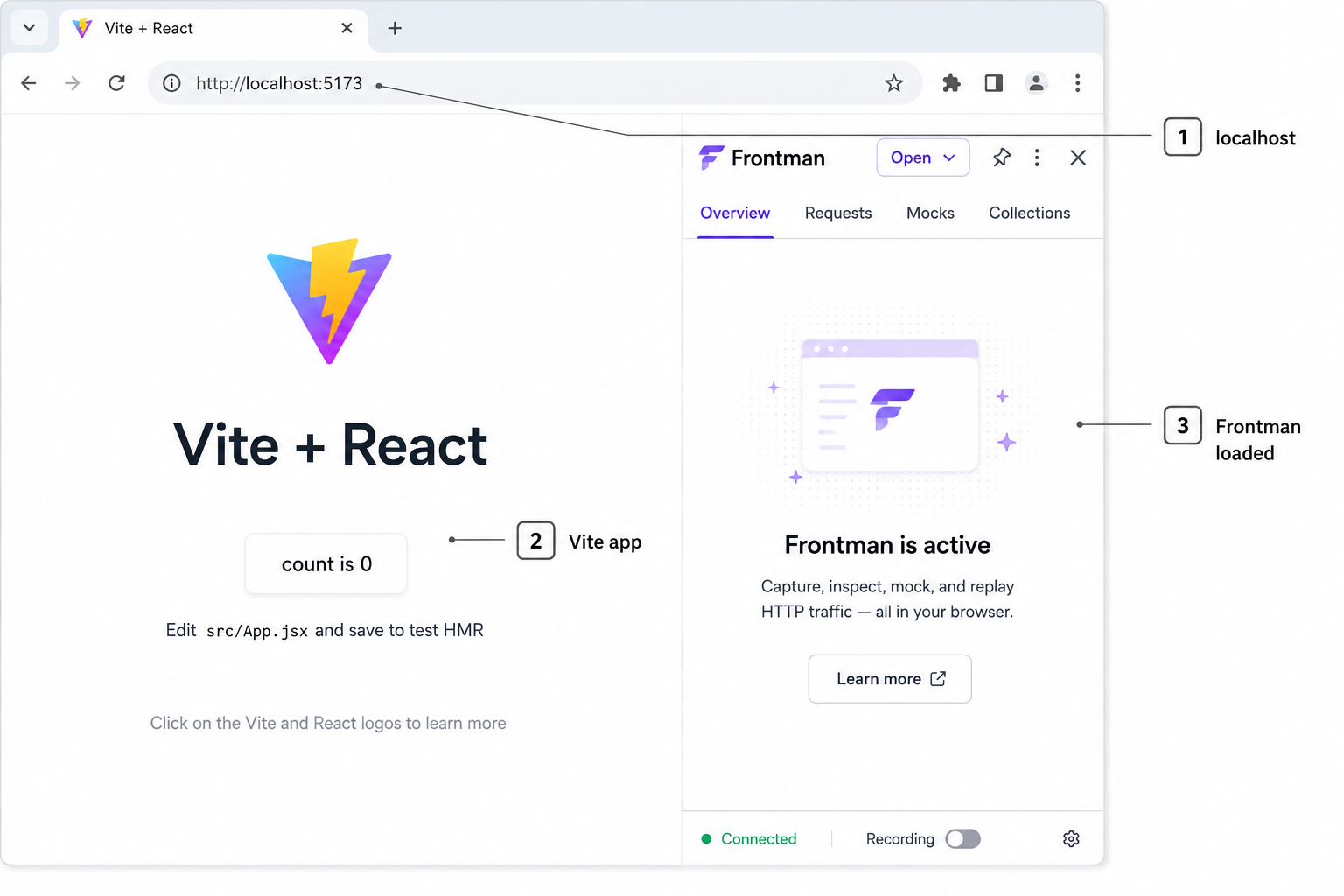
1. Test the base application
Open the Vite address printed in the terminal. Confirm that the app renders and that its important development routes still work. If it was healthy before installation but now fails, inspect the first meaningful terminal error before continuing.
2. Test /frontman
Open the same origin with /frontman appended. The Frontman interface should appear rather than the application's normal fallback route, an HTTP not-found response, or a browser connection error.
3. Complete provider and model setup
Follow the installed interface to connect an approved provider and select a model. Frontman v5.0.0 documents that message submission is prevented until a model is selected. If the interface does not permit submission, verify model selection before treating the problem as a Vite or tunnel failure.
4. Observe authentication and approve access carefully
Current Frontman v5.0.0 release notes document embedded bearer-token authentication for client sockets and an approval popup that explains why access is requested, what access will be granted, and when it should be allowed. This means possession of a public URL does not necessarily produce immediate editing access in a current installation.
Follow the access prompt displayed by the installed release. Approve only the expected browser session and only when you understand the requested access. Authentication and approval behavior can change across versions, so verify what your installed package actually presents rather than assuming that v5.0.0 behavior applies forever.
Embedded bearer-token authentication and an approval prompt reduce accidental access, but they do not replace careful URL distribution, a trusted development environment, source review, least-privilege credentials, or prompt shutdown. Keep the security posture conservative even when approval is required.
5. Run one reversible edit
Choose a harmless element on a development branch, such as temporary heading text or a non-critical spacing value. Request one precise change, wait for the result, and inspect the repository diff. Avoid beginning with a broad redesign, dependency upgrade, routing change, or cross-application refactor.
6. Validate outside the editing view
Open the affected route normally and check the result at relevant viewport sizes. Run the lint, type-check, test, or build commands already defined by the repository. Frontman's quickstart cannot define those project-specific scripts for you.
Use Frontman effectively during frontend review
Frontman is most useful when a request can be grounded in a visible page and a specific rendered element. Identify the current problem, the intended result, and what must remain unchanged.
Select the smallest useful scope
Start with the button, card, heading, empty state, or layout region that demonstrates the issue. “Increase the gap between these controls without changing the card padding” is easier to verify than “improve the page.”
Use runtime context for visual defects
Computed CSS can differ from an individual declaration because of inheritance, specificity, responsive rules, component libraries, and design tokens. Runtime context can help associate a selected DOM node with the component and styles that produced it.
Keep changes reviewable
Request one coherent adjustment at a time. Inspect the diff after each meaningful result so an unwanted refactor does not become the foundation for later prompts. If the change is wrong, revert it before continuing.
Preserve normal source-control boundaries
Work on an appropriate branch, maintain a known baseline, and commit only approved files. If several people participate in a remote session, designate one person to own the repository state and final diff. Browser convenience should not replace branch protection, required reviews, automated checks, or deployment controls.
Understand the reviewer’s influence
A reviewer with approved access to Frontman may be able to initiate edits through the configured AI workflow. Sharing Frontman is materially different from sharing a static preview. Invite only people who are authorized to participate in source changes.
Share the verified Vite server through Localtonet
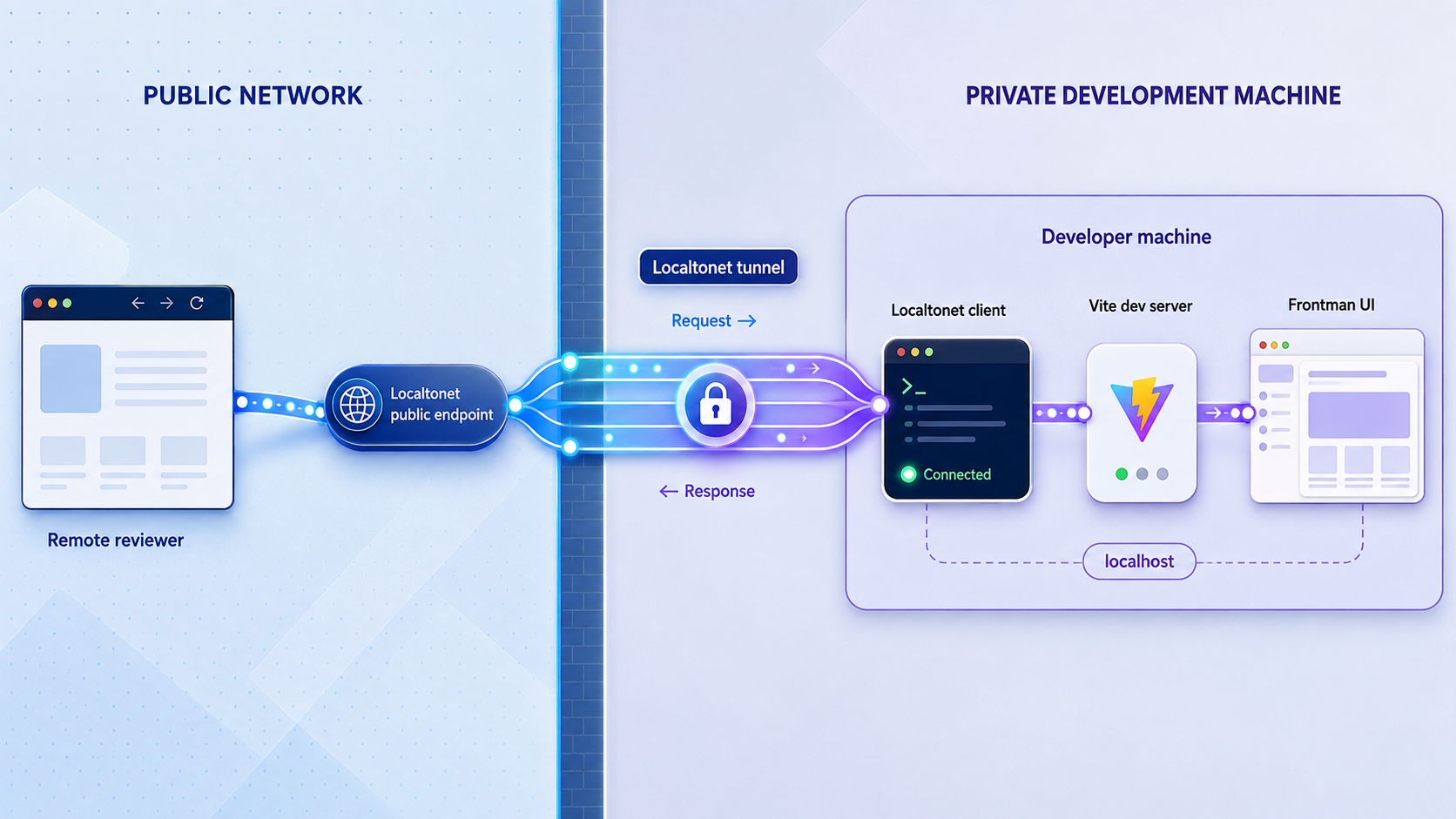
Once local verification succeeds, a Localtonet HTTP tunnel can make the Vite service reachable from outside the development network. Our client establishes an outbound connection to a Localtonet relay server and provides a public URL for the configured local target.
Same-device target: keep Vite on loopback
When Localtonet and Vite run on the same computer, target Vite through loopback. If Vite reports port 5173, the target is typically 127.0.0.1:5173. This is the preferred arrangement when practical because Vite does not need to listen on the wider local network.
Separate-device target: make Vite intentionally reachable
A Localtonet client on another device cannot reach a Vite server that listens only on the Vite computer's loopback interface. Vite must listen on a network interface reachable from the trusted client device. One documented Vite startup form is:
npm run dev -- --host 0.0.0.0
An equivalent project configuration can use Vite's server.host setting, subject to the installed Vite and framework version. After changing the listening interface, restart Vite and test the private address from the Localtonet client device before creating the tunnel.
Use this only on a trusted network and restrict access with the host operating system and network controls available to you. Do not add router port forwarding. If you cannot limit local reachability appropriately, run Localtonet on the Vite computer and keep Vite on loopback instead.
Create and start the HTTP tunnel
Install and run the Localtonet client
Run our client on the Vite computer or on a trusted device that can reach the Vite service. Keep both Localtonet and npm run dev running throughout the review.
Select the connected client device
Authenticate through the supported Localtonet workflow and select the device that can reach Vite. Keep its device-specific auth token private.
Select an available relay server
Choose a server or region currently presented by the dashboard. Do not copy a hardcoded server code from an article because availability can vary.
Create an HTTP tunnel to Vite
Use loopback when both processes share a device. For a separate Localtonet device, use the Vite computer's reachable private address. In both cases, enter the actual port reported by Vite.
Allow the assigned public hostname in Vite
Copy the hostname from the Localtonet URL assigned to this tunnel and add that exact hostname to Vite's allowed-host list. Restart Vite after changing its configuration.
Start and verify the tunnel
Creating a tunnel does not start it. Press Start, wait until the client is connected and the tunnel is running, then test the assigned base URL and its /frontman route.
Stop or delete the tunnel afterward
Stop the tunnel when collaboration ends. Delete it if the configuration will not be reused. The endpoint is available only while the selected client is connected and the tunnel is running.
For current dashboard details, see our Localtonet HTTP tunnel documentation. Use the current dashboard for available relay selections and options rather than relying on an older screenshot.
Allow only the hostname Localtonet actually assigns
Current Vite versions validate the request host to reduce DNS rebinding risk. A public request can therefore reach the tunnel but still be rejected by Vite until the assigned Localtonet hostname is explicitly allowed.
Add the exact hostname portion of the assigned URL to server.allowedHosts. Do not include https://, a path, or a port in the hostname entry. The configuration shape is:
export default {
  server: {
    allowedHosts: ['ASSIGNED_LOCALTONET_HOSTNAME']
  }
}
ASSIGNED_LOCALTONET_HOSTNAME is intentionally not a usable value. Replace it with the exact hostname displayed for your tunnel before starting the public test. If the project already exports configuration through defineConfig, framework helpers, plugins, or a function, merge the server.allowedHosts property into that existing structure rather than replacing the whole file.
allowedHosts: true
Allowing every host disables the narrow host check and can expose the development server to DNS rebinding attacks. Permit only the exact hostname assigned to the tunnel, plus any other hostnames the project has separately reviewed and requires.
Verify both public routes
Open the exact HTTPS URL assigned by Localtonet. Test the base route first:
https://the-exact-hostname-assigned-to-your-tunnel/Then append the Frontman route:
https://the-exact-hostname-assigned-to-your-tunnel/frontmanThese lines show the URL structure only. Use the actual assigned URL, not the illustrative text. Testing the base route separately helps distinguish a general Vite or tunnel failure from a Frontman-specific route problem.
Check the WebSocket and HMR path
A successful page request does not prove that Vite's hot-module-replacement channel works. Open the browser developer tools for the public page, inspect the Console and Network panels, and filter the network activity for WebSocket connections. Through a public HTTPS URL, the browser will normally need a secure WebSocket path.
If the WebSocket connects and remains open, edit a harmless source file and verify that the remote page updates. If it fails, record the attempted WebSocket hostname, scheme, port, status, and console error. Compare them with the assigned Localtonet URL.
Some Vite versions and proxy arrangements infer the public WebSocket address correctly. Others may cause the HMR client to attempt the local hostname, a private address, an insecure ws connection, or the wrong port. Only in that situation should you investigate version-appropriate server.hmr settings such as host, protocol, and clientPort.
There is no universal HMR override for every Vite, framework, and tunnel combination. Confirm the failed WebSocket destination first, then use documentation for the installed Vite version to set only the fields required to make the browser connect through the exact public hostname. A manual page refresh remains a useful temporary fallback while the HMR path is being corrected.
Plan connectivity for dependent APIs
Browser-side requests to localhost do not point back to the developer's machine when a remote reviewer opens the app. They point to the reviewer's own computer. If the frontend calls a separate local API, WebSocket service, authentication callback, or asset server, that dependency needs its own intentional connectivity design.
Options depend on the application and its security requirements. You might use an approved development endpoint, proxy the API through the Vite server, or expose a separately authenticated service through an appropriate tunnel. Do not automatically expose every dependency, and do not assume that the Vite tunnel makes unrelated localhost services reachable.
Secure the remote review session
A development server may expose source maps, debug output, internal routes, test accounts, or connections to other services. Frontman also adds a source-editing workflow. Remote access should be temporary, supervised, and limited to authorized participants.
Do not treat an unlisted URL as authorization
A difficult-to-guess URL is not an access policy. Share the public endpoint only with approved participants. Frontman's current authentication and approval features should be treated as additional controls, not permission to post the URL publicly.
Limit the development environment's privileges
Review the environment variables, filesystem access, repository credentials, and backend connections available to the Vite process. Use least-privilege credentials and avoid running the session from an environment with unnecessary production access.
Control what reaches the model provider
Relevant context is sent to the selected LLM provider to produce edits. Do not include passwords, private keys, customer records, or unrelated proprietary information in prompts. Use only provider accounts approved for the code and context involved.
An authorized Frontman session can initiate changes to the actual source project. Use a controlled development environment, supervise the session, inspect every modification, and stop the tunnel immediately when editing access is no longer needed.
Troubleshoot installation, host checks, and remote updates
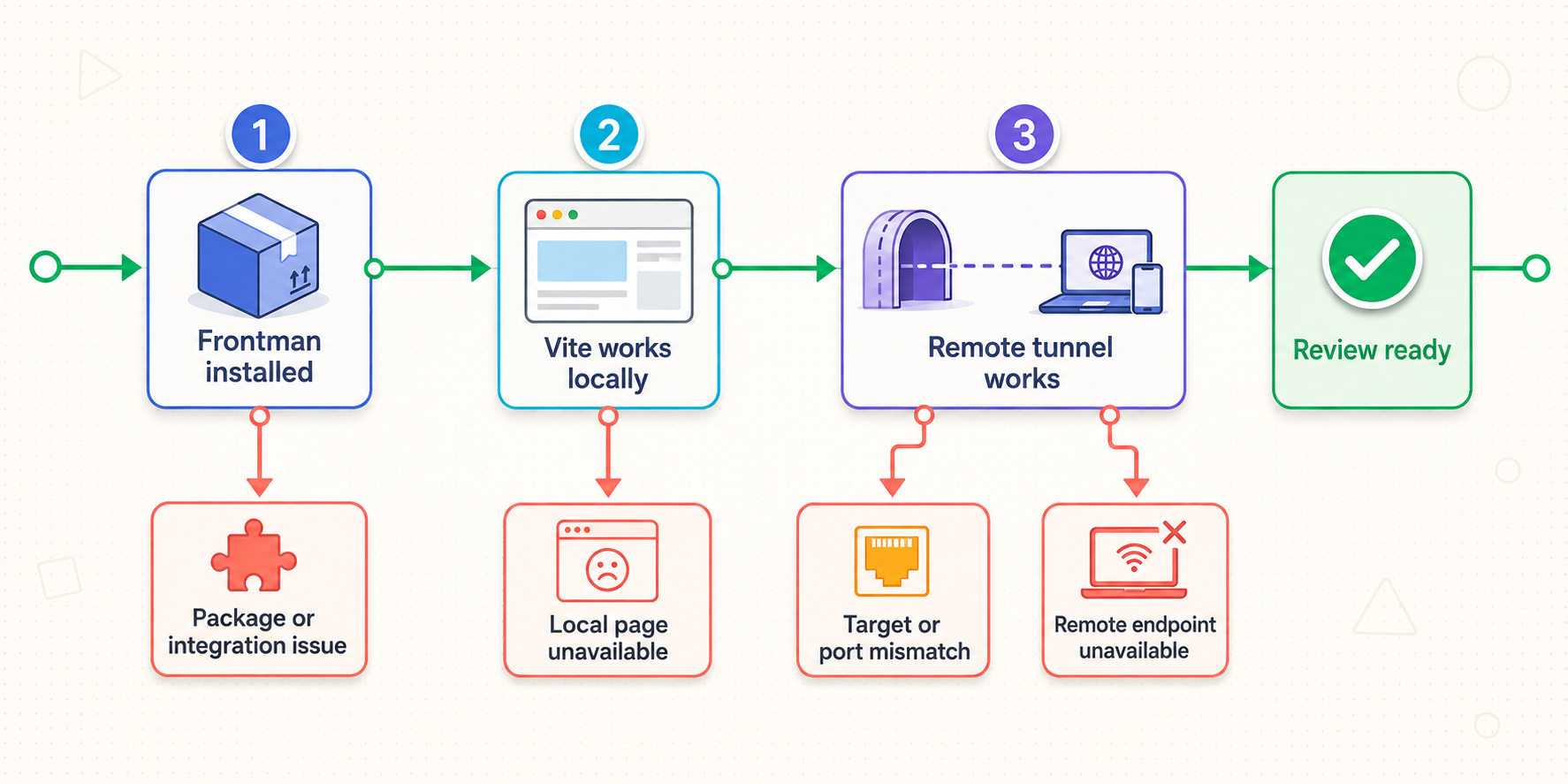
The installer command fails
Confirm that Node.js and npm work, that the shell can reach the configured package registry, and that you are in the intended Vite project root. Read the first actionable error. If the repository requires a specific package manager or workspace command, follow its documented policy instead of guessing a substitution.
The framework is not detected
Verify that the installer is running in the directory containing the relevant Vite configuration. In a monorepo, ensure that you selected the application package rather than a parent folder. Confirm that the original development server starts successfully.
Vite fails after installation
Compare the error with the baseline run made before installation. Inspect dependency and configuration changes in the repository diff, then address the earliest compile or configuration error. Do not create a tunnel for a process that does not start locally.
Port 5173 is unavailable
Read the Vite terminal output. If Vite chooses another port, use it for local verification and the Localtonet target. If the repository requires a fixed port, follow its existing configuration policy or stop the conflicting process.
The app works, but /frontman does not
Confirm that the URL uses the same host and port as Vite and includes the exact /frontman path. Restart Vite after installation, verify that the installer ran in this project, and inspect browser and terminal errors for route, middleware, module, or compilation failures.
The interface opens, but a task cannot be submitted
Verify that a provider and model are selected. Current v5.0.0 behavior blocks submission until model selection is complete. If authentication or approval is pending, read and complete the prompt only for the expected session.
The separate Localtonet device cannot reach Vite
Check which interface Vite is listening on. A server bound to 127.0.0.1 is reachable only from the same computer. Start Vite with an approved reachable host setting, test the private URL from the Localtonet device, and restrict network access appropriately.
The public URL reports that the host is blocked
Copy the hostname from the actual assigned Localtonet URL and add that exact hostname to server.allowedHosts. Do not include the scheme or path. Restart Vite and retest. Do not solve the error by setting allowedHosts to true.
The public URL does not open
Check the dependency chain in order: Vite must be running, its target address and port must be reachable from the Localtonet client, the client must be connected, and the HTTP tunnel must be started. Creating the tunnel alone does not make it active.
Test the base public route before /frontman. If both fail, focus on reachability, host validation, client status, and tunnel status. If only /frontman fails, focus on Frontman integration and approval diagnostics.
The page opens, but application data fails
Inspect browser Console and Network panels. If the browser is calling localhost, it is calling the reviewer's computer. Give each API or dependent service a separately reviewed connectivity plan. Also inspect cookies, CORS rules, callback URLs, and secure-context requirements without broadly disabling their protections.
The page loads, but hot reload does not work
First confirm that local HMR still works. In the remote browser, inspect the WebSocket request and note its hostname, protocol, port, and failure status. If the client is trying to connect to a local or private hostname, consult the documentation for the installed Vite version and apply a narrow server.hmr override. Do not assume every project needs one.
The tunnel stopped unexpectedly
Verify that the Localtonet client device remains online and connected, that the tunnel is still running, and that the Vite process has not exited. A Localtonet tunnel is available only while the selected client is connected and the tunnel is running.
A generated edit is incorrect
Stop, inspect the diff, and revert through the repository's normal version-control workflow. Restore a known state before trying a narrower request. Do not keep layering corrective prompts onto code you no longer understand.
A repeatable operating checklist
A consistent opening and closing routine makes remote Frontman sessions easier to diagnose, audit, and repeat.
Before the session
- Update the intended development branch and inspect the working tree.
- Start Vite locally and verify the normal application routes.
- Open the local
/frontmanroute. - Confirm the current provider, model, authentication, and approval behavior.
- Run one reversible edit and review its diff.
- Remove production secrets and customer data from the environment.
- Choose same-device loopback or a restricted separate-device network path.
- Start the Localtonet client and select the intended device.
- Create the HTTP tunnel using the actual Vite address and port.
- Add the exact assigned hostname to Vite's allowed-host list.
- Restart Vite, start the tunnel, and test the public base route.
- Test the public
/frontmanroute and WebSocket connection.
During the session
- Share the assigned public URL only with authorized participants.
- Approve only the browser session you expect.
- Keep requests narrow, visual, and easy to verify.
- Inspect source changes after every meaningful task.
- Watch the Vite terminal, browser console, WebSocket connection, and repository diff.
- Do not enter secrets or unrelated sensitive information into prompts.
After the session
- Review the complete diff and discard unintended changes.
- Run the repository's established lint, type-check, test, and build workflows.
- Commit only approved files through the normal review process.
- Stop or delete the Localtonet tunnel.
- Stop Vite when it is no longer needed.
- Remove temporary public-host and HMR settings if the project should not retain them.
- Rotate any credential that may have been disclosed.
Test the source project, Vite process, local application, local Frontman route, provider and approval flow, Localtonet client, running HTTP tunnel, public base route, public Frontman route, and HMR WebSocket in that order. This isolates failures without changing several configurations at once.
Frequently asked questions
Is Frontman open-source?
Frontman's current website describes it as source-available. Its components use different licenses: the browser client and JavaScript integrations are described as Apache-2.0, the WordPress plugin as GPL-2.0-or-later, and the server as AGPL-3.0-only with AI Supplementary Terms. Check the files included with your installed release for the terms that apply.
What command installs Frontman in a Vite project?
Run npx @frontman-ai/vite install from the Vite project root. The documented integration supports React, Vue, Svelte, and SvelteKit.
Where do I open Frontman after installation?
Start Vite with npm run dev, then open http://localhost:5173/frontman when Vite uses its default port. If the terminal reports another port, use that port with the same path.
Does a public Frontman URL immediately grant editing access?
Not necessarily. Frontman v5.0.0 documents embedded bearer-token authentication for client sockets and an approval popup for embedded access. Verify the behavior of your installed release and approve only the expected session. Continue to treat the URL as sensitive.
Should Localtonet run on the same device as Vite?
Running both on the same device is the simplest option because Localtonet can target Vite through loopback. A separate device also works when Vite intentionally listens on a reachable interface and local network access is appropriately restricted.
Why does Vite reject the Localtonet hostname?
Current Vite versions validate host headers to reduce DNS rebinding risk. Add the exact hostname assigned by Localtonet to server.allowedHosts, restart Vite, and retest. Do not use allowedHosts: true.
Does every Localtonet Vite tunnel require an HMR override?
No. First inspect the public page's WebSocket connection. Add version-appropriate server.hmr settings only if the browser is attempting the wrong hostname, scheme, or port and the installed Vite documentation supports the required adjustment.
Which Localtonet tunnel type should I use?
Use an HTTP tunnel because Vite and /frontman are browser-accessible HTTP services. Point it to the IP address and port reachable from the selected Localtonet client device.
Will remote users automatically reach an API on localhost?
No. In the reviewer's browser, localhost means the reviewer's own device. Give each dependent API an intentional, authenticated connectivity design or use a development endpoint already reachable by the browser.
Does creating a Localtonet tunnel start it?
No. Use the Start button after creating the configuration. The public endpoint is available only while the selected client is connected and the tunnel is running.
What should I do when the review is finished?
Review and test the full diff, complete the normal approval process, stop the Localtonet tunnel, and stop Vite when it is no longer needed. Delete unused tunnel configurations and rotate any credential that may have been exposed.
Share your verified Frontman workspace with Localtonet
After the Vite app, Frontman route, provider, approval flow, and test edit work locally, create a Localtonet HTTP tunnel for a controlled remote session. Allow only the assigned hostname, review every source change, and stop access as soon as collaboration ends.
Get Started Free →