

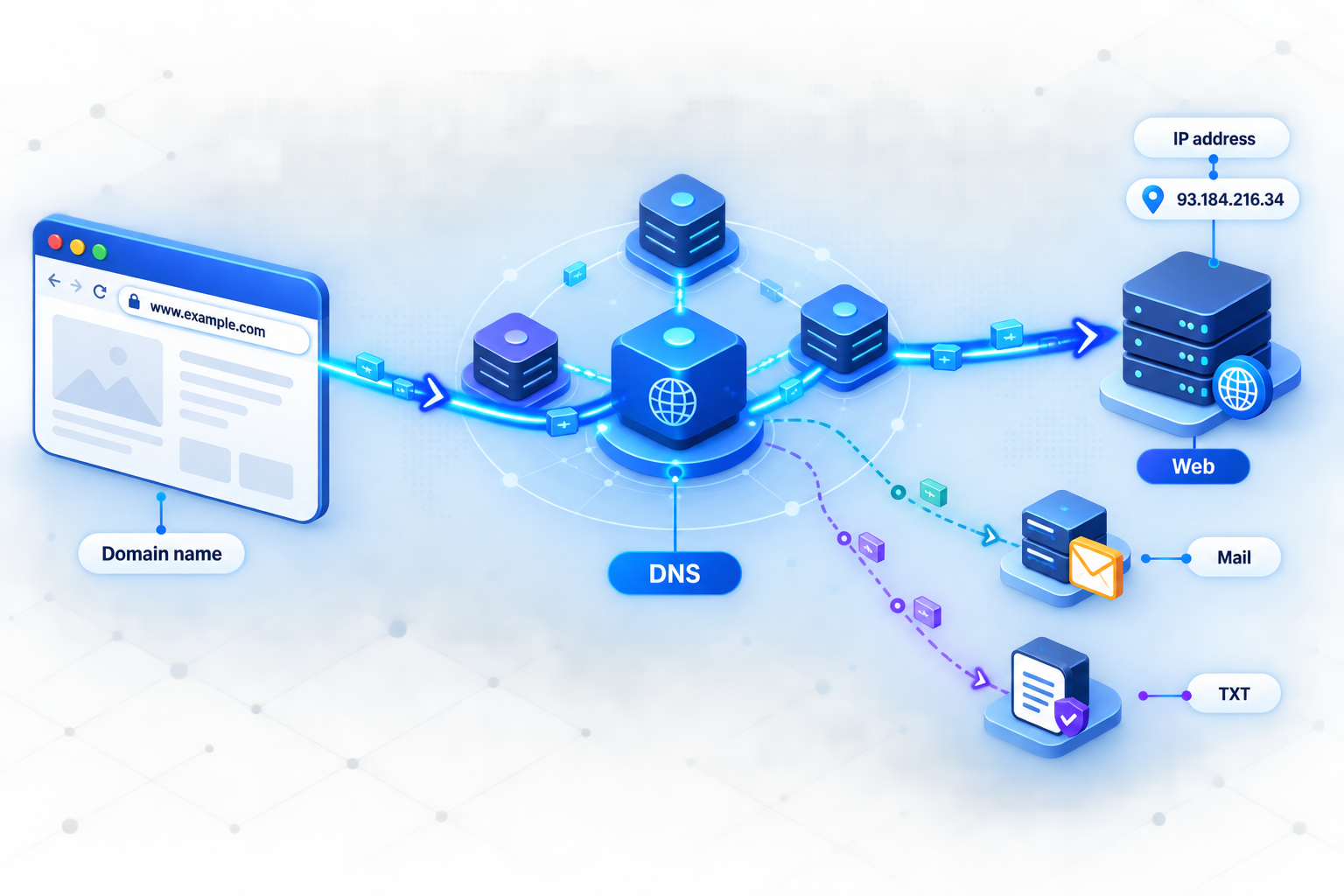
Understand the records behind websites, email, domain verification, and custom tunnel addresses
DNS translates names such as app.example.com into the technical information that browsers, mail servers, and other clients need. This guide explains how recursive and authoritative DNS work, what common record types contain, why cached answers can persist after a change, and how to verify a configuration safely. It also provides a complete workflow for moving a domain to Localtonet DNS Manager and connecting that domain to a local HTTP service.
📋 What's in this guide
DNS foundations and terminology
DNS stands for Domain Name System. It is a distributed naming system that lets applications look up information associated with a domain name. A browser may request an A or AAAA record to find an address for a website. A sending mail server requests MX records to locate the systems that receive email. Certificate authorities, mail providers, and software platforms may inspect TXT or CAA records before performing a domain-related action.
Calling DNS the internet's phone book is a useful starting analogy, but DNS does more than map one name to one address. A name may have multiple addresses, point to another hostname, identify mail exchangers, advertise a service, publish a verification token, or delegate authority to another set of nameservers.
The parts of a DNS record
A resource record normally has four concepts that administrators work with:
www.example.com or _dmarc.example.com.
Zones, labels, and the apex
DNS names are hierarchical. In api.example.com, api, example, and com are labels. The hierarchy is read from right to left, starting at the DNS root. The .com zone is above the example.com zone, and example.com can contain names such as www.example.com and api.example.com.
A DNS zone is the portion of the namespace managed as one administrative unit. Its apex is the zone's own name, such as example.com. Many DNS dashboards display the apex as @. This is a user-interface shorthand, not a literal character sent in DNS queries.
In zone-file notation, a trailing dot marks a fully qualified domain name. For example, mail.example.com. is absolute. Without the trailing dot, traditional zone-file software may treat the value as relative and append the current zone name. Web dashboards often handle this automatically, but their behavior varies. Always check the provider's preview or documentation before saving a target hostname.
Registrar, registry, parent zone, and DNS provider
These roles are related but not interchangeable:
- Registry: operates a top-level domain such as
.comand maintains the corresponding parent-zone data. - Registrar: manages a domain registration on the registrant's behalf and submits delegation information to the registry.
- Parent zone: publishes the NS delegation that directs resolvers toward the child domain's authoritative servers. It may also publish DNSSEC DS records.
- Authoritative DNS provider: hosts the zone and answers authoritatively for records inside it.
- Recursive resolver: finds answers for clients and caches the results. It is not normally authoritative for the queried public domain.
The registrar and DNS provider can be the same company, but they do not have to be. Changing the nameserver setting at a registrar updates the delegation through the parent zone. It does not automatically copy records from the old authoritative DNS provider to the new one.
You can register a domain with one company, host its authoritative DNS with another, run the website elsewhere, and use a separate mail provider. DNS connects those services, but changing one role does not automatically reconfigure the others.
How DNS resolution works
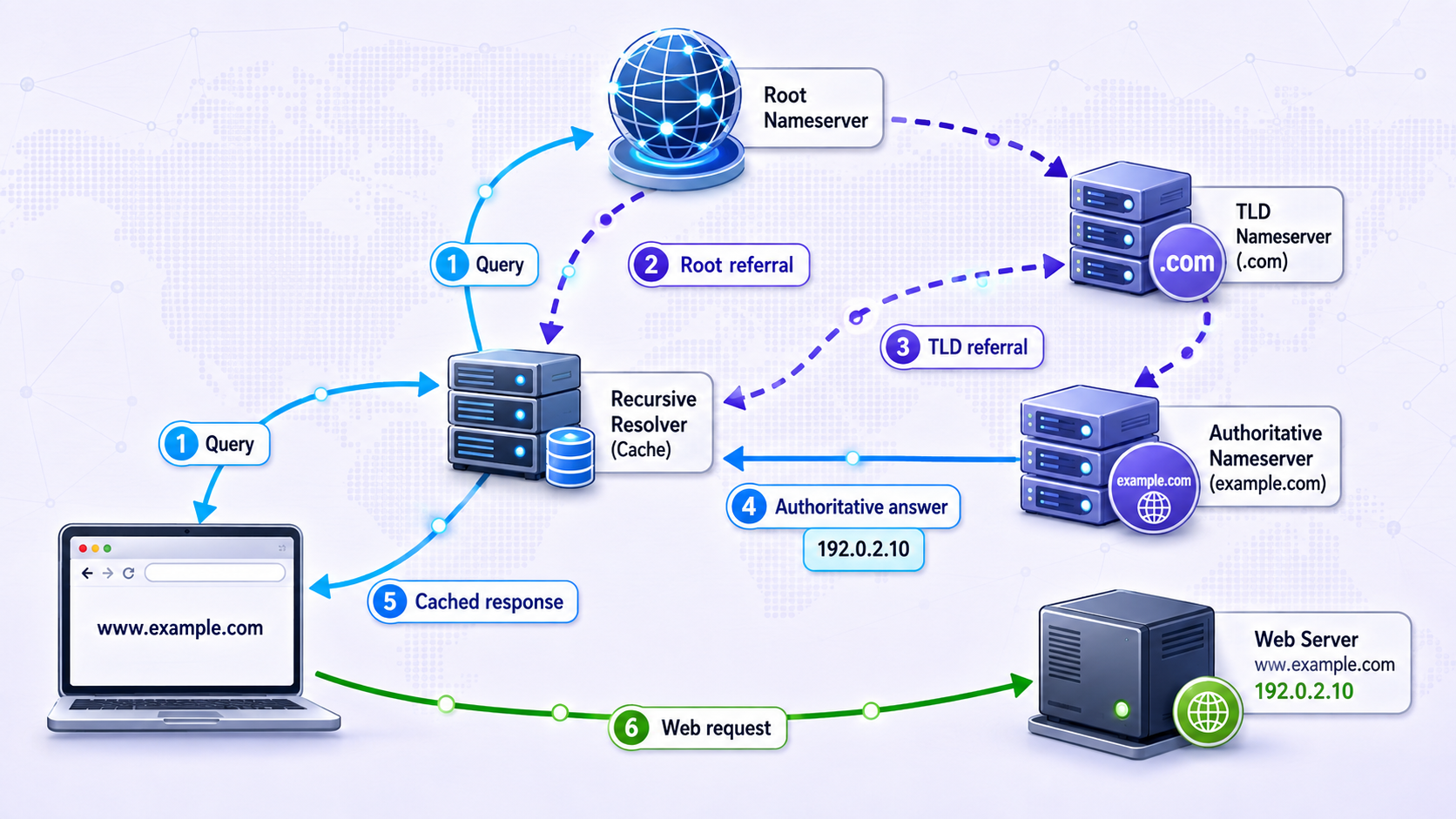
Applications generally do not contact root, top-level-domain, and authoritative servers themselves. An application asks the operating system's stub resolver, which checks applicable local information and sends the request to a configured recursive resolver. That resolver may be operated by an ISP, organization, network administrator, or public DNS service.
The full iterative path is needed only when no usable cached answer or delegation is available. Cached records can let a resolver skip some or all of the external queries.
The application requests a record
A browser, mail server, or other program asks the operating system for a specific record type. A web lookup may request both A and AAAA records rather than a generic answer.
Local caches and configuration are checked
The operating system, application, or local network component may already have a usable result. Local hosts-file entries and application-specific caches can also affect the observed answer.
The stub resolver asks a recursive resolver
If local information does not satisfy the request, the device sends it to its configured recursive resolver. The resolver first checks its own positive and negative caches.
The resolver follows the hierarchy when necessary
Without a cached route to the answer, the resolver asks a root server. The root returns a referral to the relevant TLD servers. A TLD server then returns the delegation for the requested domain.
An authoritative server returns the zone's answer
The resolver asks an authoritative server for the requested name and type. The response may contain the answer, a CNAME, a referral, or a negative response such as NXDOMAIN.
The result is cached and returned
The recursive resolver caches eligible data according to DNS caching rules and returns the result to the client. Local software may apply another cache of its own.
No universal lookup time applies. A cached response may be very fast, while an uncached request can require several network exchanges. Latency, packet loss, resolver load, authoritative availability, DNSSEC validation, and network location can all affect completion time. A subsequent lookup is not necessarily instant because the relevant cache may have expired, the query type may differ, or an application may choose not to reuse its previous result.
What happens with CNAMEs
If the requested name is a CNAME, the resolver must obtain records for the canonical target before returning address data to an application that requested an address. That does not always require a new network round trip. The target may already be cached, and an authoritative response may include useful related data. Long CNAME chains still add complexity and create more opportunities for configuration or availability problems.
Address selection is not DNS ordering
A name can have multiple A or AAAA records. DNS does not guarantee that an RRset has a meaningful first entry that every client will use. Servers and resolvers may vary order, and operating systems or applications apply their own address-selection, retry, IPv4, and IPv6 behavior. Multiple address records can contribute to distribution and resilience, but DNS alone does not provide a complete health-aware load-balancing design.
A, AAAA, CNAME, MX, TXT, and other DNS records
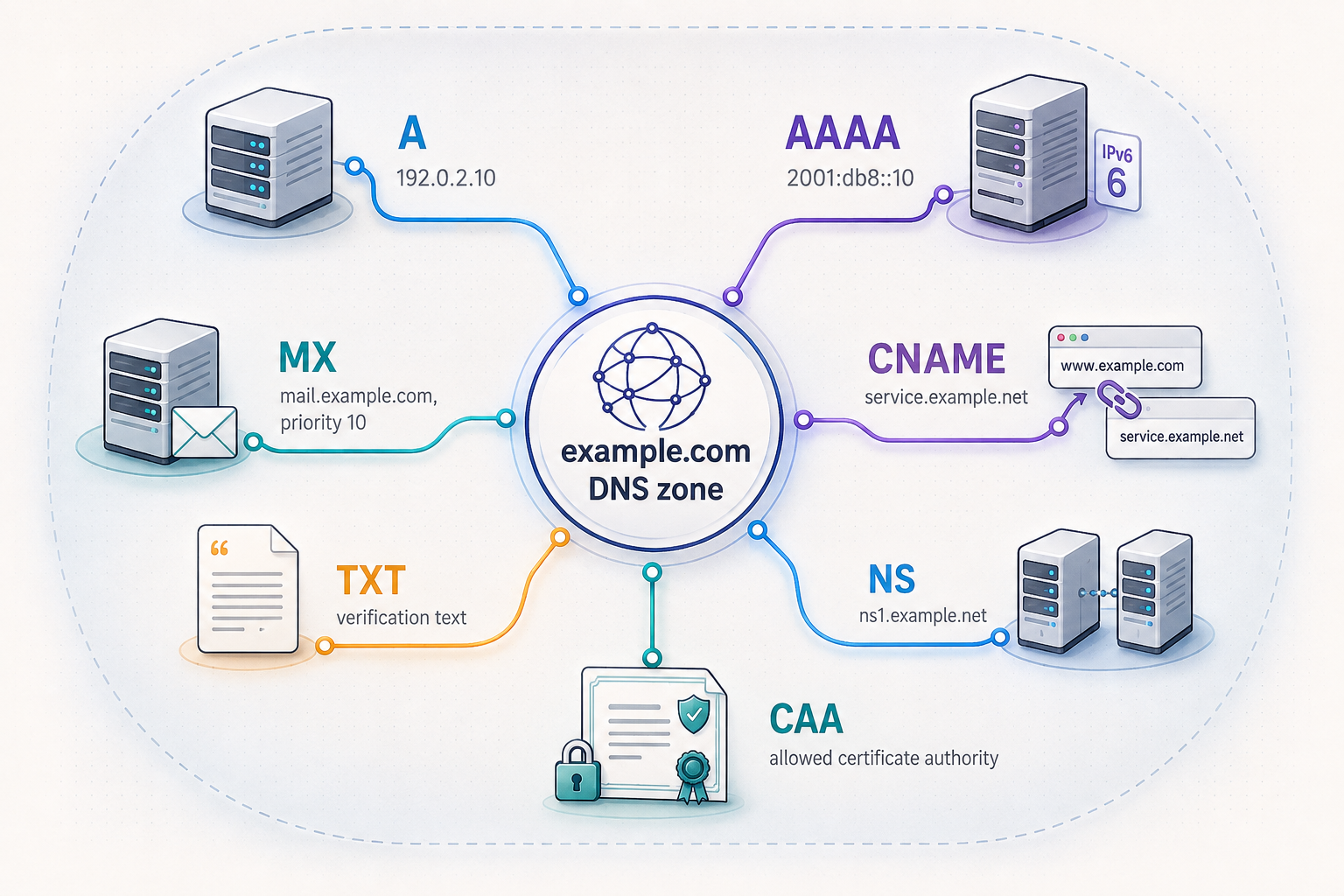
The following table consolidates the record types most administrators encounter. Every value is illustrative. The reserved IPv4 and IPv6 documentation ranges are used where an address is needed.
| Type | Purpose | Example owner | Example value or behavior |
|---|---|---|---|
| A | Maps a name to an IPv4 address | www.example.com |
192.0.2.10 |
| AAAA | Maps a name to an IPv6 address | www.example.com |
2001:db8::10 |
| CNAME | Makes one owner name an alias of another hostname | blog.example.com |
sites.example.net. |
| MX | Identifies mail exchangers and their preferences | example.com |
10 mail1.example.net. |
| TXT | Publishes text used by protocols and verification systems | _dmarc.example.com |
A provider-supplied DMARC policy |
| NS | Identifies authoritative servers for a zone or delegation | example.com |
ns1.dns-provider.example. |
| SOA | Contains administrative and timing information for a zone | example.com |
Primary server, responsible party, serial, and timers |
| SRV | Advertises a service's target host, port, priority, and weight | _service._tcp.example.com |
10 20 8443 host.example.com. |
| CAA | Authorizes compliant certificate authorities to issue certificates | example.com |
0 issue "ca.example" |
| DS | Connects a delegated child zone to the DNSSEC chain of trust | example.com in its parent |
Key tag, algorithm, digest type, and digest |
DNS records must match the systems that actually host your website, receive your mail, or verify your domain. Incorrect SPF, DKIM, DMARC, MX, CAA, or delegation data can disrupt service. Obtain production email-authentication values directly from your mail provider.
A and AAAA address records
An A record contains an IPv4 address. An AAAA record is the corresponding IPv6 address record. If a hostname publishes both, a client may request both types and apply its operating system or application's address-selection logic. Modern connection strategies can test or race suitable IPv6 and IPv4 paths, but exact behavior varies.
Publishing an AAAA record means clients may attempt IPv6. Do not add one unless the destination is genuinely reachable and correctly configured over IPv6. A broken IPv6 route can produce failures or delays even while the A record is correct.
CNAME aliases and apex restrictions
A CNAME states that its owner name is an alias of another name. For example, blog.example.com could point to sites.example.net. The target is a hostname, not an IP address.
A CNAME owner cannot coexist with other record data at the same name. This is why an ordinary CNAME cannot be placed at a zone apex: the apex must already contain SOA and NS records. It is also why adding TXT, MX, or A data beside a CNAME at the same owner creates a conflict.
Some DNS providers offer ALIAS, ANAME, or CNAME-flattening behavior at the apex. These are provider-specific features, not standard CNAME records. Their setup and response behavior must be checked with the provider.
MX records and preference values
An MX record's target is a hostname, not an IP address. That target must resolve to the address records used to reach the mail exchanger. Lower MX preference numbers are preferred. For example, a server with preference 10 is normally attempted before one with preference 20.
Equal preference values are valid. When multiple reachable exchangers have the same preference, a sending system can choose among them according to its implementation. A higher-numbered exchanger is not automatically a complete backup strategy unless it is configured to accept and handle mail correctly for the domain.
TXT records, SPF, DKIM, and DMARC
TXT records are general-purpose published text. Their content is available through public DNS queries, so TXT records must never contain passwords, private keys, API keys, authentication tokens, or other secrets.
- SPF: lets a domain publish which sending infrastructure is authorized for the relevant envelope-sender identity. Its syntax and includes must come from the services that send mail for the domain.
- DKIM: publishes a public key under a selector-specific name. Receiving systems use that key to verify a cryptographic signature added by the sender. The private signing key stays with the sending system and must not be published in DNS.
- DMARC: evaluates alignment between the visible From domain and authenticated SPF or DKIM identities. DMARC passes when at least one aligned SPF or aligned DKIM result passes. It also provides policy and reporting directives.
- Domain verification: a platform may supply a unique TXT value to prove that the administrator controls DNS for a name.
Do not adapt SPF, DKIM, or DMARC strings from another domain or tutorial. A wrong SPF policy can exclude legitimate senders, an incorrect DKIM selector cannot validate your signatures, and an aggressive DMARC policy can cause legitimate messages to be rejected or quarantined. Start with the exact records and rollout instructions supplied by your mail provider.
NS, SOA, SRV, and CAA
NS records identify authoritative nameservers. At a delegation boundary, the parent zone publishes NS data that points to the child's authoritative servers. The child zone also contains its own authoritative NS records. Those sets should be consistent.
Every authoritative zone has an SOA record. Among other fields, it includes a serial value used to indicate zone changes and parameters that influence secondary-server and negative-caching behavior.
SRV records publish a service's target hostname and port, along with priority and weight. Applications must explicitly support SRV discovery. Adding an SRV record does not make ordinary browsers use a nonstandard web port.
CAA records tell compliant certificate authorities which authorities are authorized to issue certificates for a domain. CAA reduces the set of permitted issuers, but it does not revoke existing certificates and cannot by itself prevent every possible form of certificate mis-issuance. It should be treated as one control in a broader certificate-management process.
TTL, positive caching, negative caching, and propagation
A TTL is expressed in seconds and controls how long a caching resolver may reuse a record. If an A record is received with a TTL of 3600, the resolver can normally cache that data for up to one hour. The remaining TTL counts down while the answer stays in cache.
The phrase “DNS propagation” describes the period during which observers receive different answers after a change. DNS does not broadcast an update to every resolver. Instead, cached data expires at different times and resolvers fetch current authoritative data when needed.
The changed record's TTL is important, but it is not the only factor:
- A resolver may still hold the old record based on the TTL that was in effect when it cached that record.
- NXDOMAIN and other negative answers may be cached using information associated with the zone's SOA record.
- Nameserver delegations and address information for nameservers have their own caching behavior.
- A DNS provider may need time to publish a saved change across its authoritative infrastructure.
- Browsers, operating systems, applications, routers, and security products may maintain additional caches.
- DNSSEC validation can reject new data if signatures or parent-zone DS information do not match.
Planning TTLs before a change
If your DNS provider permits it, lower the relevant TTL before a planned migration and do so early enough for the previous, longer TTL to expire. Choose a value that your provider supports and your operational plan can accommodate. Setting a low TTL at the same moment as the destination change does not shorten the lifetime of old answers already cached under the earlier value.
After the new service has been verified and the rollback window has passed, raise TTLs to values appropriate for the record's stability. There is no single correct TTL for every domain. Lower values support faster planned changes but increase query frequency. Higher values improve cache reuse but extend the time stale data may remain visible after a change.
If someone queries a hostname before you create it, a resolver can cache the negative answer. Creating the record immediately afterward does not necessarily make it visible through that resolver until the negative cache expires.
How to verify DNS with dig and nslookup
Verification should separate three questions: what the parent delegates, what the authoritative provider serves, and what recursive resolvers currently return. Checking only a browser can hide the distinction because browsers and operating systems add their own caches and connection behavior.
Query common records
dig example.com A
dig example.com AAAA
dig example.com MX
dig example.com TXT
dig _dmarc.example.com TXT
dig example.com NS
dig example.com CAA
In a successful response, inspect the status, answer section, returned owner name, record type, value, and TTL. A NOERROR status can have an empty answer, so status alone does not prove that the requested record exists.
If dig is unavailable, nslookup can perform basic checks:
nslookup -type=A example.com
nslookup -type=AAAA example.com
nslookup -type=MX example.com
nslookup -type=NS example.com
nslookup -type=TXT example.com
Inspect delegation and authoritative answers
dig +trace example.com NS
dig @authoritative-server.example example.com SOA
dig @authoritative-server.example app.example.com A
Replace authoritative-server.example with one of the nameservers currently delegated for the domain. A trace helps show referrals from the root toward the domain, while a direct query asks the selected authoritative server without relying on a recursive cache.
Confirm that every delegated authoritative server returns the expected SOA and record data. If one server has an old serial or different answer, users can receive inconsistent results depending on which server responds.
Check DNSSEC information
dig example.com DS
dig example.com DNSKEY
dig +dnssec example.com A
A DS record is stored in the parent zone, while DNSKEY records are published in the child zone. If DNSSEC is enabled, their relationship must validate. A resolver returning SERVFAIL while a nonvalidating or direct authoritative query returns data is a strong indication that DNSSEC should be investigated.
Verify the application, not just the record
Correct DNS is necessary but does not prove that the application works. After confirming the record, connect using the real hostname and expected protocol. For an HTTPS service, verify that the page loads, the certificate is valid for the hostname, and the intended application responds. For email, confirm the MX target and provider-supplied authentication records, then use the provider's delivery and authentication tests.
How to migrate authoritative DNS safely
Changing nameservers is a high-impact operation because it redirects queries for the entire zone. A missing website record is visible, but missing MX, SPF, DKIM, DMARC, verification, CAA, or service records can be equally disruptive.
Inventory and recreate every required record at the destination before cutover where the destination service permits it. Include A, AAAA, CNAME, MX, SPF, DKIM, DMARC, CAA, verification, SRV, and other service-specific records. Preserve the old provider configuration during the migration and rollback window.
Migration checklist
Inventory the current zone
Export records if supported and manually verify important entries. Record names, types, values, priorities, TTLs, and provider-specific behaviors such as flattening or traffic policies.
Document DNSSEC status
Determine whether the parent currently publishes a DS record. Obtain the destination provider's DNSSEC procedure before changing delegation. Never assume that signing data transfers automatically.
Prepare the destination zone
Recreate all required records and verify the zone through the destination's assigned authoritative servers. Resolve any unsupported record type or provider-specific feature before proceeding.
Coordinate DNSSEC and DS records
Follow the current providers' documented rollover or disable-and-reenable procedure. A stale parent DS record that does not match the destination zone can cause validating resolvers to reject the entire domain.
Change the nameserver delegation
At the registrar, replace the old nameserver set with the complete destination set. Do not mix unrelated old and new authoritative servers unless both are intentionally serving the same synchronized zone.
Verify parent and authoritative data
Use NS, SOA, DS, DNSKEY, and direct authoritative queries. Confirm that the parent delegates to the intended servers and that each destination server returns the same production records.
Test every dependent service
Test websites, APIs, mail flow, verification records, certificate issuance, and other named services. Query more than one recursive resolver when investigating differences caused by caching.
Keep a rollback path
Retain the old zone and previous nameserver information until the migration is stable. If rollback is necessary, restore the former delegation and coordinate DNSSEC again. Cached delegation means rollback is not instantaneous.
Connect a custom domain to a Localtonet HTTP tunnel
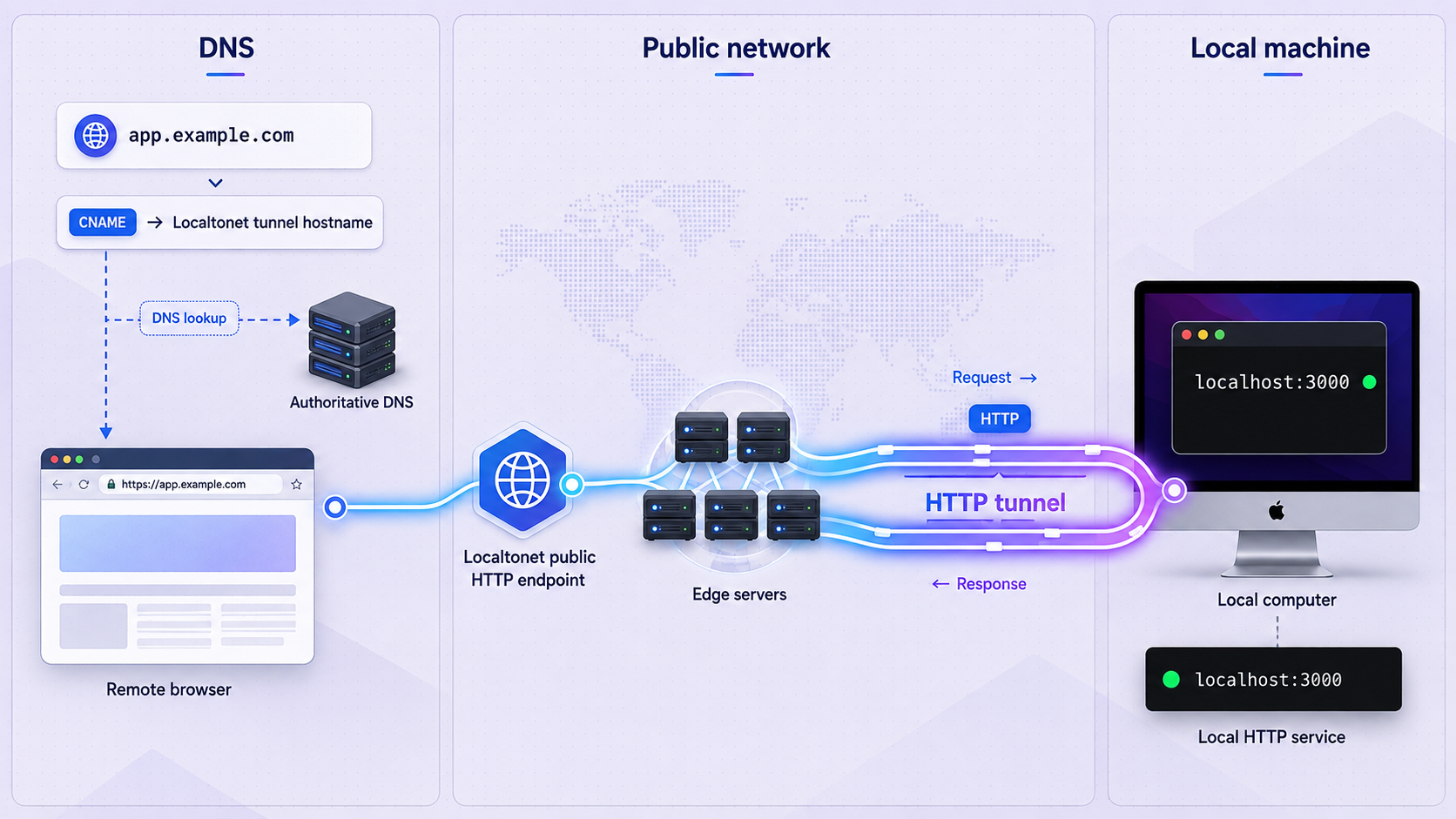
Localtonet exposes a service running on your machine through an outbound connection to our relay infrastructure. You do not need inbound router port forwarding, a public IP address, firewall changes, or a separate VPN setup for a standard HTTP tunnel.
HTTP and File Server tunnels can use a generated subdomain, a selected subdomain where supported, or a custom domain. An HTTP tunnel serves through a public HTTPS address. Raw TCP and UDP tunnels instead use public host-and-port endpoints, so their connection details should not be described as ordinary HTTPS URLs.
The workflow below focuses specifically on an HTTP custom domain. Current options can vary by plan, client version, or dashboard configuration, so use the choices displayed in your account rather than assuming every option is universally available.
Prerequisites
- A domain you own.
- Access to the registrar account that controls its nameserver delegation.
- A Localtonet account.
- The Localtonet client installed on the device that can reach the local application.
- A connected device and its device-specific AuthToken available for selection.
- A local HTTP service that is already reachable by its local IP address and port.
- An inventory of all existing DNS records and a DNSSEC migration plan.
You can open Localtonet DNS Manager after signing in. Our published custom-domain guide identifies ns1.localtonet.com and ns2.localtonet.com as onboarding nameservers, but you should use the exact values currently displayed by DNS Manager in case the assigned values or workflow change.
Before directing the parent-zone delegation to Localtonet, recreate every DNS record required by your website, email, verification, and other services where DNS Manager supports it. If DNSSEC is active, coordinate the parent DS record as part of the move. An unmatched DS record can make the domain fail validation even when the visible records look correct.
Complete HTTP custom-domain workflow
Verify the local HTTP service
On the client device, open the service through the exact local IP address and port you intend to configure. Fix local startup, binding, or application errors before introducing DNS or tunneling.
Install and connect the Localtonet client
Run the Localtonet client on the device that can reach the service. Confirm that the device is connected. Treat its AuthToken as a credential and never place it in source code, DNS, screenshots, or public instructions.
Add the root domain to DNS Manager
Open DNS Manager, add the root domain such as example.com, and note the nameservers displayed for the zone. Do not add www or an application subdomain as the root-domain value unless the current product workflow explicitly instructs you to do so.
Prepare all required DNS records
Recreate the site's A, AAAA, CNAME, MX, TXT, CAA, verification, and service records as applicable. Compare names, values, priorities, and TTLs with the existing authoritative zone. Complete the DNSSEC plan before cutover.
Update nameservers at the registrar
Replace the previous nameserver set with the complete set currently shown in Localtonet DNS Manager. The registrar submits that delegation change to the registry and parent zone. Do not leave a mixture of unrelated old and new nameservers.
Verify the new delegation
Query the domain's NS and SOA records, check the parent delegation, and ask each Localtonet authoritative server directly for important records. If DNSSEC is enabled, verify DS and DNSKEY consistency before declaring the migration complete.
Open the HTTP Tunnel page
In the Localtonet dashboard, go to the HTTP Tunnel page and begin creating a new tunnel. Select the connected device or AuthToken that identifies the client responsible for running it.
Choose the relay and Custom Domain process type
Select a currently available relay server from the dashboard. Do not copy a server code from an old tutorial. Choose Custom Domain as the HTTP Process Type and select the registered domain and intended hostname.
Enter the local IP address and port
Configure the address that the connected client uses to reach the application, such as loopback when the service runs on the same device or a reachable LAN address when appropriate. Enter the application's actual listening port.
Create the tunnel
Save the configuration with the Create action. Creation stores the tunnel, but it does not mean the tunnel is running or publicly available.
Start the tunnel
Use the Start button after creation. The tunnel is available only while the selected client is connected and the tunnel is running.
Verify DNS, HTTPS, and application behavior
Query the public hostname, open its HTTPS address, inspect certificate validity, and test an application route that proves the correct local service responded. DNS publication, cached delegation, and certificate readiness do not have one guaranteed completion time, so verify the result instead of relying on a fixed waiting period.
For accompanying dashboard screenshots, see our custom-domain setup guide. The instructions above remain the operational checklist: prepare DNS safely, confirm the client and local target, create the tunnel, start it, and verify the public result.
Operate and stop the tunnel safely
Apply authentication and application-level authorization before exposing private tools, development consoles, or administrative interfaces. Limit access according to the application's capabilities and avoid publishing services that were never designed for untrusted internet traffic.
When public access is no longer required, stop the tunnel. Delete it if the configuration should not be reused. Stopping or deleting the tunnel does not automatically reverse a domain's nameserver delegation or restore records at a former DNS provider, so manage those DNS changes separately.
A saved tunnel remains unavailable until it is started. A running tunnel also depends on the selected Localtonet client staying connected and retaining network access to the configured local IP address and port.
Common DNS and custom-domain failures
The old address still appears
Query the authoritative server directly and compare its answer with the recursive resolver your device uses. If the authoritative result is current but the recursive result is old, caching is the likely cause. Also check browser, operating-system, application, and local network caches. Confirm that you changed the correct owner name and record type.
NXDOMAIN appears after creating a record
NXDOMAIN means the queried name was reported as nonexistent. Verify the exact hostname, including any accidental duplication caused by relative-name handling. Ask the authoritative servers directly. If they now return the record, a previous negative answer may still be cached.
The response is SERVFAIL
SERVFAIL indicates that the resolver could not produce a usable answer. Possible causes include unreachable authoritative servers, delegation errors, broken DNSSEC validation, or malformed authoritative behavior. Compare a validating recursive query with direct authoritative queries, then inspect NS, SOA, DS, DNSKEY, and signatures.
Some users receive different answers
Check every authoritative server. They should serve consistent zone data and appropriate SOA serials. Then compare recursive resolvers and remaining TTLs. Mixed delegation, an unsynchronized authoritative server, provider publication delays, and cached old data can all create different results.
A CNAME cannot be saved
Look for other records at the same owner. A CNAME cannot coexist with A, AAAA, MX, TXT, or other data at that name. At the zone apex, required SOA and NS records prevent an ordinary CNAME. Use a provider-supported apex feature only after confirming how that feature works.
Email stopped after a nameserver change
Verify that the destination zone includes the exact MX records supplied by the mail provider. Then check SPF, DKIM selectors, DMARC, and any verification records. Confirm that MX targets are hostnames and that those hostnames resolve correctly. Restoring only the website's A record does not restore email.
DNS resolves, but the Localtonet URL does not load
Test the local application first. Confirm its process is running, the configured IP and port are correct, and the Localtonet client can reach it. Then confirm that the selected device is connected and the tunnel status is running. Check that the custom hostname is attached to the intended HTTP tunnel and allow time for certificate readiness without assuming a guaranteed duration.
HTTPS reports a certificate problem
Confirm that public DNS points to the intended configuration and that the hostname was entered correctly. A certificate cannot validate the wrong hostname. If delegation or DNS records have just changed, verify authoritative and recursive answers before retrying. CAA restrictions can also affect compliant certificate issuance if the authorized issuer set does not permit the certificate authority used by the service.
Frequently asked questions
What is the difference between an A record and a CNAME?
An A record stores an IPv4 address directly. A CNAME makes its owner an alias of another hostname, which must then be resolved. The CNAME target might already be cached or accompanied by useful data, so it does not always require a fresh network lookup. A CNAME owner cannot contain other record data.
Why does a DNS change appear for some users but not others?
Recursive resolvers and local applications can hold cached data obtained at different times. Negative caching, delegation caching, DNS-provider publication, and local caches can also affect results. Compare direct authoritative answers with several recursive resolvers before concluding that the zone itself is inconsistent.
Can a TXT record contain a password or API token?
No. Public DNS data, including TXT records, is generally available to anyone who queries it. Publish only values specifically intended for public DNS, such as provider-issued verification strings or public DKIM keys. Never publish passwords, private keys, Localtonet AuthTokens, or API secrets.
What happens to email when authoritative nameservers change?
The new DNS provider does not automatically inherit the previous zone's mail configuration. Recreate MX, SPF, DKIM, DMARC, and verification records before cutover where possible. Missing or incorrect records can interrupt delivery or cause authentication failures.
Can I delegate only a subdomain to Localtonet?
DNS supports delegating a child zone with NS records, but Localtonet onboarding support for using that delegated subdomain as a managed zone must be confirmed in the current dashboard or documentation before relying on that design. Do not assume that adding child NS records alone completes Localtonet configuration.
Does creating a Localtonet tunnel make it immediately available?
No. Creating the tunnel saves its configuration. You must press Start, and the selected Localtonet client must remain connected. For a custom HTTPS hostname, DNS and certificate readiness must also be verified rather than assumed from a fixed activation time.
Does DNSSEC encrypt DNS records?
No. DNSSEC adds signatures that allow validating resolvers to check authenticity and integrity. It does not make public DNS records confidential. DNSSEC migrations require coordination between child-zone DNSKEY data and the DS record published through the parent zone.
Do TCP and UDP tunnels use the same kind of public address as an HTTP tunnel?
No. An HTTP tunnel is accessed through a public HTTP or HTTPS hostname. Raw TCP and UDP tunnels expose public host-and-port endpoints appropriate to those protocols. Always use the connection details displayed for the selected tunnel type.
Connect your domain to a local HTTP service
Prepare your DNS records, connect the Localtonet client, create an HTTP tunnel with the Custom Domain process type, and start it when you are ready to provide controlled public access.
Get Started Free →